Change or reset your account password
Change your panel password while logged in, reset it with an emailed link if you forgot it, and how that differs from a server's root password.
There are two passwords to keep apart. Your account password gets you into the panel at my.vpsnine.com. A server's root password is for the Linux server itself. New servers don't have one: you log in with your SSH key, and set a root password with passwd if you want one, for the serial console for example. They're separate, and changing one doesn't touch the other. The account password comes first; the root password is further down.
Change it while you're logged in
- Open Account.
- In Change password, enter your Current password, then the new one in New password and Confirm new password.
- Choose change password.
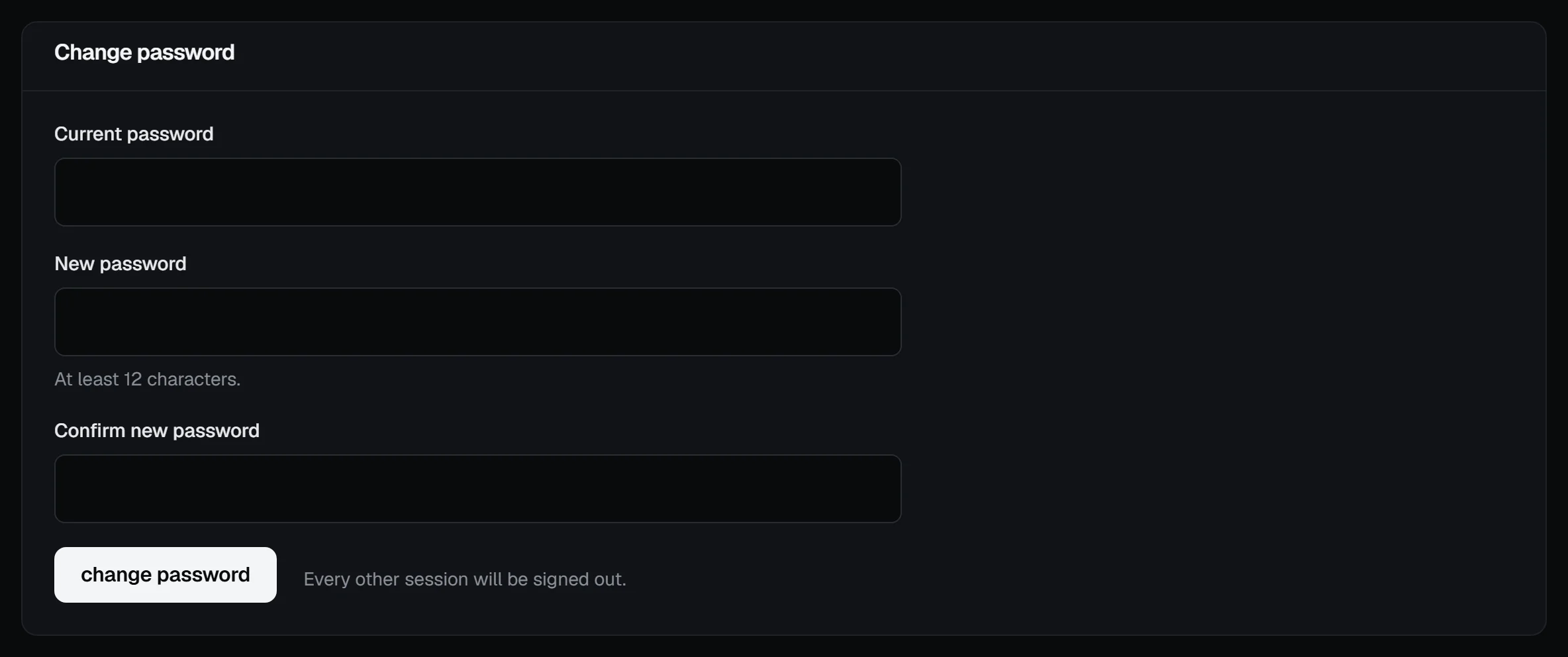
The new one needs at least 12 characters, can't be on our list of common passwords, and can't be your email address.
Every other session gets signed out; the one you're using stays logged in. Your API tokens keep working, so your scripts don't break; revoke any you don't recognise on the tokens page. We also email you to say the password changed, which is your early warning if it ever wasn't you.
Forgot it
- On the login page, choose forgot your password?
- Enter your account's email address and choose send reset link.
- Open the email titled "Reset your VPSNine password" and follow the link.
- On Choose a new password, type the new one twice and choose set new password.
The link works once and lasts an hour. If you asked more than once, use the newest email, because each request cancels the older links. If it's expired, the page tells you and offers send a new link.
After a reset, every session on the account is signed out and every API token is revoked, since a forgotten password might also be a stolen one. Make new tokens for your scripts afterwards. You're logged in on the device you used. If you have two-factor authentication on, you'll still be asked for a code: a reset doesn't turn 2FA off on a confirmed account.
One exception. If the account's email address was never confirmed, whoever signed up may not have owned the inbox, and the reset link proves you do. So the reset hands the account back to you clean: it also removes the account's SSH keys and 2FA, and confirms the address. Add your keys again before you order.
The page always says "If an account exists for that email, we sent a link", whether there's an account or not, so don't read anything into it.
If no email arrives, give it a few minutes and look in spam. Resets are limited to a few an hour, so asking ten times won't speed it up. If you've lost access to the email address itself, write to hello@vpsnine.com from another address and explain. We'll ask some questions to make sure the account is yours before we change anything.
A server's root password
Log in to the server over SSH and run:
passwdType the new password twice. Nothing shows while you type. For another user, it's passwd deploy (with their user name).
If you've forgotten root's password but can still get in with an SSH key, or as a user with sudo, sudo passwd root does it. If you can't get in at all, the serial console won't help, because it asks for the password you've lost. Reinstalling the server from the panel puts your SSH keys on a fresh system, but it wipes the disk.
Better still, stop using passwords for SSH altogether: Use SSH keys instead of a password.
Check it worked
Log out and back in with the new password. The activity log shows Password changed (or the reset), and we email you that the password changed.