Turn on two-factor authentication
Add a 6-digit code from an authenticator app to every login, save and renew your 10 recovery codes, and what to do if you lose your phone.
With two-factor authentication (2FA) on, logging in takes your password plus a 6-digit code from an app on your phone, so a leaked password is useless on its own. To turn it on, open Account → Security, choose set up an authenticator app, scan the QR code, and type a code and your password. It takes about two minutes.
What you need
- An authenticator app that does standard time-based codes (TOTP): Aegis, 2FAS, Google Authenticator, Microsoft Authenticator, or the one built into your password manager.
- Your account password.
- Somewhere safe for 10 recovery codes: a password manager, or paper.
Turn it on
- Log in at my.vpsnine.com and open Account → Security.
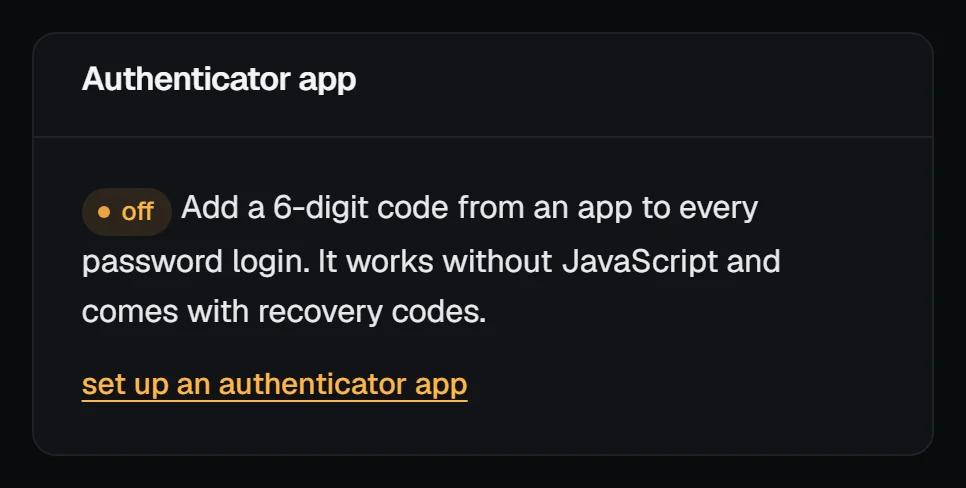
- In the Authenticator app box, choose set up an authenticator app. (The set up 2FA link on the Account overview goes to the same place.)
- Scan the QR code with your app. If you can't scan it, type the key shown beside it into the app instead, or, on the phone itself, tap open in an authenticator app.
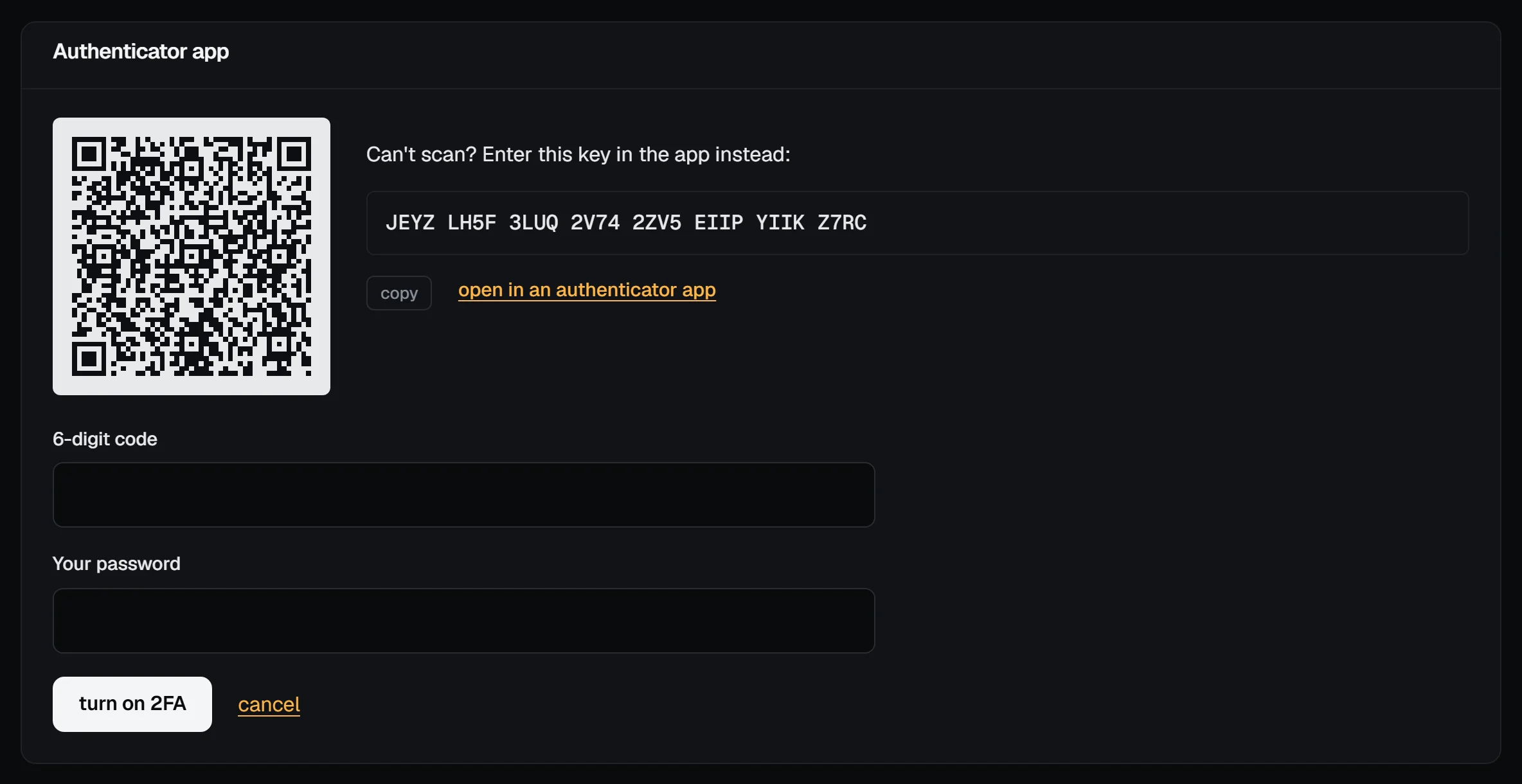
- Enter the code the app shows in 6-digit code, type Your password, and choose turn on 2FA.
Codes change every 30 seconds. If one is rejected, wait for the next, and check your phone sets its clock automatically; a phone that's a minute out will never agree with us.
Save your recovery codes
The moment 2FA is on, you get 10 recovery codes that look like abcd-1234. We show them once. Each code logs you in once without the app.
- Choose download .txt to save them as
vpsnine-recovery-codes.txt, or copy them into your password manager. Printing them works too. - Choose I saved them: back to security.
Keep them somewhere other than your phone. Without them, a lost phone means a slow manual identity check.
Check it worked
The Authenticator app box on the security page says on, with "recovery codes: 10 unused of 10". We email you whenever 2FA is turned on or off, so you'd notice if it wasn't you. Log out and back in once to be sure the codes work.
Make new recovery codes
The security page shows how many unused codes you have; the security checkup warns when fewer than 4 are left.
- In the Authenticator app box, choose make new recovery codes.
- Type your password and a code from your app (a recovery code works too), and choose make new codes.
- Save the new ten, with download .txt or copy.
New codes replace every old one, used or not. Making them doesn't sign out your other sessions.
Logging in with 2FA
After your email and password, the panel asks for a Two-factor code. Type the one from your app, or a recovery code, and choose verify. If you've added a passkey, you can choose use a passkey instead, and a passkey sign-in on its own skips the code.
You get five minutes and five tries per login. After that it says "Too many wrong codes. Log in again" and you start over from the password. Wrong codes are counted per account as well, so after a lot of failures you may have to wait 15 minutes before trying again.
Turn it off
In the Authenticator app box, choose turn off. You'll need your password and a current code (a recovery code works too). Your recovery codes are deleted with it.
On a team whose owner requires 2FA, turning it off locks you out of that account until you turn it on again.
If you lose your phone
Log in with a recovery code (or a passkey, if you have one), then turn 2FA off and on again with the new phone. That also gives you ten new codes.
With no phone and no recovery codes, email hello@vpsnine.com from the address on your account. We'll need you to prove the account is yours before we change anything, so expect questions and a wait.
Troubleshooting
- "That code did not match. Check the time on your phone and try the next code." at setup: set the phone's clock to update automatically, then use the next code. The key must be typed exactly, without spaces if your app objects to them.
- "Too many wrong codes. Log in again": start the login over from your password.
- No recovery codes left: log in with the app, then make new ones as above before you need them.