Sign in with a passkey
Add a passkey and sign in to VPSNine with your fingerprint, face, device PIN or a security key. Adding, naming, removing and the limits.
A passkey lets you sign in to my.vpsnine.com with your fingerprint, face, device PIN or a security key, with no password and no code to type. Add one under Account → Security → add a passkey; it takes about a minute, and you can have up to 10.
A passkey is a key that your phone, computer, security key or password manager keeps for my.vpsnine.com only. A look-alike login page can't use it, so it can't be phished the way a password or a 6-digit code can.
What you need
- A recent browser with JavaScript. Without them, your password and authenticator app work as always.
- Your account password, and a code from your authenticator app if you use one.
- Something to keep the passkey: Touch ID or Face ID on Apple devices, Windows Hello, Android, a password manager that stores passkeys, or a security key such as a YubiKey.
Add a passkey
- Open Account → Security and choose add a passkey.
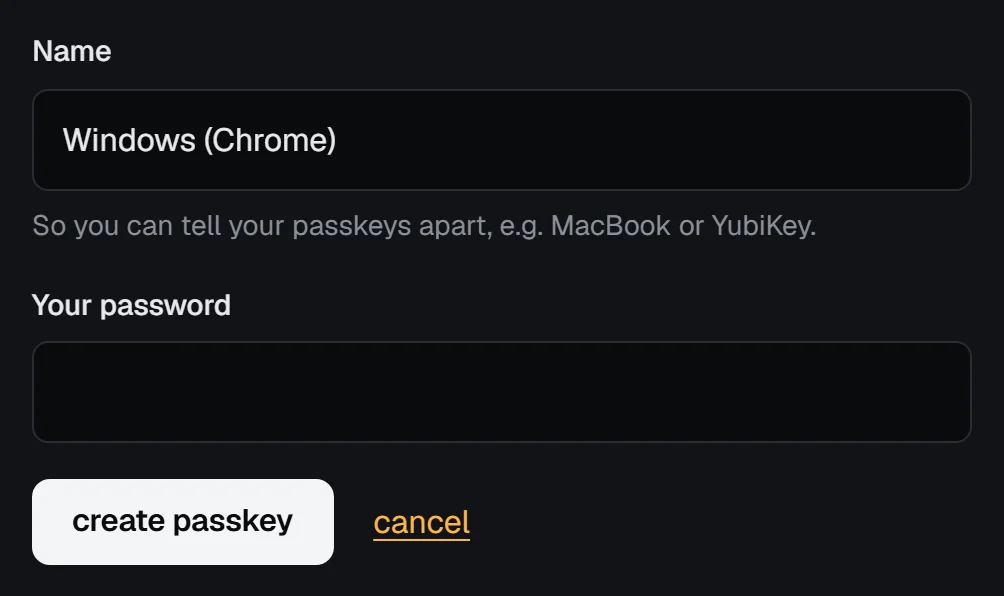
- Give it a Name you'll recognise later, up to 64 characters, like
MacBookorYubiKey. The field suggests one from your browser. - Type Your password. If you use an authenticator app, type a code from it too.
- Choose create passkey and follow your browser's prompt: touch the sensor, look at the camera, enter your device PIN, or touch your security key.
If you already have a passkey and no authenticator app, the page first asks you to confirm with a passkey you already have. That stops someone who learned your password and got hold of a signed-in browser from adding a passkey of their own.
Check it worked
The Passkeys list on the security page shows the new passkey, and we email you that a passkey was added. The security checkup now counts two-step sign-in as in order.
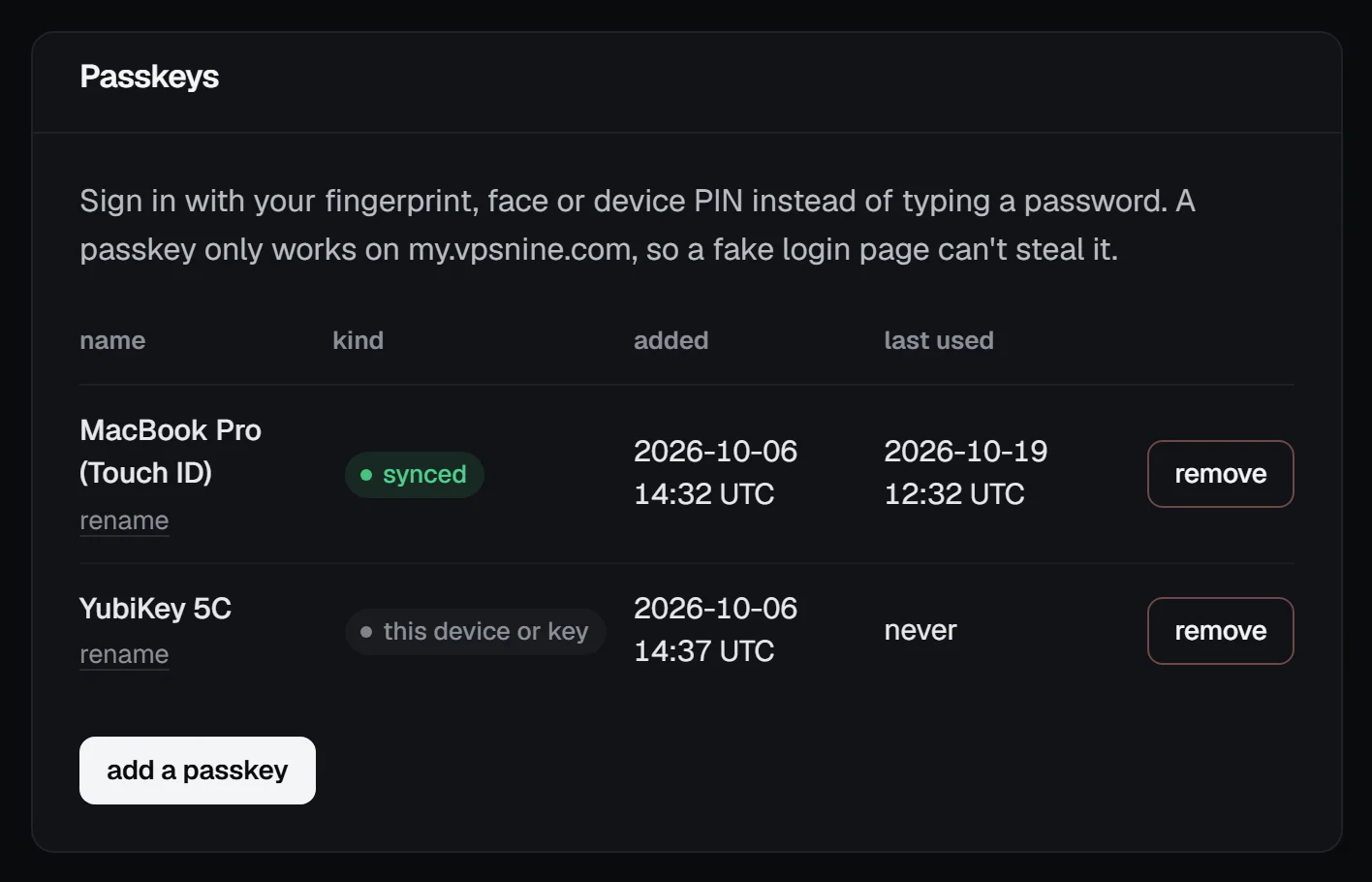
Each passkey is marked synced (your password manager or your Apple or Google account keeps a copy, so it reaches your other devices) or this device or key (it lives on one device or security key only). Having one of each is a good way not to get locked out.
Sign in with a passkey
On the login page, choose sign in with a passkey, or pick your passkey from the email field's suggestions where your browser offers them. A passkey sign-in counts as both steps at once, so you aren't asked for an app code afterwards.
If you use an authenticator app, the code page after your password also offers use a passkey instead.
Adding a passkey doesn't change the password login: if you have no authenticator app, you can still sign in with your password alone. To require a second step on every password login, also set up an authenticator app.
Rename or remove a passkey
- rename under its name changes the label.
- remove on its row deletes it, after asking for your password. It stops working at once, and we email you. Delete it from your device or password manager too, so it stops offering itself.
Troubleshooting
- "You have 10 passkeys, the most an account can hold." Remove one you no longer use.
- The browser prompt never appears. Check that JavaScript is on and the browser is up to date, and that you're on my.vpsnine.com itself. Passkeys don't work inside another site's frame.
- "Passkey refused: its counter went back" in your security events. A device-bound passkey reported an older counter than last time, which can mean it was copied. Remove it and add it again; if you didn't expect it, change your password too.
- Lost the device with your only passkey. Sign in with your password (and app code, if you use one), remove the lost passkey, and add a new one.