Check your account in the security center
The security center scores your VPSNine login out of 100, lists what to fix, and shows your passkeys, 2FA, signed-in browsers and security events.
The security center, at Account → Security, checks how your VPSNine login is protected and gives it a score out of 100, with a link to fix each item that needs it. The same page holds your passkeys, your authenticator app and recovery codes, every browser that's signed in, and the last 40 security events.
What you need
- A VPSNine login. The security center is always about your own login, whichever team account you have open.
Open it
Log in and open Account → Security. The page is in this order: Security checkup, Passkeys, Authenticator app, Where you're signed in and Recent security events.
The checkup
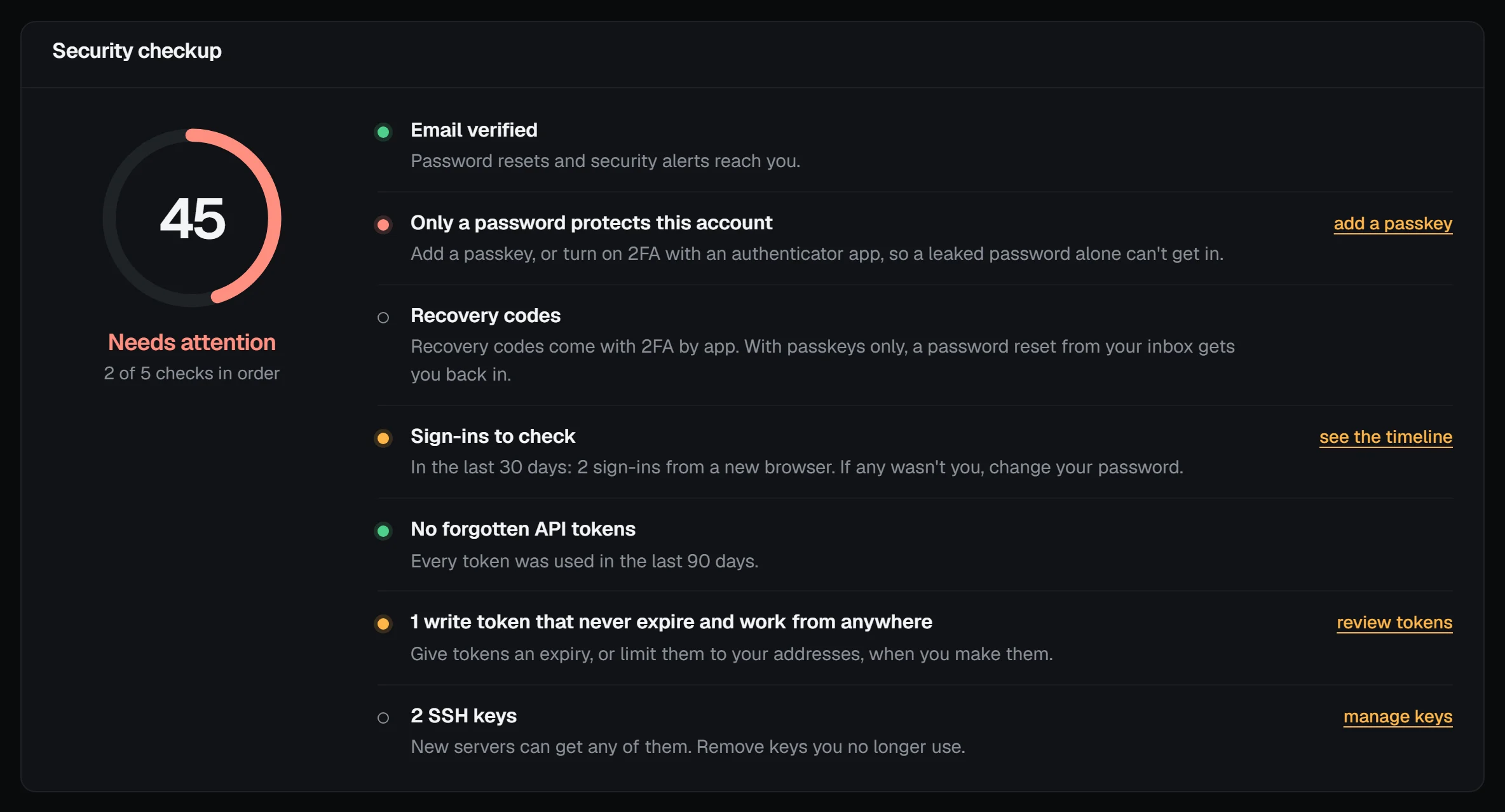
| Check | In order when | Weight |
|---|---|---|
| Email verified | your address is confirmed, so resets and alerts reach you | 2 |
| Two-step sign-in | you have a passkey or an authenticator app | 4 |
| Recovery codes | you have 4 or more unused codes (only counted with an authenticator app) | 1 |
| Sign-ins | no lockouts and no passkey refused for a counter that went back in the last 30 days; new browsers or 5 or more failed attempts make it "worth a look" | 2 |
| Forgotten API tokens | every token was used in the last 90 days | 1 |
| Open write tokens | every read-and-write token expires or is limited to your addresses | 1 |
| SSH keys | for your information only | 0 |
An item in order counts in full, one worth a look counts half, and one that needs attention counts nothing. The score is the share of the weights you've got, so turning on two-step sign-in moves it the most. 85 and up reads Strong, 60 and up Good, with gaps, and below that Needs attention.
Fix what it finds
- Only a password protects this account: choose add a passkey, or set up an authenticator app.
- Few or no recovery codes left: choose make new codes (see two-factor authentication).
- Sign-ins to check or Unusual sign-in activity: choose see the timeline and look at each new browser and failed attempt. If one wasn't you, change your password and sign that browser out.
- API tokens unused for 90 days or write tokens that never expire and work from anywhere: choose review tokens and revoke or replace them. A new token can be given an expiry and an address range when you make it.
- SSH keys: remove keys you no longer use under manage keys.
Where you're signed in
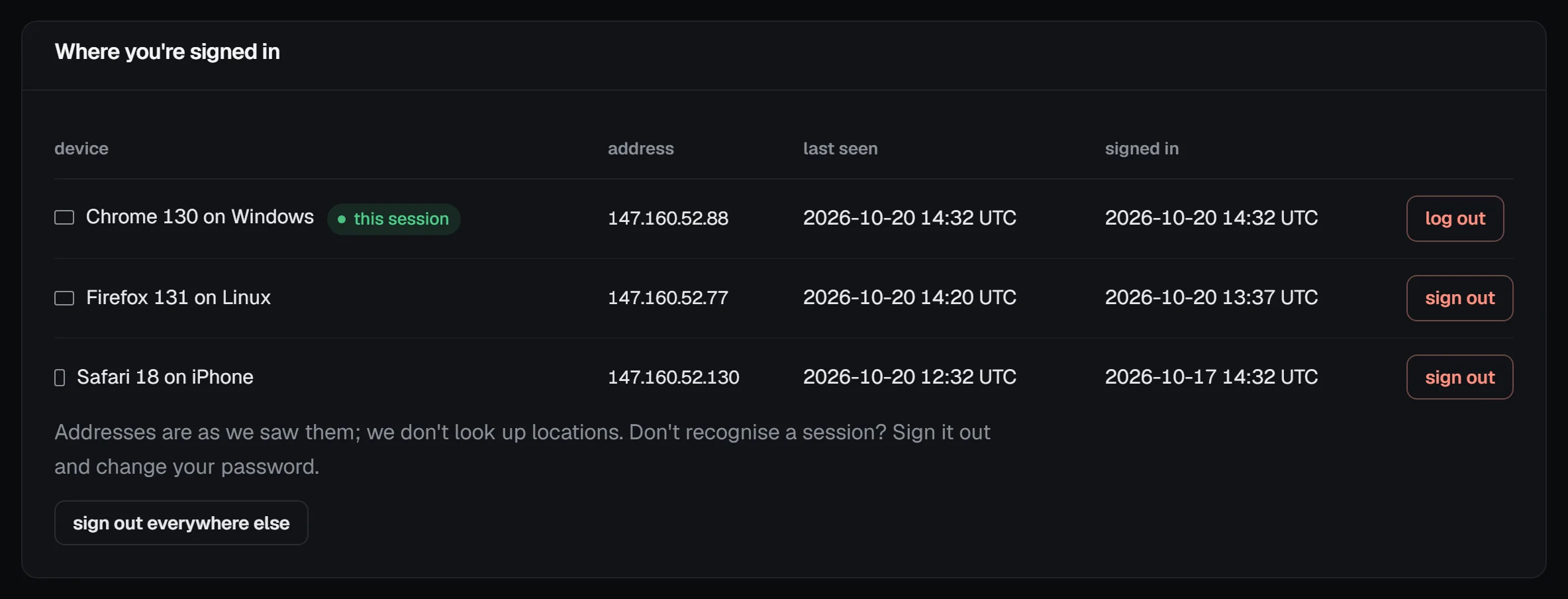
Each signed-in browser has a row with its device, address, when it was last seen and when it signed in. sign out ends one browser's session; sign out everywhere else ends every session but yours. Sessions and activity has the details.
Recent security events
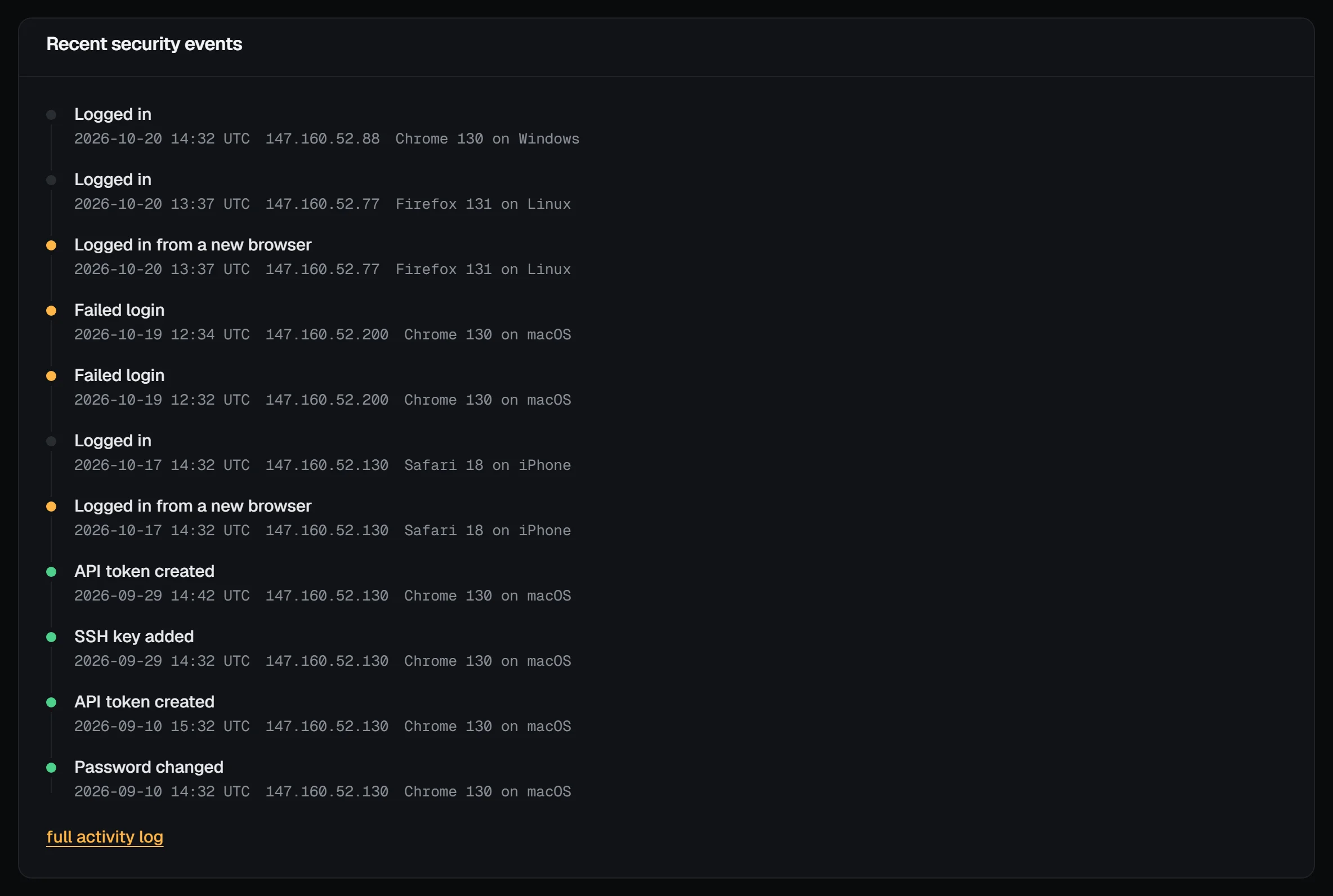
The timeline lists the last 40 events on your login with their time, address and browser: logins and failed logins, logins from a new browser, passkeys and 2FA changes, password changes, recovery codes used or made, SSH keys and API tokens added or removed, email changes and data downloads. full activity log opens the last 50 as a table.
Check it worked
After a fix, reload the page: the item's dot turns green and the score goes up. Sign-in items look back 30 days, so they clear on their own once the events are older.
Troubleshooting
- The score didn't change after adding a passkey. Reload the page; the score is worked out each time it opens.
- "Sign-ins to check" after you logged in from a new laptop. That's expected: a browser we haven't seen before counts. If it was you, nothing to do.
- You can't add a passkey. Passkeys need JavaScript and a recent browser. An authenticator app works without either.