Share an account with your team
Invite people by email, give each a role, switch between accounts, require 2FA for everyone, see who did what, remove someone, leave, or hand the account over.
A VPSNine account can have up to 25 people on it. Each person logs in with their own email, password and two-factor authentication and gets only what their role allows, so nobody shares a password, and the account's activity log shows who did what. You manage the team at my.vpsnine.com/team.
What you need
- To invite people, change roles or settings: be the owner or an admin of the account.
- The people you invite need a VPSNine login with the invited email address, confirmed. They can sign up when they accept.
Roles
Every person on an account has one role. This table is the panel's own permission list:
| What | Owner | Admin | Billing | Technical | Read only |
|---|---|---|---|---|---|
| See servers | yes | yes | yes | yes | yes |
| Power, reinstall, delete, firewall, snapshots, rescue, reverse DNS, alerts | yes | yes | no | yes | no |
| Serial console | yes | yes | no | yes | no |
| Order servers, change add-ons | yes | yes | no | no | no |
| See invoices, credit and billing details | yes | yes | yes | no | yes |
| Pay, add funds, billing details, monthly or yearly, cancel at period end | yes | yes | yes | no | no |
| See SSH keys | yes | yes | yes | yes | yes |
| Add and delete SSH keys | yes | yes | no | yes | no |
| Read tickets | yes | yes | yes | yes | yes |
| Open and answer tickets | yes | yes | yes | yes | no |
| See the team | yes | yes | yes | yes | yes |
| Invite, change roles, remove, team settings | yes | yes | no | no | no |
| Account activity | yes | yes | no | no | no |
| Transfer ownership | yes | no | no | no | no |
| API tokens (never more than the role) | yes | yes | yes | yes | read only |
Each account has exactly one owner. Ordering and add-ons take the owner or an admin because both make an invoice and change what runs. If someone tries something their role doesn't allow, the panel says so and changes nothing.
Invite someone
- Open Team.
- Under Invite someone, type their Email and pick a Role.
- Choose send invite.
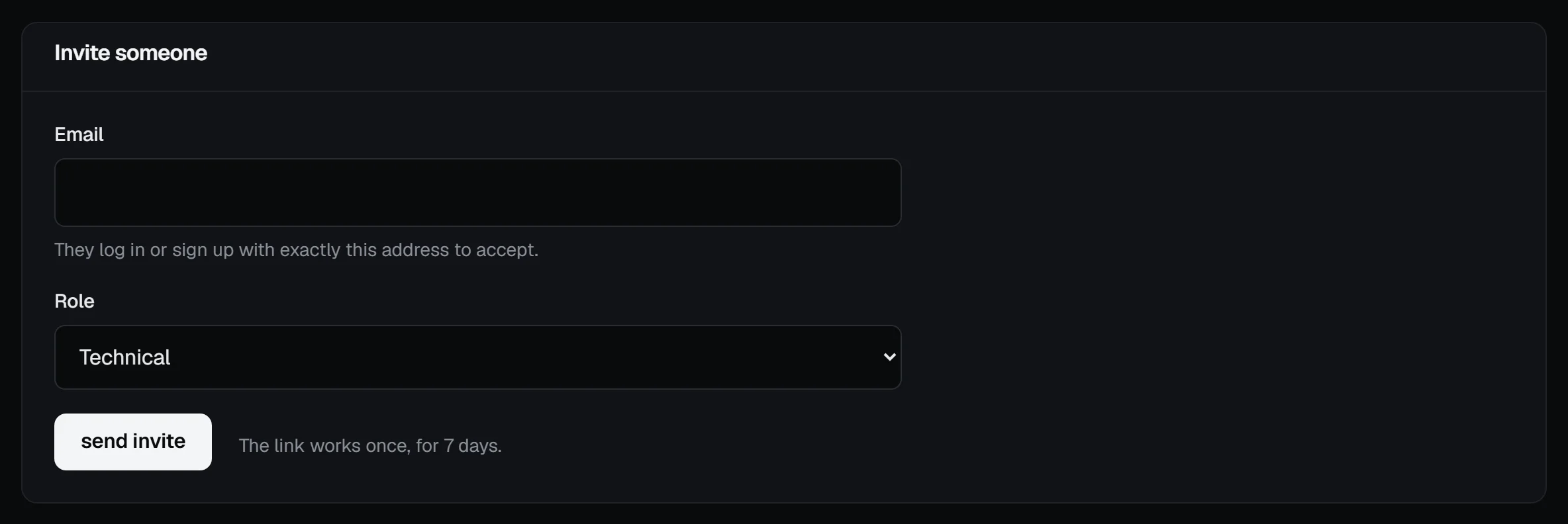
We email them a link. It works once, for 7 days, and only for that exact email address: they have to log in, or sign up, with it and have it confirmed before they can accept. Someone who gets hold of the link but logs in with another address can't use it.
Pending invites are listed under the form. resend sends a new link and restarts the 7 days (the old link stops working); revoke cancels the invite.

An account can have 25 people and 25 pending invites, and you can send 20 invites an hour.
Check it worked
When they accept, they appear under Members with their role, and the invite leaves the pending list.
Change a role or remove someone
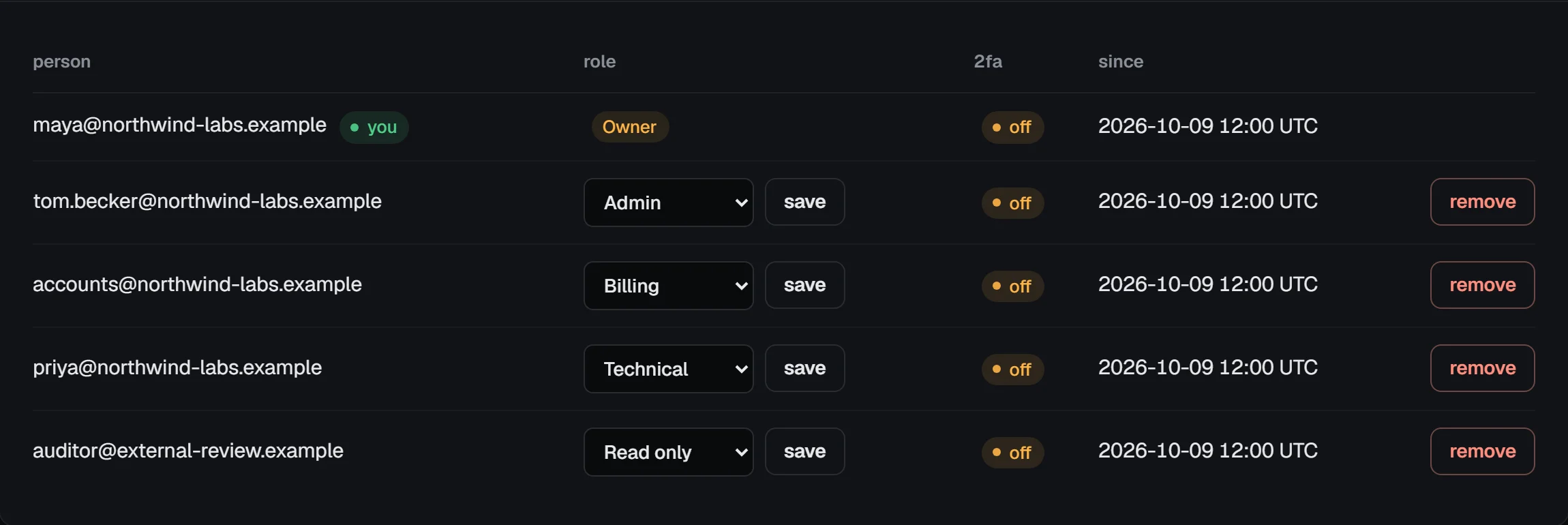
Pick the new role in the person's row and choose save. A new role applies on their next click and to their API tokens straight away; it also closes any serial console they had open on the account.
remove takes a person off the account. Their sessions on it are signed out at once, any console they had open closes, and their API tokens for it are revoked. Their own login and any other accounts they're on aren't touched, and we email them to say so.
Switch between accounts
Once you're on more than one account (your own and a client's, say), a menu appears at the top of the panel next to Search. It lists each account with your role on it. Pick one, and every page then shows that account.

The choice is per browser: another browser or device keeps its own. Your login settings under Account (password, 2FA, passkeys, sessions, notifications) are always yours, whichever account is open. Without JavaScript, pick the account and choose switch.
API tokens on a team
API tokens belong to the person who makes them, on the account they had open when they made it. A token never does more than its maker's role: a read-only member can only make read-only tokens, and if someone's role is lowered, their tokens are limited at once. GET /api/v1/me with a token shows which account it acts on and the role. See API tokens.
Require two-factor authentication
Owners and admins can tick Require two-factor authentication for everyone on this account under Settings and choose save settings. You need 2FA on your own login first, so you can't lock yourself out.
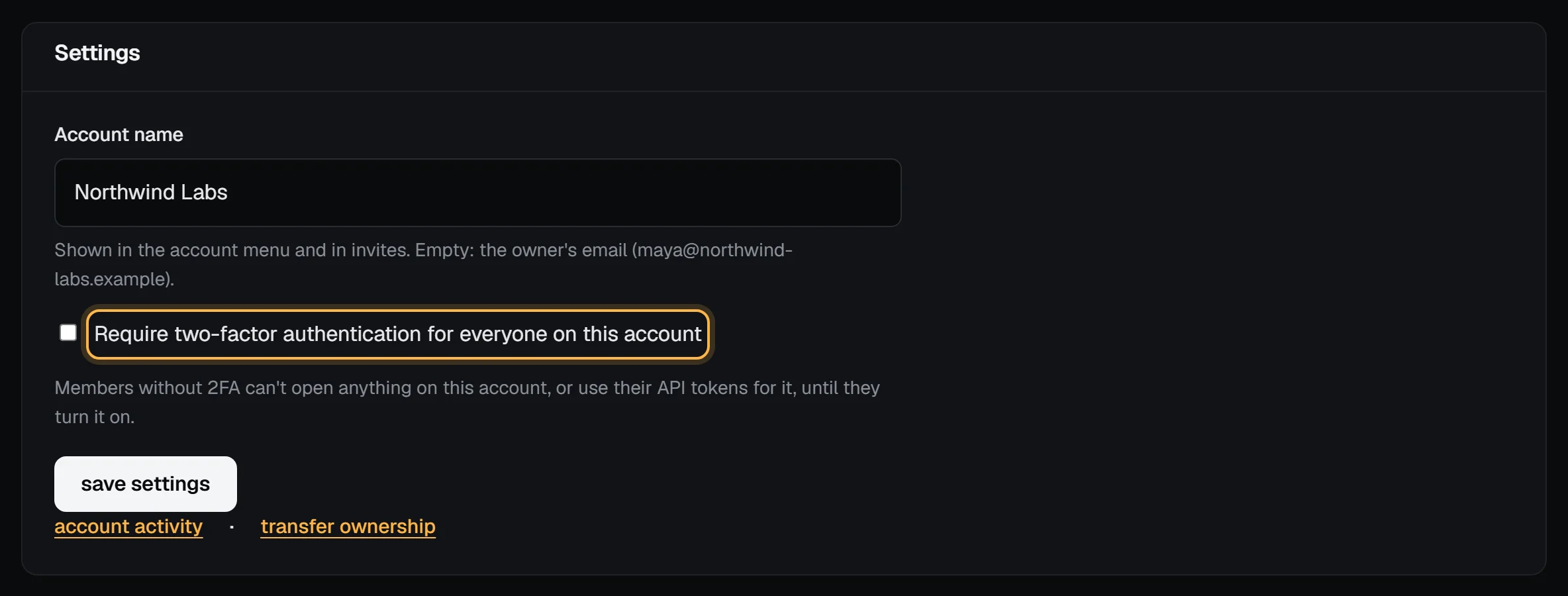
From then on, anyone on the account without 2FA sees a page asking them to turn it on instead of the account, and their API tokens for it answer 403 two_factor_required, until they do. Their own login pages, switching accounts and leaving still work. The 2fa column of the members table shows who has it.
Who did what
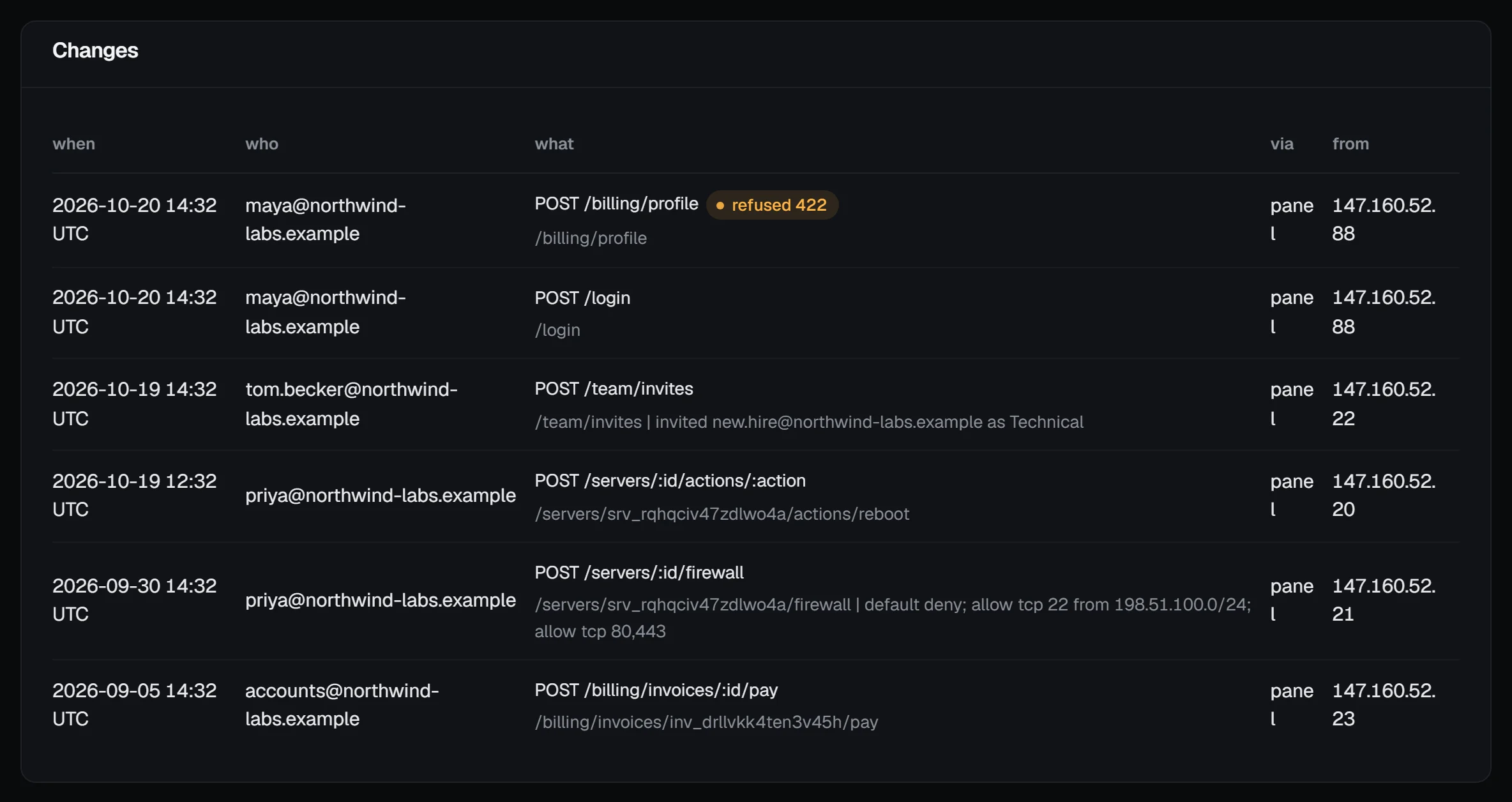
Owners and admins can open account activity from the team page: every change made on the account, newest first, with the person who made it, what they did, whether it came from the panel, the API or the vps9 CLI, and the address it came from.
Leave an account
To take yourself off an account, open its team page and choose leave this account. Your sessions on it end and your tokens for it are revoked; you're switched to your own account. The owner can't leave: transfer the account first.
Transfer ownership
The owner can make another member the owner under Settings → transfer ownership. It needs your password and a code from your authenticator app, so you need 2FA on first; without it, the page says so.

The new owner must have a confirmed email. You become an admin, and from then on invoices, receipts, server and ticket emails for the account go to the new owner. Both of you get an email. Only the new owner can transfer it back.
Billing stays with the account, not the person: invoices, payments and credit belong to the account whoever pays them, and account email goes to the owner.
Troubleshooting
- The invite link says it's for another address. Log out and log in (or sign up) with the exact address the invite was sent to.
- "Your role on this account (Read only) allows read-only tokens." Ask an owner or admin for a role that can write, or make a read-only token.
- A member sees a page asking for 2FA. The account requires it. They turn on 2FA from that page, and everything opens again.