Use the serial console
Reach your server's console from the browser when SSH won't connect, log in with a password, and fix the usual lockouts.
To reach a server when SSH won't connect, open it in the panel, choose the Console tab, press Enter and log in with the root password. The serial console is the server's own terminal, the one you'd see on a screen plugged into a physical machine, and it doesn't go through the server's network: it works after a firewall rule that shut you out, a broken sshd_config, a network change that went wrong, or a boot that stops before the network comes up.
What you need
- A running server. The console can't reach one that's stopped, suspended or being built.
- A password for root, or for your own user. New servers log in with SSH keys and have no password unless you set one when you ordered, so set one now, while SSH still works (next section).
Set a password while you still can
The console logs you in with a password, not an SSH key. Unless you set a root password when you ordered or reinstalled the server, root has no password, so the console has nothing to accept until you set one. Do it now, over SSH:
passwd rootIf you log in as your own user and use sudo, set that user's password instead with passwd. Make it long and keep it in your password manager. This doesn't turn on password logins for SSH; the console and SSH are configured separately.
Open it
- In the panel, open the server and choose the Console tab (or press
/, type the server's name and choose Console). - A terminal opens in the page and the line under it says
connectedwithin a few seconds. - Click in the terminal and press Enter. The console only shows what the server writes to it, and the login prompt it printed before you connected won't appear again until you ask for it.
- Log in as
root(or your user) with the password. Nothing shows while you type it.
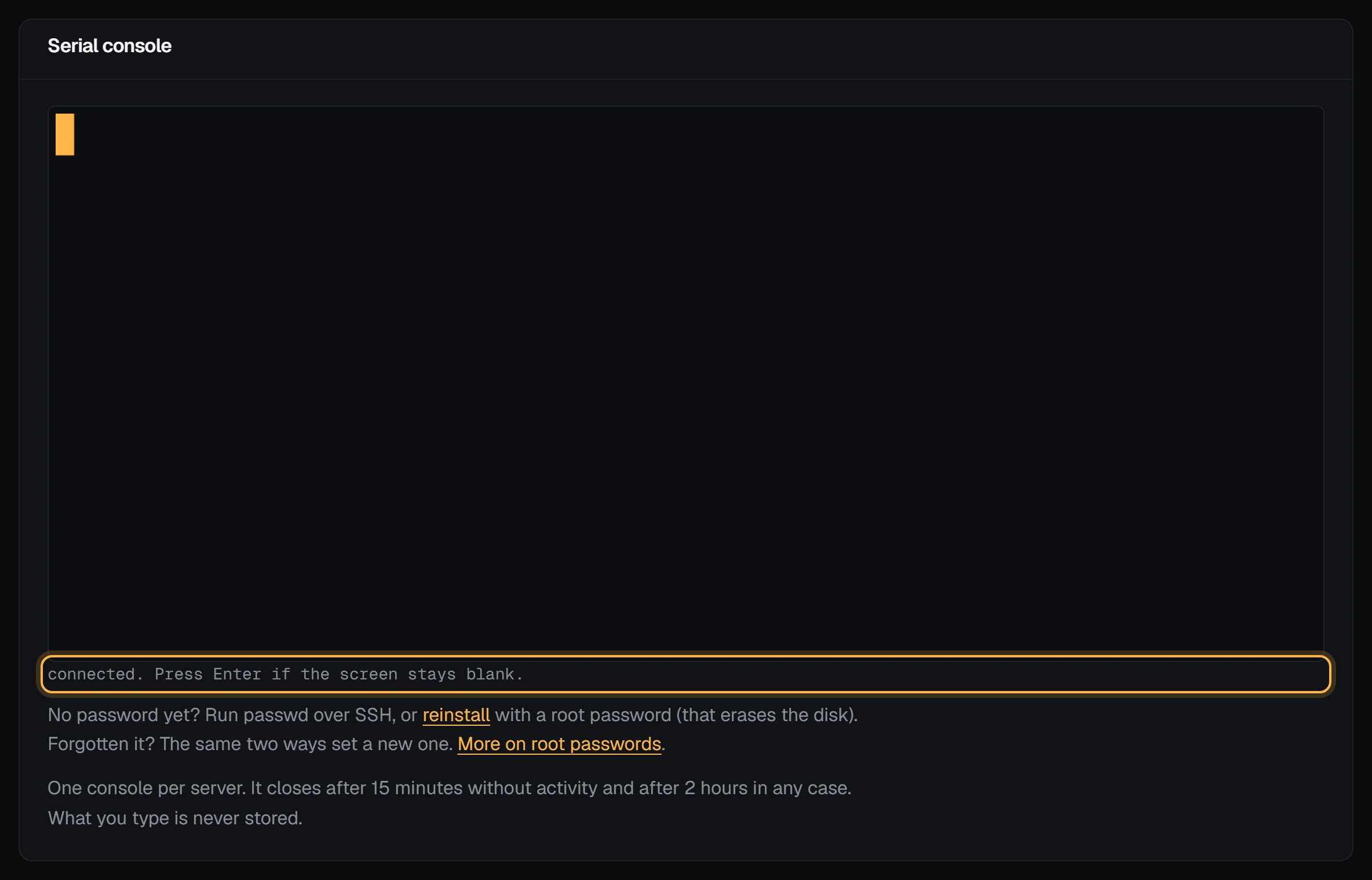
Check it worked: a login: prompt, then a shell prompt after your password. Run hostname to be sure you're on the right server.
The console is in the panel only. The vps9 CLI doesn't have a console command.
Limits
- One console per server at a time. If it's open in another tab, close that one first.
- A session closes after 15 minutes with no typing and no output, and after 2 hours whatever you're doing. The page tells you why it closed and offers a reconnect button, which starts a new session in the same window.
- Paste less than 64 KiB at a time. A bigger paste closes the session.
- We don't keep what you type or what the server prints. The server's event list records that a console session ran, how long it lasted, how many bytes went each way and why it closed.
- Full-screen programs like
nano,htopandlesswork, but the server doesn't know the size of your browser window. If they look cramped, set it withstty rows 40 cols 120, using numbers that fit.
Common fixes
- A firewall rule locked you out. If it's the panel firewall, change it in the panel; you don't need the console at all. If it's
ufwon the server, log in on the console and runufw allow OpenSSH, orufw disablewhile you sort the rules out. - sshd won't start after an edit.
sshd -tprints the line it doesn't like. Fix it, then runsystemctl restart ssh. - The network config is broken.
ip ashows what the interface has now. On Ubuntu, the config is under/etc/netplan/, andnetplan tryapplies a change and rolls it back after two minutes unless you confirm it. On Debian 12 it's usually/etc/network/interfaces. - The disk is full. Run
df -hto see which filesystem, thendu -xh / | sort -h | tailto find what's using it.
Troubleshooting
- The screen stays blank after Enter. The system may still be booting or may have stopped part way. Reboot it from the server's page and watch the console while it starts: boot messages show where it gets stuck.
Login incorrect. Root has no password yet, or it's not the one you think. With no working password, rescue mode lets you set a new one without erasing anything.- The server's console did not answer. Check that the server is running, then press reconnect. If it still shows nothing after you reboot the server from the panel, open a support ticket for that server.
- The session closed. It closes after 15 minutes without typing or output or after 2 hours. Press reconnect.
Next steps
- Rescue mode, when the system won't boot at all
- Set a root password
- Use the panel firewall
- Watch your server build, if a new server never answered SSH
Doing it on VPSNine
Every server on every plan has the serial console, whichever distribution it runs.