Use the panel firewall
Filter traffic before it reaches your server: allow and deny rules, a default policy, how it fits with ufw, and how to undo a mistake.
To filter what reaches your server, open its Firewall tab, write one allow or deny rule per line, pick the default for everything else, and press save firewall. The panel firewall runs on our side, in front of the server, so nothing inside the server can turn it off, and you can fix a mistake in it without logging in.
What you need
- A server, open in the panel on its Firewall tab.
- The ports your services use (22 for SSH, 80 and 443 for a website), and your own address if you want to limit SSH to it.
curl -4 ifconfig.meon your computer prints it.
It only filters incoming traffic. What your server sends out isn't touched, apart from outgoing mail on port 25, which is blocked separately.
Rules
Open the server in the panel and choose the Firewall tab. The rules go in the rules, one a line box:
deny any from 203.0.113.128/25
# SSH from the office only
allow tcp 22 from 203.0.113.0/28
allow tcp 80
allow tcp 443
allow udp 51820
allow icmp
Each line starts with allow or deny, then a protocol: tcp, udp, icmp or any. For tcp and udp you can add a port (22) or a range (8000-8100). Without one, the rule covers every port. Then, optionally, from and an address or network. Without from, the rule applies to everyone.
A few details:
- A single address works on its own, as in
from 203.0.113.7. - A network has to start at its first address.
203.0.113.7/24is refused, and the message tells you to write203.0.113.0/24. - IPv6 works the same way, as in
from 2001:db8::/32. icmpcovers ping and the rest of ICMP, for both IPv4 and IPv6. With afrom, it covers that address's family only.- Lines starting with
#are notes for you while you edit. They aren't saved. - You can have up to 50 rules.
Rules are checked from the top, and the first one that matches decides. Put narrow rules above broad ones.
The default
Under the rules is the default: what happens to traffic that no rule matched. A new server starts with the default set to allow and no rules, so nothing is filtered until you add some.
For a server that should only answer on a few ports, set the default to deny and allow only those. A web server you reach over SSH from your office could have:
allow tcp 22 from 203.0.113.0/24
allow tcp 80
allow tcp 443
with the default set to deny. If the default is deny and no rule allows SSH, the page warns you after you save.
Some traffic gets through whatever the rules say:
- Replies to connections your server opened itself, so updates, DNS lookups and calls to other APIs keep working with a deny default.
- ARP, and the parts of ICMPv6 that IPv6 can't work without: neighbour discovery, router advertisements, multicast listener queries and "packet too big" messages.
Two other protections sit outside these rules and are always on. Your server can only send from its own addresses, and outgoing port 25 is blocked unless we've opened it for you. You don't need rules for either.
Saving and undoing
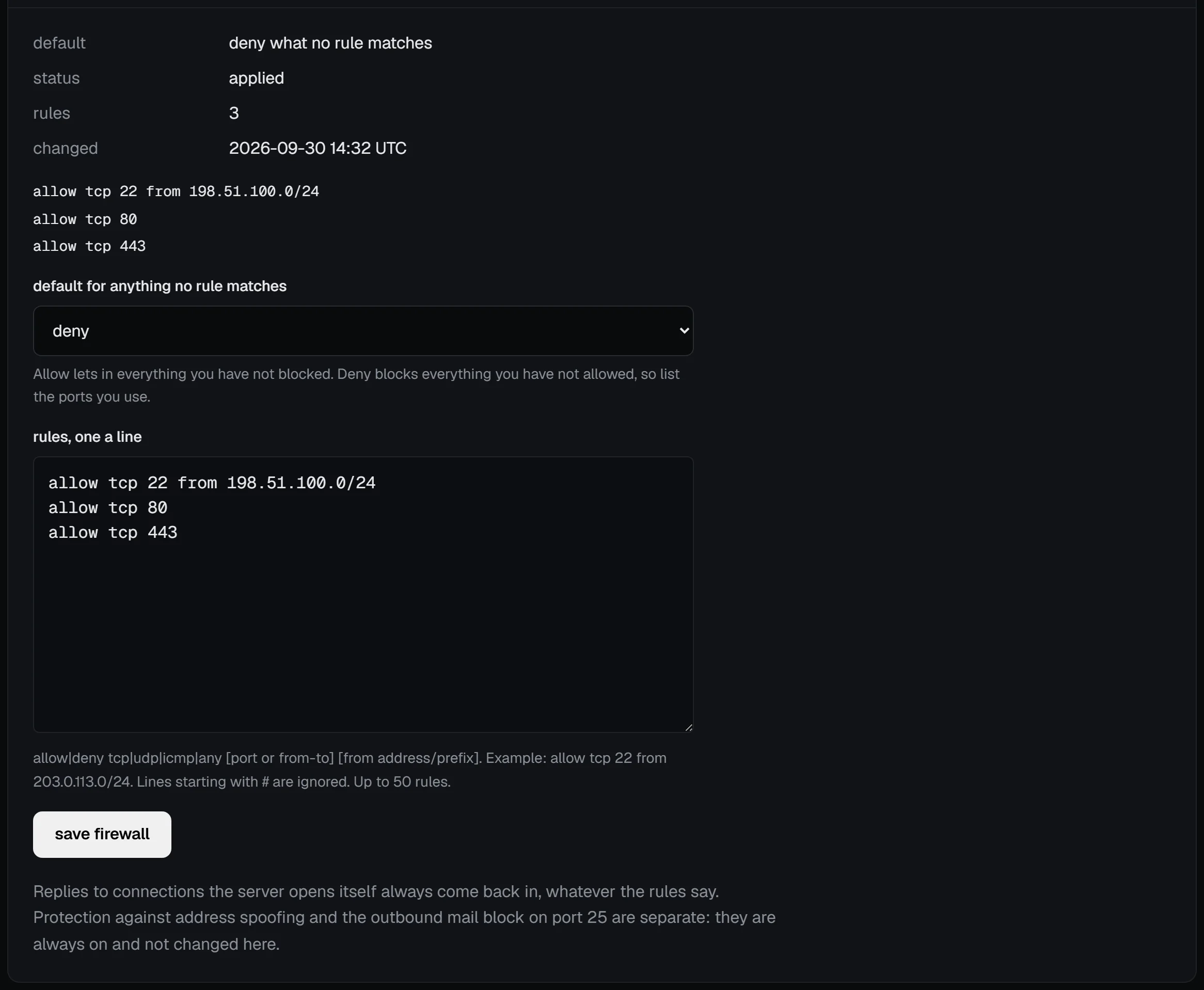
Press save firewall. The status shows applying… while the change reaches the server's host, which takes a few seconds; reload the page and it should say applied.
If it says failed, the change didn't reach the server and the rules it had before are still in effect. The rules on the page are the ones you saved, not the ones running. Save again to retry, and if it keeps failing, open a support ticket.
Partly applied means the host loaded your rules in a reduced form. "Without connection tracking" means every packet is checked against your rules, so with a deny default the replies to connections your server opens can be blocked too. "These rules are off" means incoming traffic isn't being filtered at all for now. Spoofing protection and the port 25 block stay on either way. The host tries the full set again every few minutes; save again later to check, and email us if it doesn't clear.
If a rule locks you out, change or remove it in the panel. The firewall doesn't need the server to be reachable, and the serial console works whatever the rules say, if you've set a password for it.
The vps9 CLI can do the same from a terminal:
vps9 firewall web-1                    # show the rules, numbered
vps9 firewall web-1 allow tcp 8080     # add one at the end
vps9 firewall web-1 rm 3               # remove the third
vps9 firewall web-1 policy deny        # change the default
vps9 firewall web-1 set rules.txt      # replace them all from a file
With ufw
You can use both. The panel firewall stops traffic before it reaches the server, and ufw filters inside it. A common split is to keep the panel firewall short, with a deny default and your public ports allowed, and use ufw for anything specific to one application.
Docker is where they differ. Ports it publishes go straight past ufw, but not past the panel firewall.
Troubleshooting
- "203.0.113.7/24 has host bits set: use 203.0.113.0/24". A network was written from the middle. Use the address the message gives.
- SSH stopped working after a save. With the default on deny, a rule must allow port 22 from where you are. Your address may have changed: add
allow tcp 22for your new one, or allow it from anywhere while you sort it out. - A website doesn't load but SSH works. Add
allow tcp 80andallow tcp 443. An app shows on the server's overview when the firewall blocks its ports. - The status stays on applying…. Reload the page after a few seconds. If it says failed, save again; the rules from before are still in effect.
Next steps
- Set up a firewall with ufw, inside the server
- SSH hardening checklist
- Use the serial console
- Your server's first hour
Doing it on VPSNine
The panel firewall comes with every plan at no cost. App pages list the ports each one-click app uses.