Watch your server build
What each step of the live build timeline means, what "SSH answering" checks, and what to do if SSH hasn't answered 10 minutes after the server started.
Once your order is paid, open the new server from your servers page: the top of its page is a timeline of the build, with a clock that counts from your order. Each step appears when it has actually happened, and the build ends at SSH answering, when the page gives you the ssh command to copy.
What you need
- A paid order. Until the invoice is paid, there's nothing to build. Order your first server walks through the order.
- The server's page open: click its name on your servers page. It shows provisioning while it builds.
The timeline, step by step
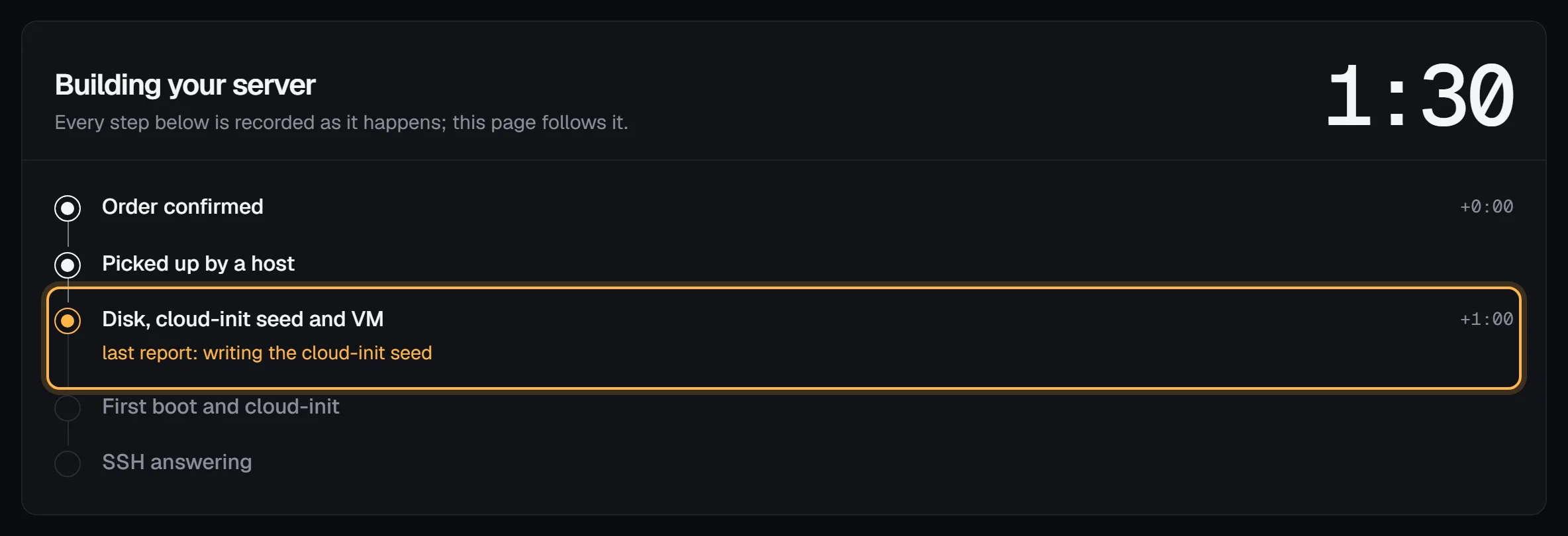
- Order confirmed. The moment the payment went through. The clock starts here, at
+0:00. - Picked up by a host. The machine that will run your server has taken the job. While it waits, the step says "queued: waiting for the host to take it".
- Disk, cloud-init seed and VM. The host creates the NVMe disk from the distribution's image, writes the first-boot settings (the cloud-init seed: hostname, your SSH keys, your app and setup script), applies your firewall rules, and starts the virtual machine. While it works, the step shows the host's last report, like "last report: creating the disk from the image".
- First boot and cloud-init. The system boots for the first time. cloud-init sets the hostname and installs your keys.
- SSH answering. The panel has reached port 22 on the server's IPv4 address from outside. The clock stops, and the title changes to Your server is ready.
Every time shown is a recorded one, counted from the order. Nothing is estimated or animated ahead of time: a step without a time hasn't happened yet. The page follows the build by itself every couple of seconds, so you don't need to reload it, and it pauses while the tab is in the background.
What "SSH answering" means
The panel opens a plain TCP connection to port 22 of the server, from outside, the way your computer will. It sends nothing and never logs in. When the connection opens, SSH is listening and reachable, so you can log in.
It checks for 10 minutes after the server first starts. It doesn't check your key or the login itself: if SSH answers but your login fails, see Troubleshooting.
When it's ready
The finished timeline shows how long the build took, then a Log in box: the ssh root@… command with a copy button, the SSH keys it works with, and the IPv4 and IPv6 addresses. Copy the command into a terminal:
ssh root@203.0.113.42The Next list beside it links to the four things worth doing first: set up the firewall, turn on automatic snapshots, add an alert, and set reverse DNS if the server will send email.
The timeline stays on the server's page for 30 minutes after the build ends. After that the page shows the usual server overview.
If you picked an app, packages or a setup script, they're still installing when SSH first answers. Watch them with tail -F /var/log/vps9-setup.log. One-click apps explains the log and the exit file.
If SSH hasn't answered after 10 minutes
The title changes to Running, but SSH hasn't answered, and the first-boot step says: "SSH has not answered from outside after 10 minutes. A firewall rule may block port 22, or the system may still be setting up: open the console to look."
Work through these in order:
- Check the panel firewall. Open the server's Firewall tab. If the default is deny, there must be a rule like
allow tcp 22(or one for your own address) above anything that denies it. Fix the rule and save; it applies in a few seconds. Use the panel firewall has the details. - Try SSH yourself. The check runs only during those 10 minutes; a slow first boot can answer just after. Run
ssh -v root@<address>and read the last lines. - Look at the console. Open the Console tab and press Enter. Boot messages and a login prompt mean the system is up; a message that stops part way through shows where it got stuck. You can only log in there with a root password, which a new server has only if you set one when you ordered. Use the serial console covers it.
- Check your setup script. A script that turns on
ufwwithout allowing SSH, or changessshd_config, can lock you out. If you used one, that's the likeliest cause. - Reboot it from the server's page, give it two minutes, and try again.
- Reinstall it if it still won't answer: a reinstall costs nothing and erases the disk, which on a new server holds nothing yet. Reinstall a server has the steps.
If none of that helps, open a support ticket with the server's name.
If the build stops
If a step fails, the title says The build stopped, the failed step says what the host reported, and the page offers a support ticket. Nothing more is needed from you: a paid server that hasn't been built after 10 minutes is tried again automatically, and if it can't be built at all we tell you and the payment goes to your account credit.
Troubleshooting
Permission denied (publickey). SSH answered, so the server is fine; your computer offered a key the server doesn't have. Point SSH at the key you picked when you ordered:ssh -i ~/.ssh/id_ed25519 root@<address>. The Log in box names the keys the server has.WARNING: REMOTE HOST IDENTIFICATION HAS CHANGED!The address was used before, by another server or a reinstall. Remove the old entry withssh-keygen -R <address>and connect again.Connection timed out. Something between you and the server drops port 22: the panel firewall, or a network on your side (some office and hotel networks block outgoing SSH). Check the firewall first.Connection refused. The server answers, but nothing listens on port 22 yet. Give the first boot a minute more, then look at the console.
Next steps
- Connect to your server with SSH
- Your server's first hour: a checklist
- The server overview page
- What happens when you order a server
Doing it on VPSNine
Every plan on vpsnine.com/plans is built the same way, from the distribution's official cloud image; the distribution pages list the versions.