Panel tour: every VPSNine panel guide, in order
A map of the VPSNine panel in the order you'll meet it, from signing up and ordering to the server's tabs, billing and your account, with a guide for each part.
The VPSNine panel at my.vpsnine.com is where you order, run and pay for your servers. This tour follows it in the order a new customer meets it, from sign-up to the last tab on a server's page, with the guide for each part.
What you need
- Nothing yet. If you don't have an account, the tour starts there.
1. Before your first server
- Create your VPSNine account
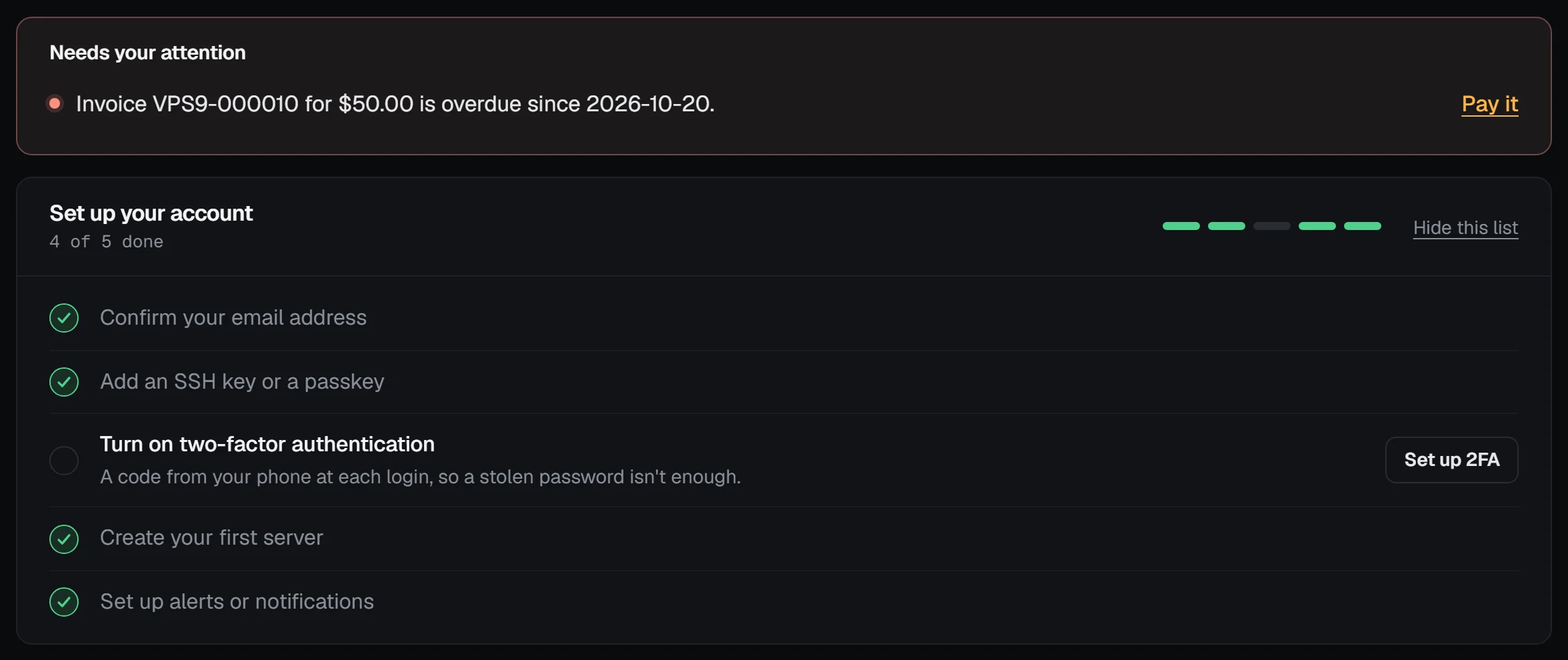
- Confirm your email address: orders need it.
- Add your SSH keys: how you'll log in to your servers.
- Turn on two-factor authentication, or sign in with a passkey.
The servers page keeps a checklist of these until they're done.
2. Ordering
- Choose a plan and a distribution.
- Optionally pick a one-click app, extra packages or a setup script, add-ons and a root password.
- Order your first server, step by step: the order form from the first step to the review.
- Pay the invoice, with Bitcoin, PayPal or account credit.
- What happens when you order a server: the whole path, and how billing works after.
3. The first minutes
- Watch your server build: the live timeline, and what to do if SSH doesn't answer.
- Connect to your server with SSH
- Your server's first hour: a checklist
4. Every day: your servers
- Your servers dashboard: needs attention, filters, tags and the table view.
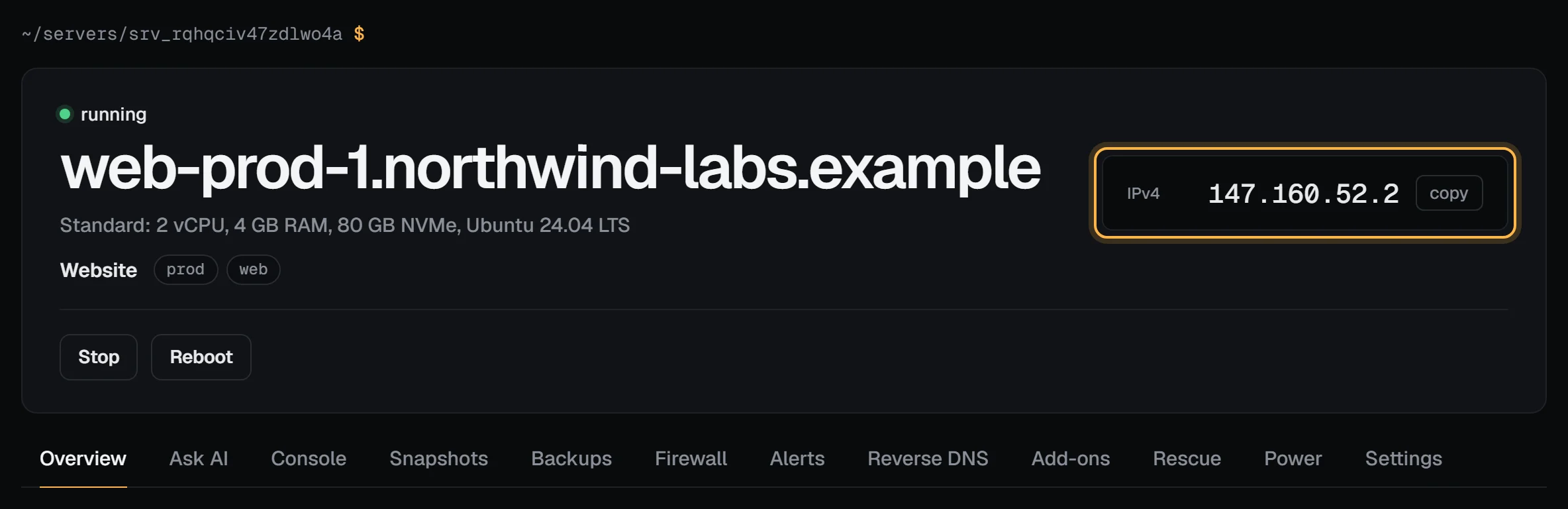
- The server overview page: state, addresses, usage at a glance, status cards and events.
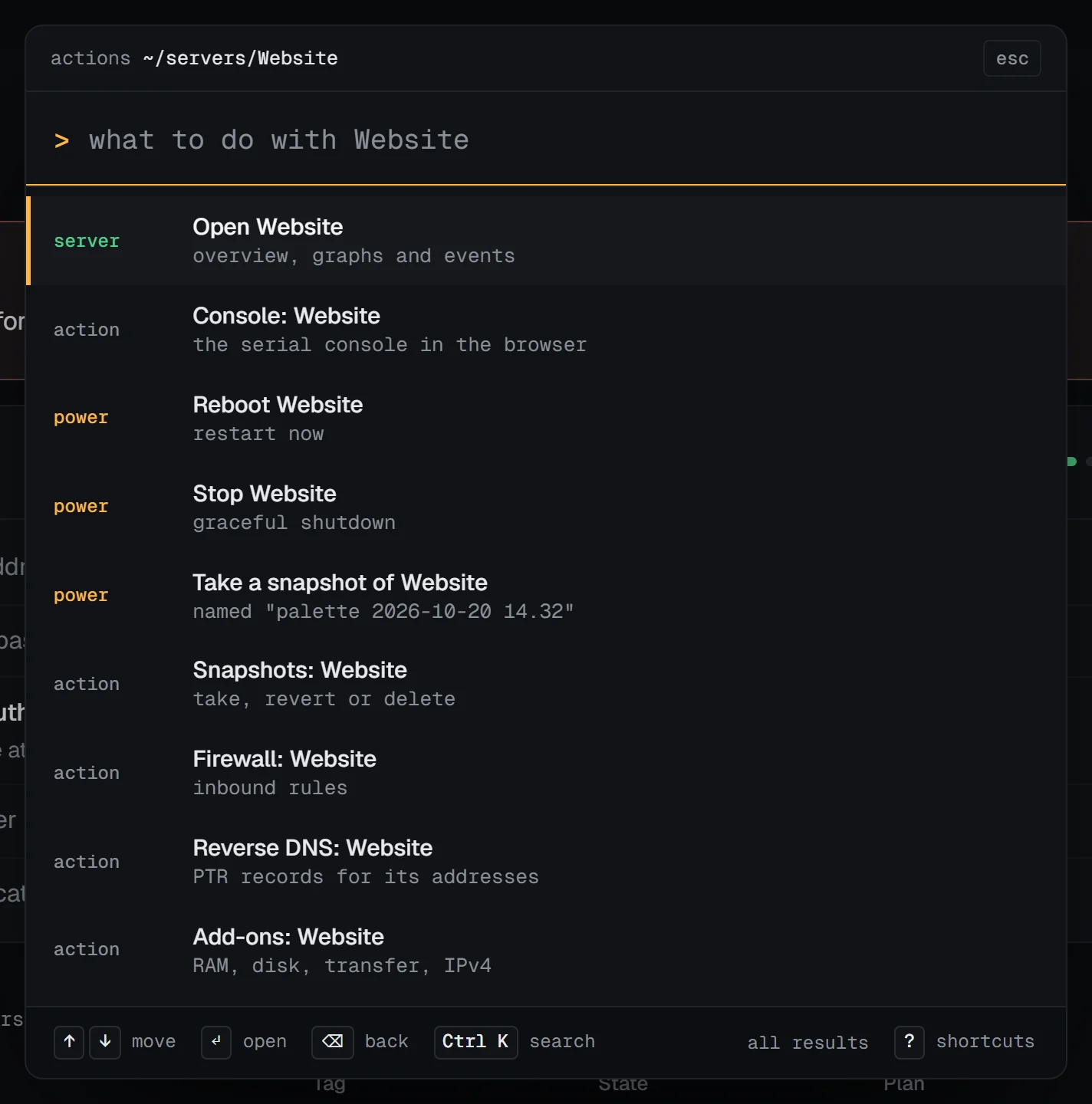
- Search, shortcuts, names and tags: press
/to find anything and act on it.
5. A server's tabs, left to right
The tabs under every server's header, in the order the panel shows them:
| Tab | Guide |
|---|---|
| Overview | The server overview page |
| Console | Use the serial console |
| Snapshots | Snapshots, and the automatic schedule |
| Firewall | Use the panel firewall |
| Alerts | Notifications and resource alerts |
| Reverse DNS | Set reverse DNS for your server |
| Add-ons | Add-ons |
| Rescue | Rescue mode |
| Settings | Server settings, Reinstall a server and Cancel or delete a server |
6. Billing
- Account credit, top-ups and invoices
- What happens if a renewal isn't paid
- The 14-day money-back guarantee
- Cancel a server
7. Your account and team
- Notifications and resource alerts: what reaches you, and how.
- Sessions and activity
- Teams: invite people, with the role each needs.
- Webhooks, API tokens, the API quickstart and the vps9 command line, to do all of the above from code or a terminal.
- Support and service status
When something goes wrong
- SSH won't connect: the serial console, then rescue mode.
- A change broke the server: revert to a snapshot.
- The server may have been broken into: What to do if your server is compromised.
- A payment went wrong: Payment methods.
Next steps
Start at the top if you're new: create your account. Already have a server? Go straight to the first-hour checklist.
Doing it on VPSNine
The plans the panel sells are on vpsnine.com/plans, the apps on vpsnine.com/apps and the systems on vpsnine.com/os.