Search, shortcuts, names and tags in the panel
Jump to any server, invoice or page from the keyboard, run actions from the command palette, and name, tag and filter your servers.
Press / (or Ctrl K, ⌘ K on a Mac) on any panel page to open the command palette, type part of a server's name, an invoice number or a page, and press Enter to go there. Press the right arrow on a server to act on it: console, firewall, snapshots, start, stop or reboot, without the mouse. The Search box in the header opens the same palette.
What you need
- A browser with JavaScript for the palette. Without it, the search box is a link to a search page that finds the same things.
The command palette
Type part of anything you have:
- a server's name, hostname, tag, IPv4 or IPv6 address, or id
- an invoice number, like
VPS9-000042, or just42 - a support ticket's subject
- an SSH key's name or fingerprint
- a page: billing, support, account, SSH keys, API tokens
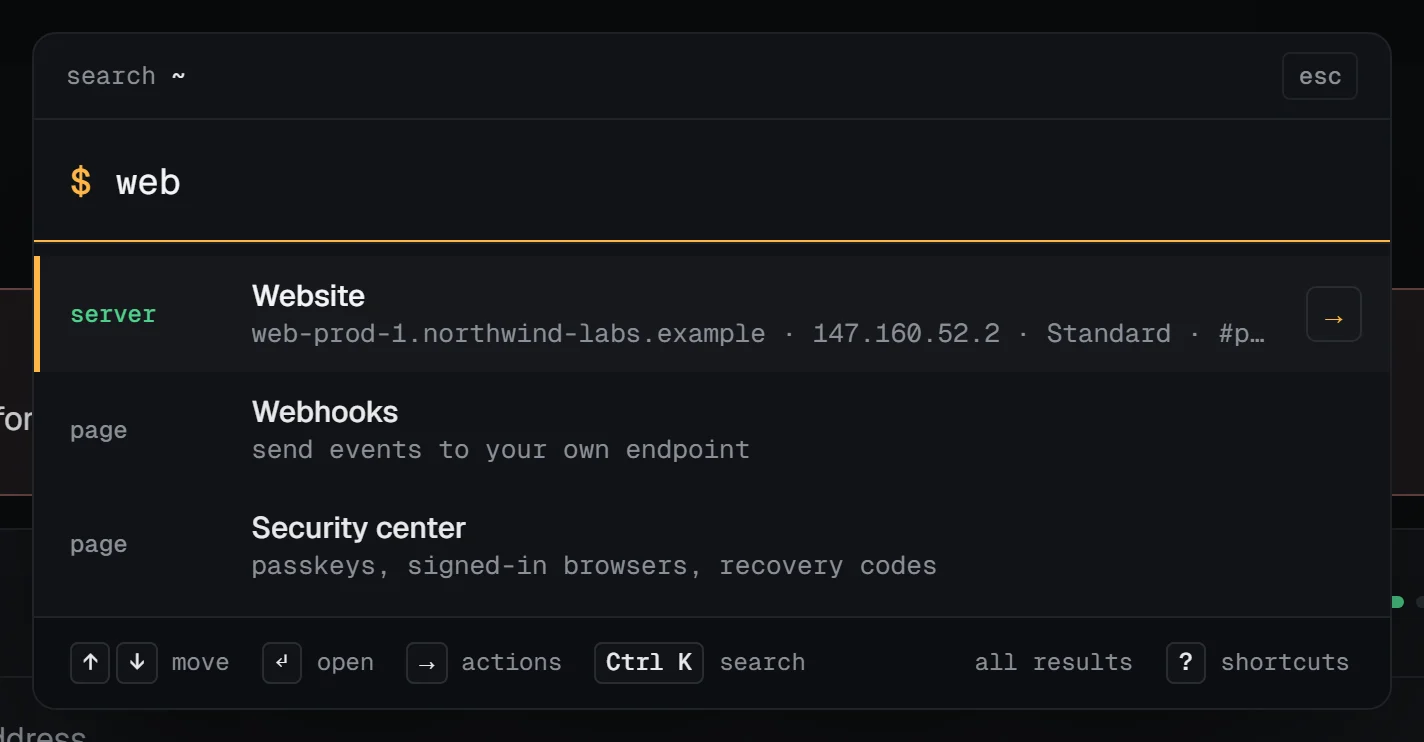
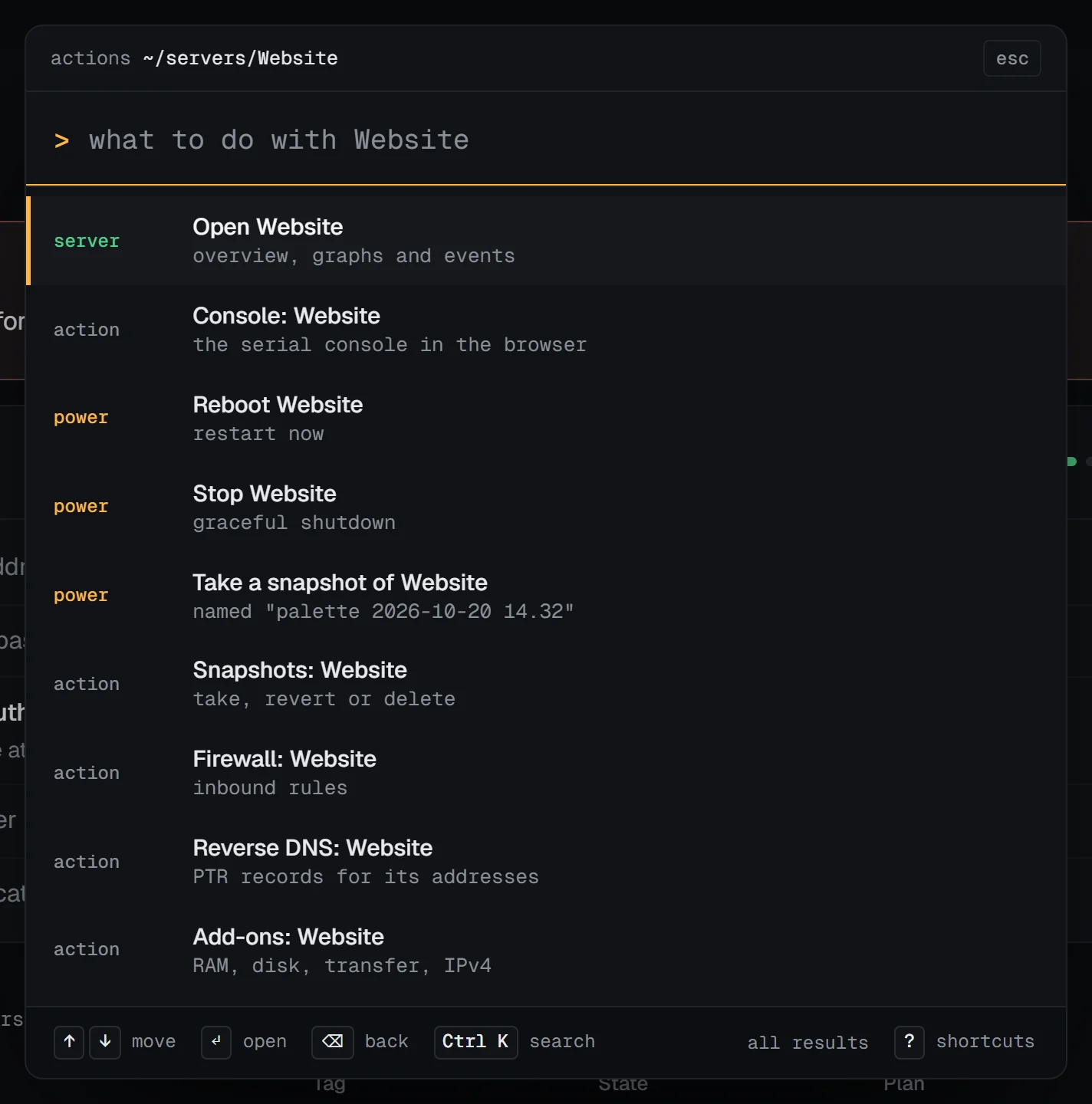
Move with the arrow keys and press Enter to open what's highlighted. On a server, press the right arrow (or Tab) to see what you can do with it: open its console, firewall, snapshots, reverse DNS or add-ons, copy its IPv4 address, open a support ticket about it, or start, stop and reboot it. Backspace in an empty box goes back.
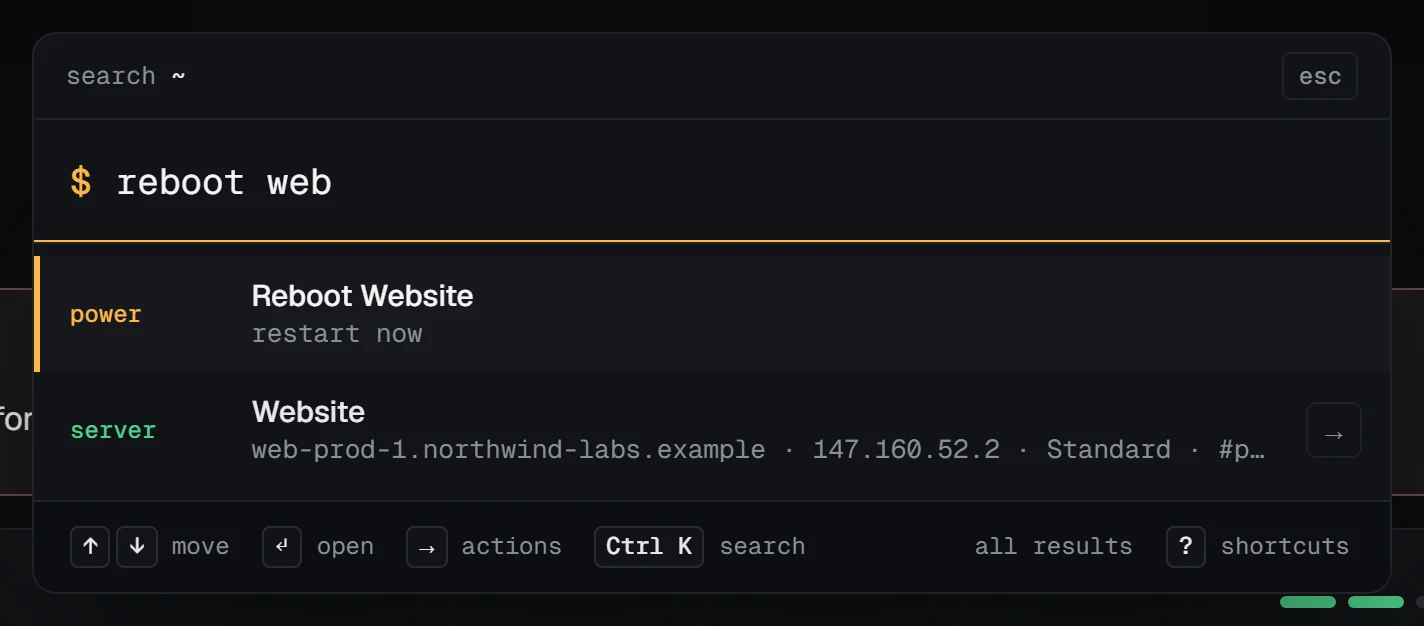
You can also start with what you want to do: reboot web, console db, stop staging, snapshot shop. The palette offers that action for each server that matches.
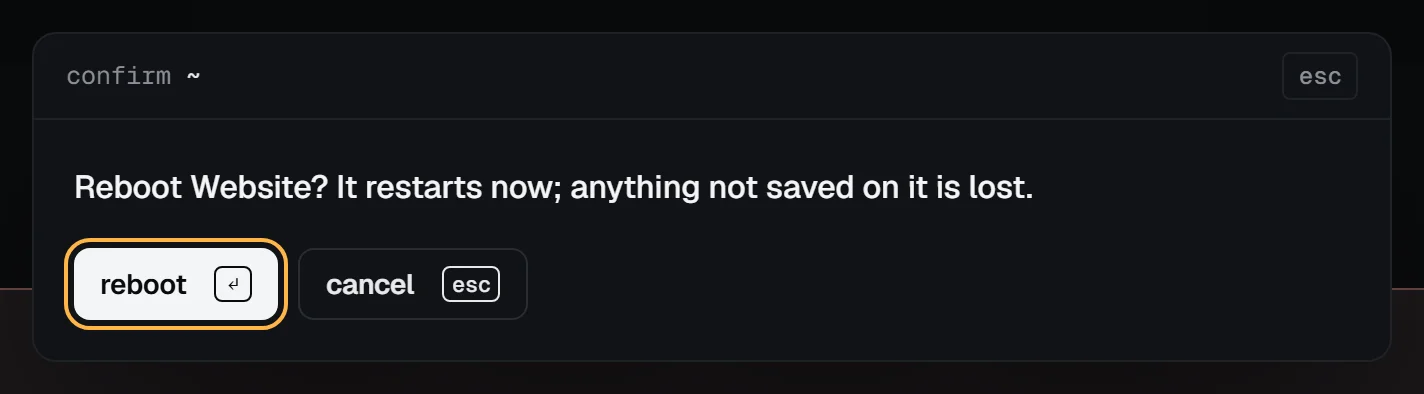
Starting, stopping, rebooting and taking a snapshot ask you to confirm in the palette first: Enter confirms, Esc cancels.
Reinstall and delete open their usual page, which asks you to type the server's hostname. Taking a snapshot from the palette names it after the date and time; a running server shuts down for about a minute while it's taken.
Without JavaScript, the search box is a link to a search page that finds the same things.
Keyboard shortcuts
Shortcuts don't fire while you're typing in a form field. Press ? for this list in the panel.
| Keys | What it does |
|---|---|
/ or Ctrl K |
open the command palette |
g then s |
go to your servers |
g then b |
go to billing |
g then t |
go to support tickets |
g then a |
go to your account |
g then k |
go to SSH keys |
c |
order (create) a server |
? |
show the shortcut list |
Esc |
close the palette or the list |
Names, tags and notes
Every server's overview has a Name, tags and notes section.
- Name: how the panel lists the server, up to 63 characters, like
Shop front. It doesn't change the hostname inside the server, which is set on the first boot. To change that, log in and runhostnamectl set-hostname. - Tags: up to 10, separated by commas or spaces. Each is 1 to 24 lowercase letters, digits, dots, dashes, underscores or colons, so
prod,webandenv:stagingall work. - Notes: private plain text, up to 2,000 characters. Only you see them in the panel. Don't keep passwords there.
The CLI sets them with vps9 servers label <server> "Shop front" --tags prod,web, and the API with PUT /servers/:id/details.
Filter and sort the server list
Above the list you can filter by text (any part of a name, hostname, address, tag or id), by tag, by state and by plan, and sort by newest, name or state. Click a tag on a server to show only servers with that tag. With JavaScript, the list narrows as you type.
The cards and table buttons switch the list's layout. The panel remembers your choice in this browser.
Troubleshooting
/types a slash instead of opening the palette. The cursor is in a form field, where shortcuts are off. Click outside the field first, or use the Search button in the header.- A server doesn't show up. The palette searches the account you're working in. In a team, switch accounts first; Teams explains how.
- The power actions are missing. Your team role can see servers but not change them, or the server is busy with another action.