Your servers dashboard
The panel's servers page from top to bottom: what needs your attention, the setup checklist, and how to filter, sort, tag and switch the server list to a table.
The servers page is the first thing you see after you log in to my.vpsnine.com. From the top down it shows what needs your attention, a setup checklist while your account is new, and every server you have, with filters, sorting, tags and a table view.
What you need
- A VPSNine account. Team members see the servers of the account they're working in; Teams explains switching accounts.
Needs your attention
When something needs acting on, a box at the top lists it, worst first, each with a link to where it's fixed:
| It says | What to do |
|---|---|
| server is in error: its last action failed. | See what happened opens the server; its events say what failed. |
| server is suspended: its renewal is unpaid. | Pay the renewal opens billing. The server starts again once it's paid. |
| Invoice VPS9-… for $… is overdue since … | Pay it opens the invoice. |
| Invoice VPS9-… for $… is due … | Pay it opens the invoice. |
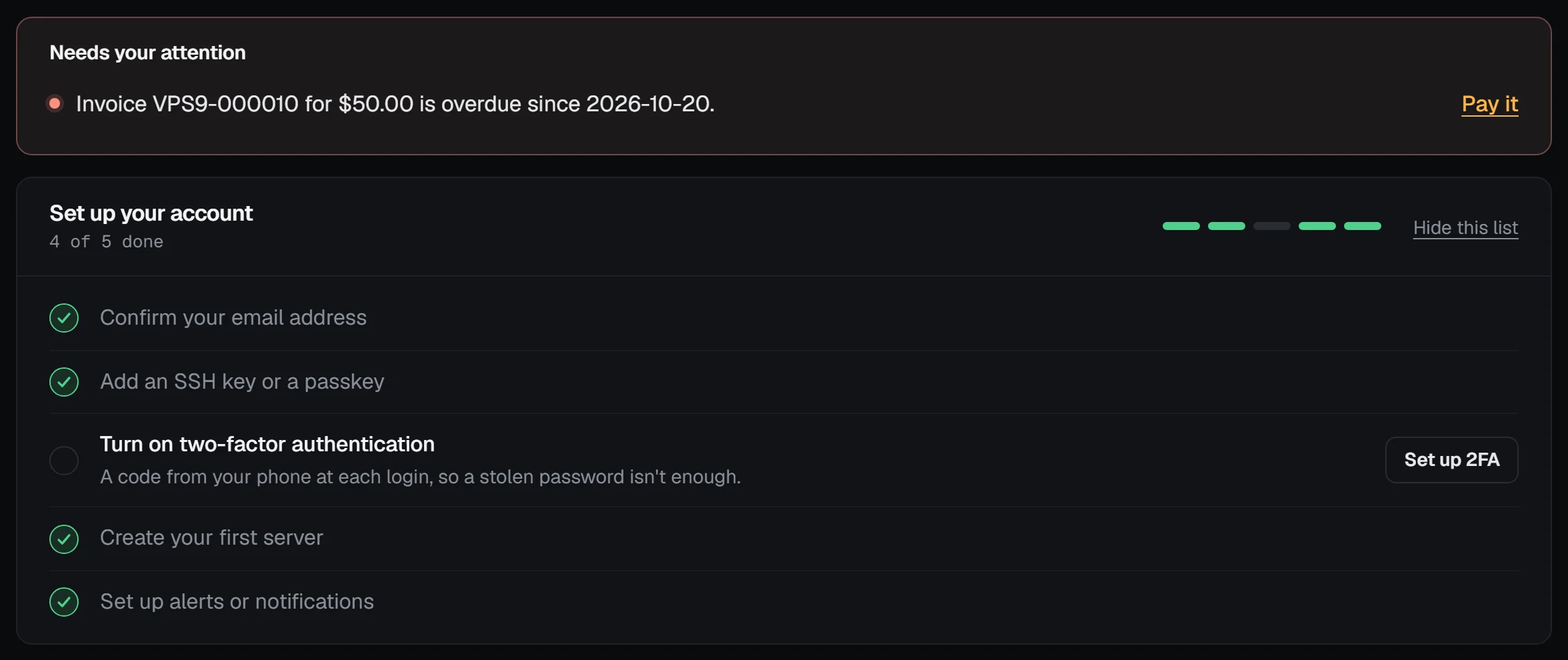
Nothing here is stored: the list is worked out each time from your servers and invoices, so it clears itself as soon as the problem is gone.
The setup checklist
While your account is new, Set up your account lists five things, in the order most people do them:
- Confirm your email address. Invoices, server emails and password resets go there. Verify your email
- Add an SSH key or a passkey. An SSH key logs you in to your servers; a passkey signs you in to the panel. Add your SSH keys
- Turn on two-factor authentication. Two-factor authentication
- Create your first server. Order your first server
- Set up alerts or notifications. An alert rule, a webhook or saved notification settings all count. Notifications and alerts
Each item ticks itself as soon as it's true; there's nothing to mark done. The bar beside the title shows how far you are. The checklist disappears once all five are done, or press Hide this list to put it away for good. It shows only on your own account, not on a team account you work in.
Your servers
Each server is a row with its state light, its panel name (or hostname), its plan, its IPv4 address and when it was created. Tags show under the name. Click the name to open the server's overview.
The state light is green while the server runs, amber while it's busy (being built, in rescue, starting or stopping), grey when it's stopped or suspended, and red when it's in error.
Create server above the list starts a new order. Press c anywhere in the panel to do the same.
Filter and sort
Above the list:
- Filter: type any part of a name, hostname, IP address, tag or server id. With JavaScript, the list narrows as you type.
- Tag, State and Plan: show only servers with that tag, in that state or on that plan. Tag appears once a server has one, and Plan once you have servers on more than one plan.
- Sort by: newest first, name or state.
The count under the filters says how many servers match, with clear filters to show them all again.
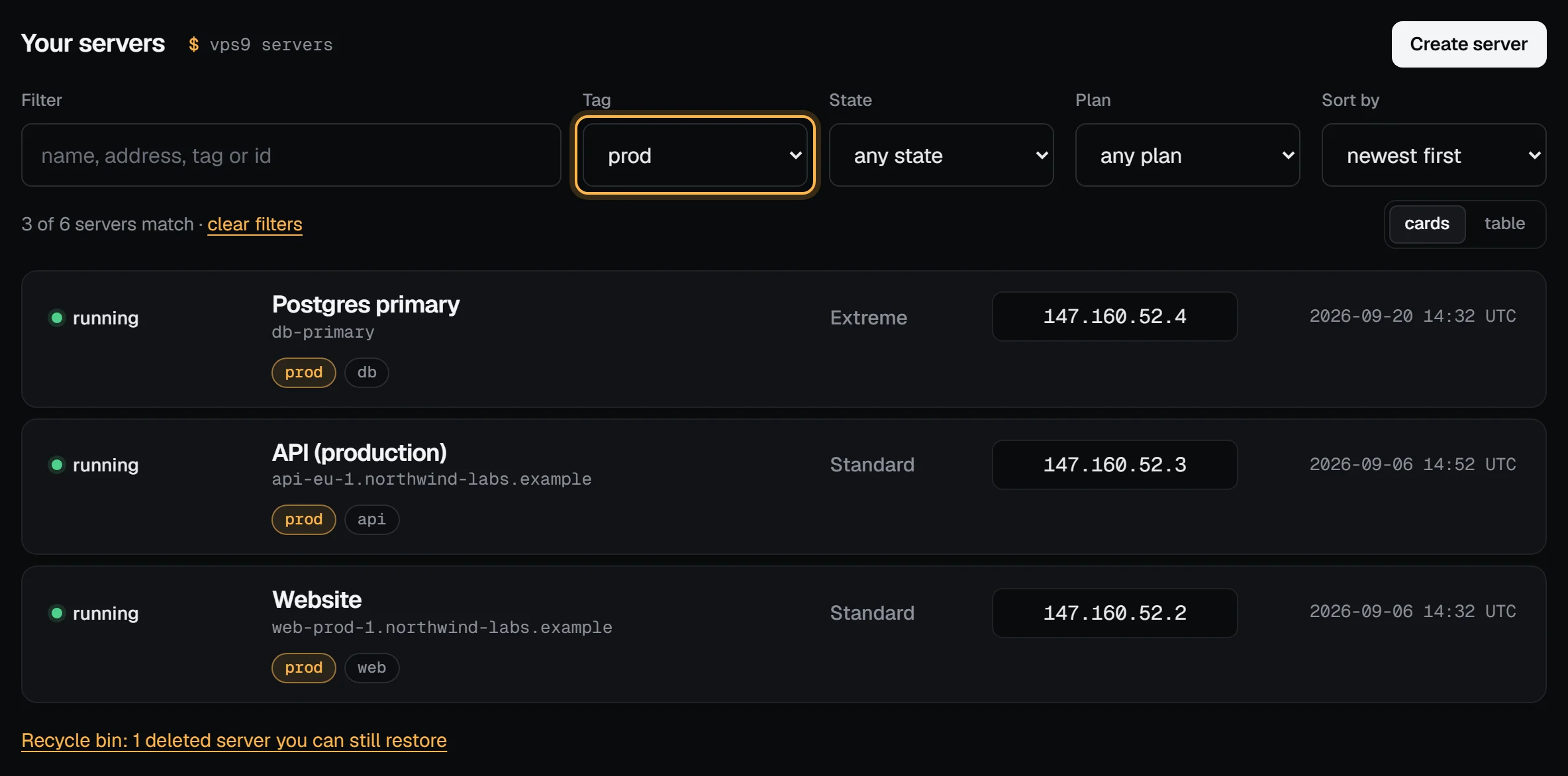
Filters are part of the address (for example my.vpsnine.com/?tag=prod&sort=name), so you can bookmark a view or send it to a teammate.
Cards or a table
The cards and table buttons switch the layout. The table puts name, state, IPv4, plan, tags and created date in columns, which is easier to scan with many servers. The panel remembers your choice in this browser.
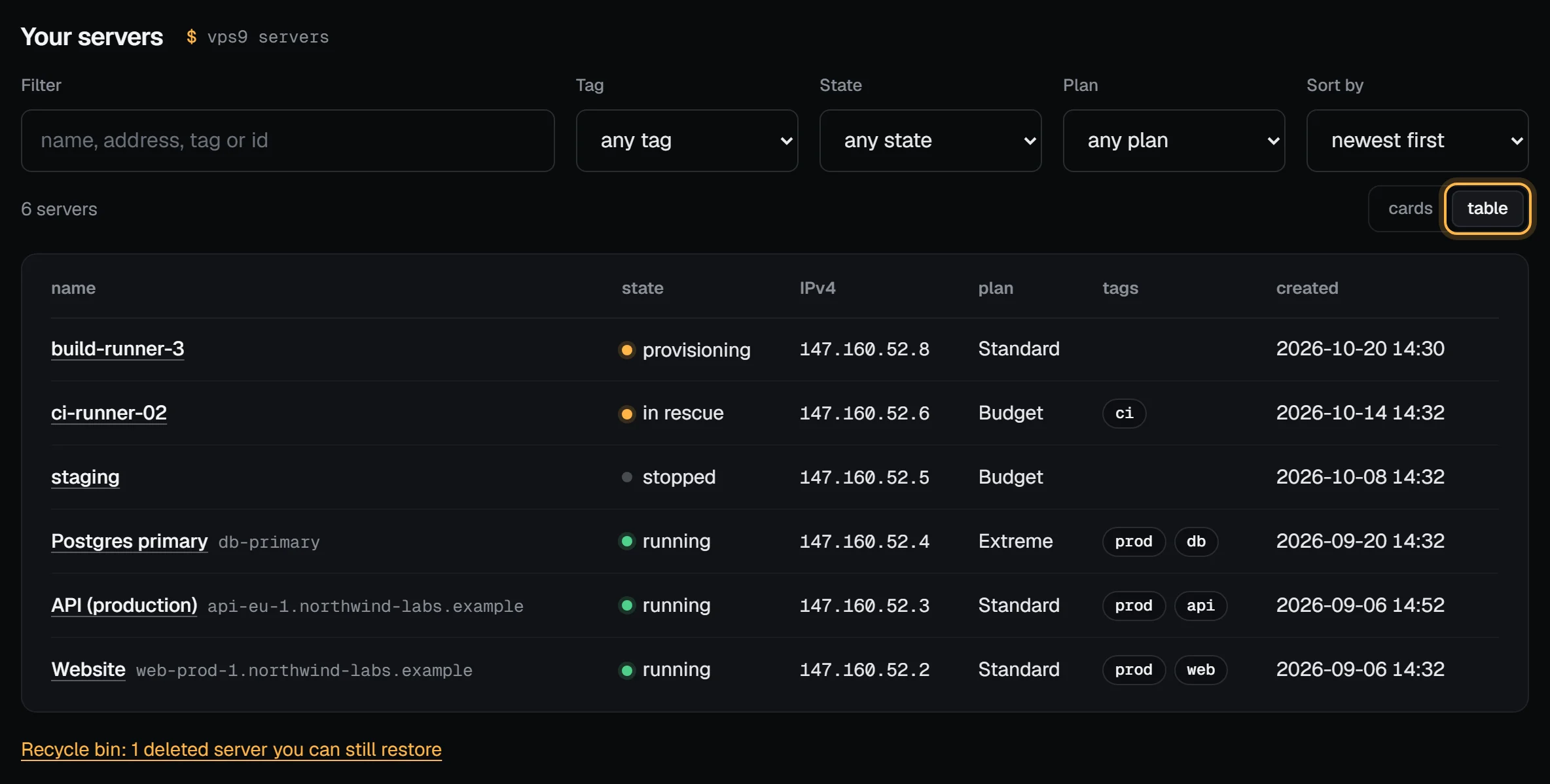
Name and tag your servers
A panel name, like Website, shows instead of the hostname; tags like prod or env:staging let you filter. Set both on a server's Settings tab: Server settings has the rules.
Next
Under the list, three help articles suit where your account is: before your first server, guides to ordering; after it, the first hour, the command line and shortcuts.
Troubleshooting
- A server is missing. Check the filters: the count says "2 of 6 servers match" when some are hidden. Press clear filters. If you're in a team, check which account you're working in.
- The checklist won't tick an item. Each one checks the account's real state: the email link must be opened and its Verify email button pressed, and two-factor counts once setup is finished. Reload the page after doing it.
- "No servers match these filters." Press Show all servers.
Next steps
Doing it on VPSNine
Every plan on vpsnine.com/plans shows up on this page the same way. The vps9 command line lists the same servers with vps9 servers.