Notifications and resource alerts
What the panel bell tells you, how to pick what reaches you by email, and alert rules for CPU, memory, transfer and downtime.
The bell at the top of the panel collects what happened on your account: a server is ready or suspended, an action or a snapshot failed, an invoice was issued, paid or is overdue, a payment or credit arrived, our team replied to a ticket, an alert fired, or your account was signed in to from a new browser or a new address. The number on it is how many you haven't read.
Click the bell for the newest few, or open my.vpsnine.com/notifications for all of them. Opening one marks it read and takes you to the server, invoice or ticket it is about. Notifications are kept for 90 days, 500 at most.
Choose what reaches you
Notification settings has a row per kind of notice (servers, billing, support, resource alerts, security and webhooks), each with in the panel and by email. Security notices and billing email always go out. Choose which notifications and emails you get walks through it, with status page emails.
To send the same events to your own systems, use webhooks. To get them in Slack, Discord, Telegram, Microsoft Teams, ntfy or another inbox, add a notification channel; for a push notification on your computer or phone, turn on push.
Set an alert rule
- Open the server in the panel and choose the Alerts tab.
- Under Add a rule, pick what to Watch (the table below).
- Set Above (%) and For at least (5 to 60 minutes). Server down only uses the time; monthly transfer only the percentage.
- Leave Email me too ticked to get an email as well as the panel notice and any webhooks.
- Press add rule.
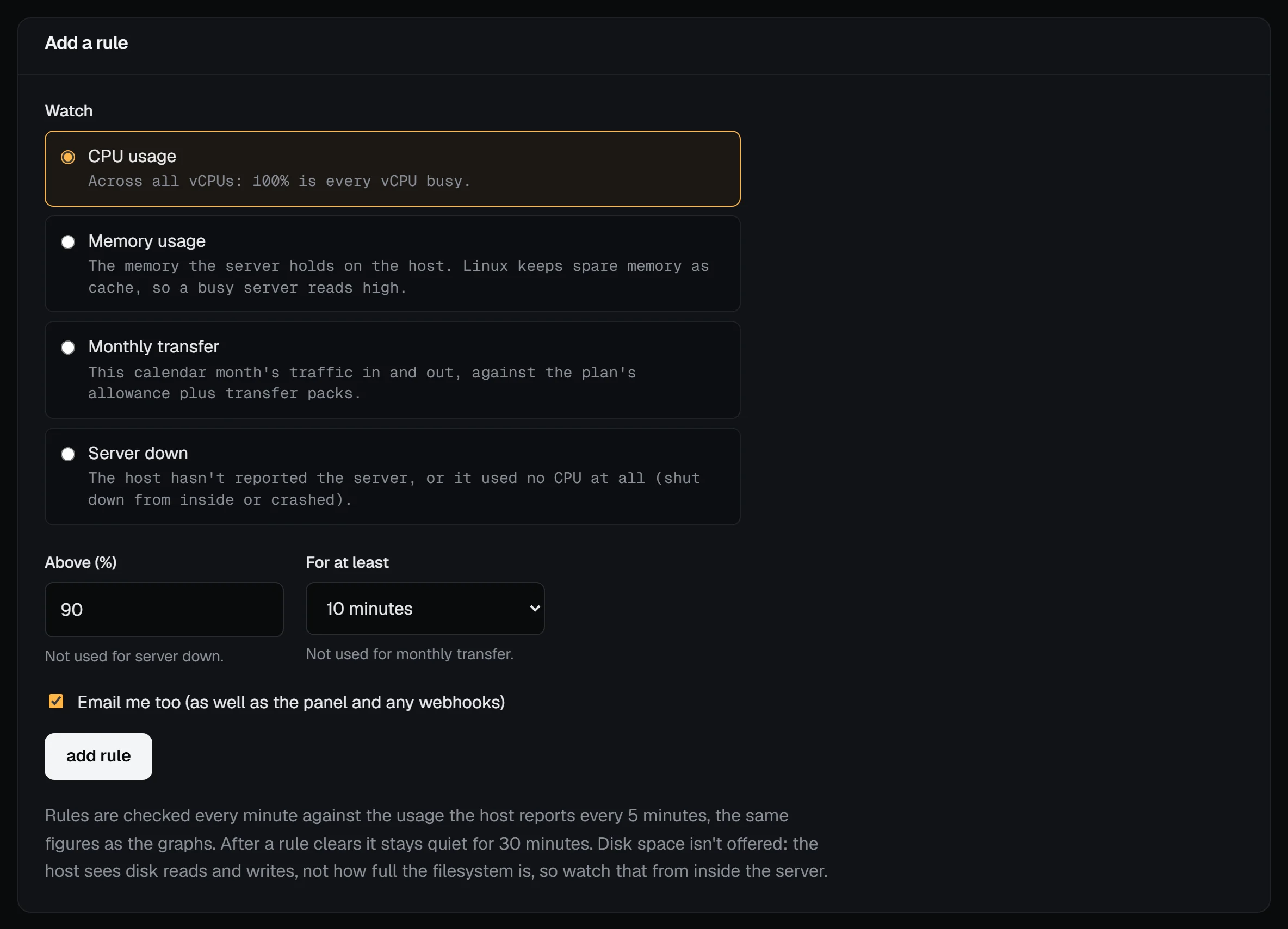
| Watch | Fires when |
|---|---|
| CPU usage | Above the percentage for the time you pick (5 to 60 minutes). 100% is every vCPU busy. |
| Memory usage | Above the percentage for the time you pick. |
| Monthly transfer | This calendar month's traffic, in and out, passes the percentage of your allowance (plan plus transfer packs). |
| Server down | The host hasn't reported the server, or it used no CPU at all, for the time you pick. |
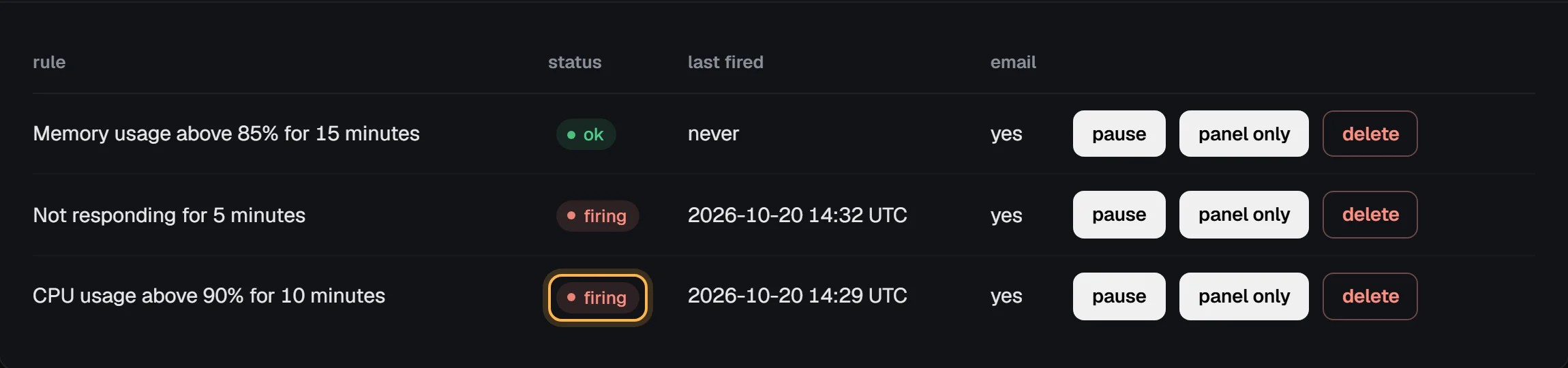
A server can have 10 rules. Each rule can email you as well as show in the panel, and you can pause, resume or delete it at any time.
Check it worked: the rule shows in Alert rules at the top of the tab, and the server overview's Alerts card counts it. When a rule fires, its status says firing with the time, and the card says how many are firing:
How alerts behave
Rules are checked every minute against the usage the host reports every 5 minutes, the same figures as the server's graphs. You get one notice when a rule fires and one when it clears, nothing in between. After a rule clears it stays quiet for 30 minutes, so a value hovering around the line can't flood you.
Some details worth knowing:
- Memory is the memory the server holds on the host. Linux keeps spare memory as cache, so a busy server often reads 80% or more without any trouble. Start with a high threshold.
- Server down only counts while the server should be running. Stopping it in the panel, a reboot or reinstall in progress, or a suspension never triggers it, and an alert in progress ends quietly when you stop the server.
- Monthly transfer clears quietly when a new month starts.
- Disk space isn't offered: the host sees disk reads and writes, not how full the filesystem is. Watch it from inside the server; Monitor your server shows how.
Alerts watch the server from the outside. For a website that must answer, add an uptime check from somewhere else too.