Send alerts to Slack, Discord, Telegram, Teams or ntfy
Get server, alert and billing notifications in Slack, Discord, Telegram, Microsoft Teams, ntfy or another inbox, with tests, a delivery log and retries.
A notification channel sends the notifications you choose to the place your team already looks: a Slack or Discord channel, a Telegram chat, a Microsoft Teams channel, an ntfy topic on your phone, or another email address such as an on-call inbox. Each message is formatted for the service, says what happened, and has a button that opens the right page in the panel.
You manage channels in the panel at my.vpsnine.com/account/channels, or with the API (/api/v1/channels). An account can have 10 channels.
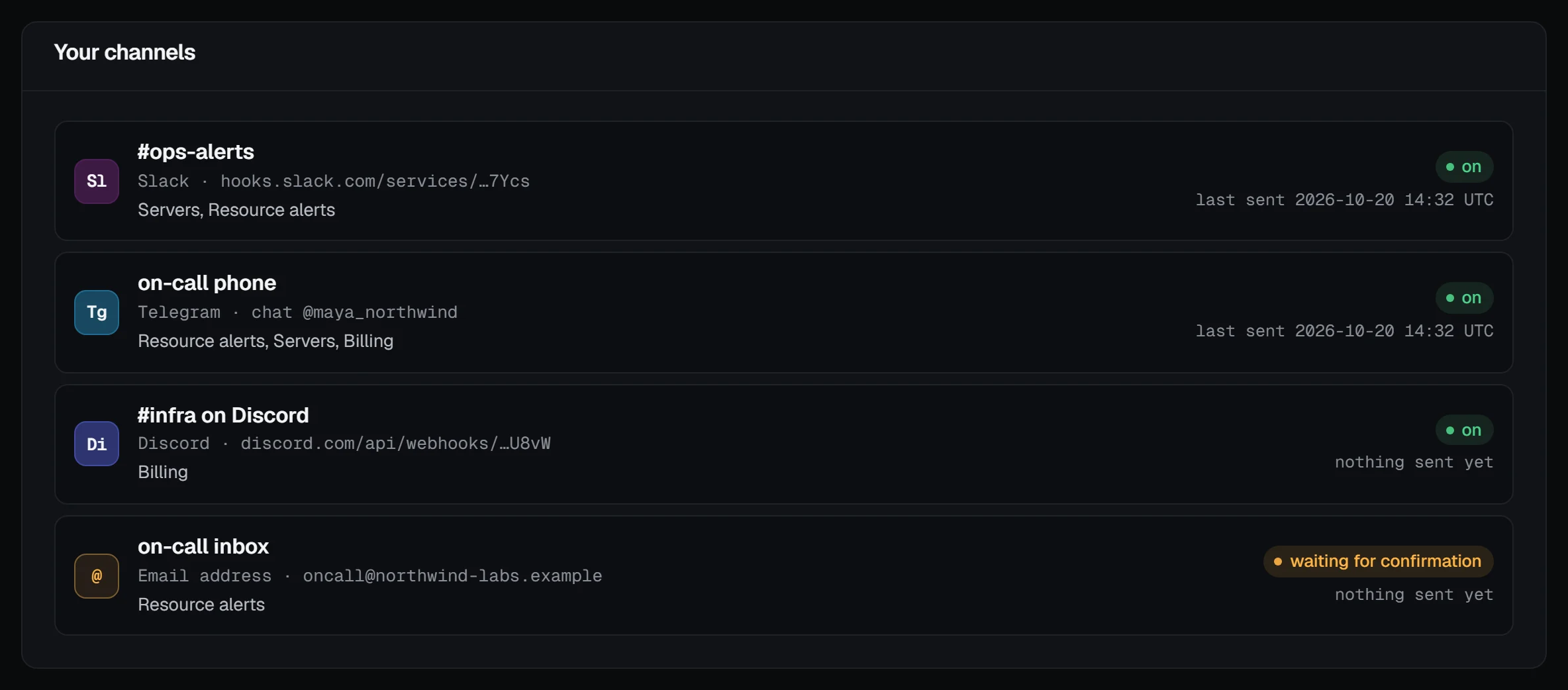
Add a channel
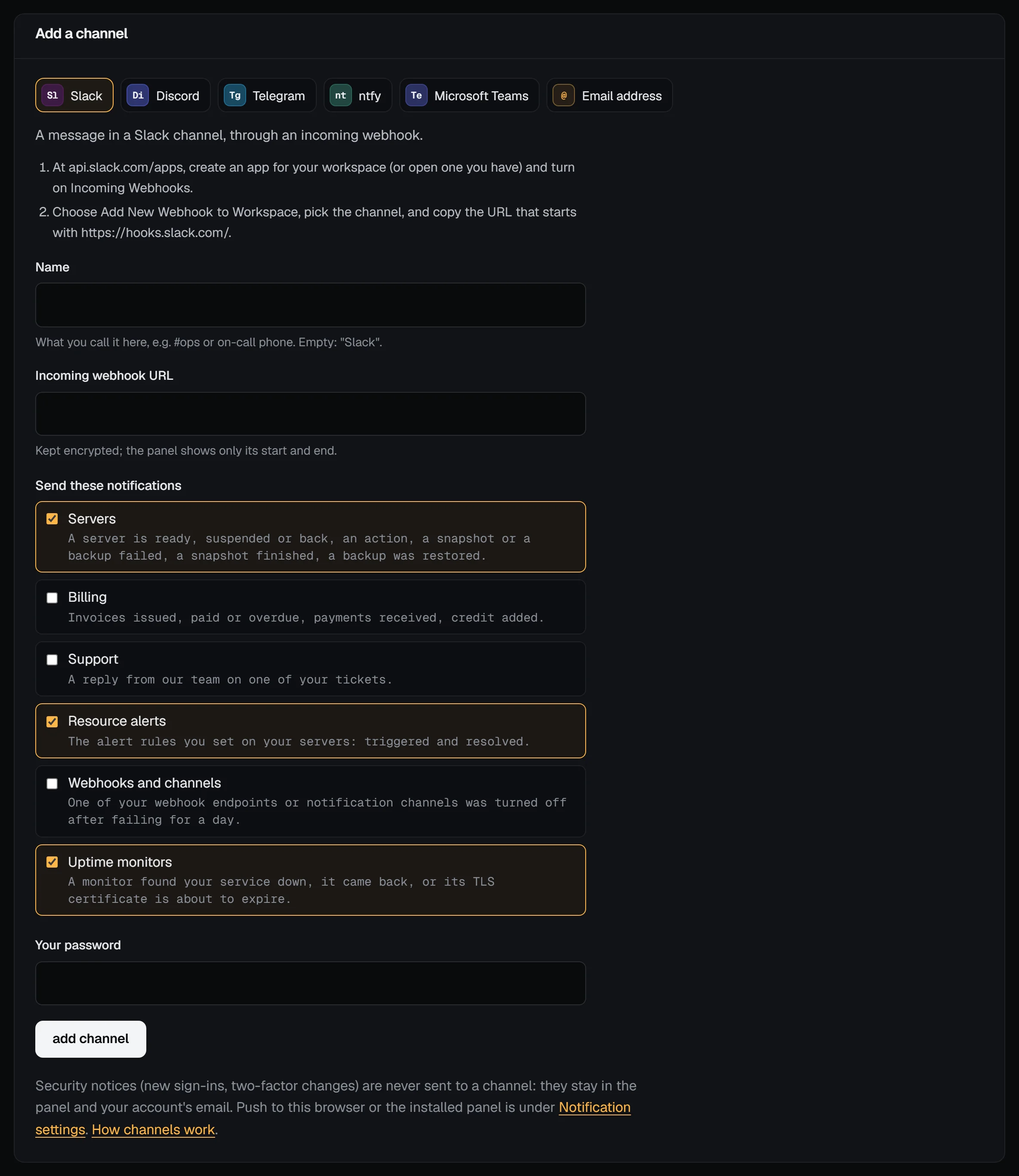
- Open Account, then Channels.
- Pick the kind of channel: Slack, Discord, Telegram, ntfy, Microsoft Teams or Email address. The page says what to copy from the service.
- Paste the URL (or enter the address), give the channel a name if you like, and tick what it should send.
- Type Your password and add it.
You need a confirmed email address to add a channel. The URL is kept encrypted; the panel only ever shows its start and end.
Where to get the URL
- Slack: at api.slack.com/apps, create an app for your workspace and turn on Incoming Webhooks. Choose Add New Webhook to Workspace, pick the channel and copy the URL that starts with
https://hooks.slack.com/. - Discord: open the channel's settings, then Integrations, Webhooks, New Webhook, and Copy Webhook URL.
- Microsoft Teams: in the channel, open the ••• menu, then Workflows, and choose Post to a channel when a webhook request is received. Finish its steps and copy the URL it gives you. The older Office 365 connector URLs are not accepted: Microsoft retired them.
- ntfy: the URL of a topic, such as
https://ntfy.sh/northwind-ops-7c2f, on ntfy.sh or your own ntfy server. Anyone who knows a public topic's name can read it, so pick one that is hard to guess, or use a protected topic and add an access token. Subscribe to the topic in the ntfy app on your phone. - Telegram: nothing to paste. After you add the channel, its page shows two links: open a private chat starts a chat with our bot, and add to a group adds the bot to a group you choose. Press Start in Telegram and the chat is connected. The links work once, for 30 minutes; new link makes another. Send
/stopin the chat to turn the channel off from Telegram. - Email address: we email the address a confirmation link. Nothing is sent there until someone opens it and confirms, within 48 hours. Every notification to that address has a link at the foot to stop them.
Slack, Discord and Teams URLs must be on those services' own addresses. Every URL must be https:// on a public address: we refuse private, loopback and cloud metadata addresses, and check again before every message.
What a channel sends
You choose, per channel, from the same kinds of notice as the panel's notification settings: servers, billing, support, resource alerts, and webhooks and channels turned off. Security notices (a sign-in from a new browser, two-factor changes, new API tokens) are never sent to a channel: they stay in the panel and your account's own email, so a channel added by someone with a stolen session can't watch them.
Each message carries the notice's title and text and a link to the page it is about. Alerts and failures are marked as warnings (an amber or red bar in Slack and Discord, a higher priority in ntfy).
Test it and read the log
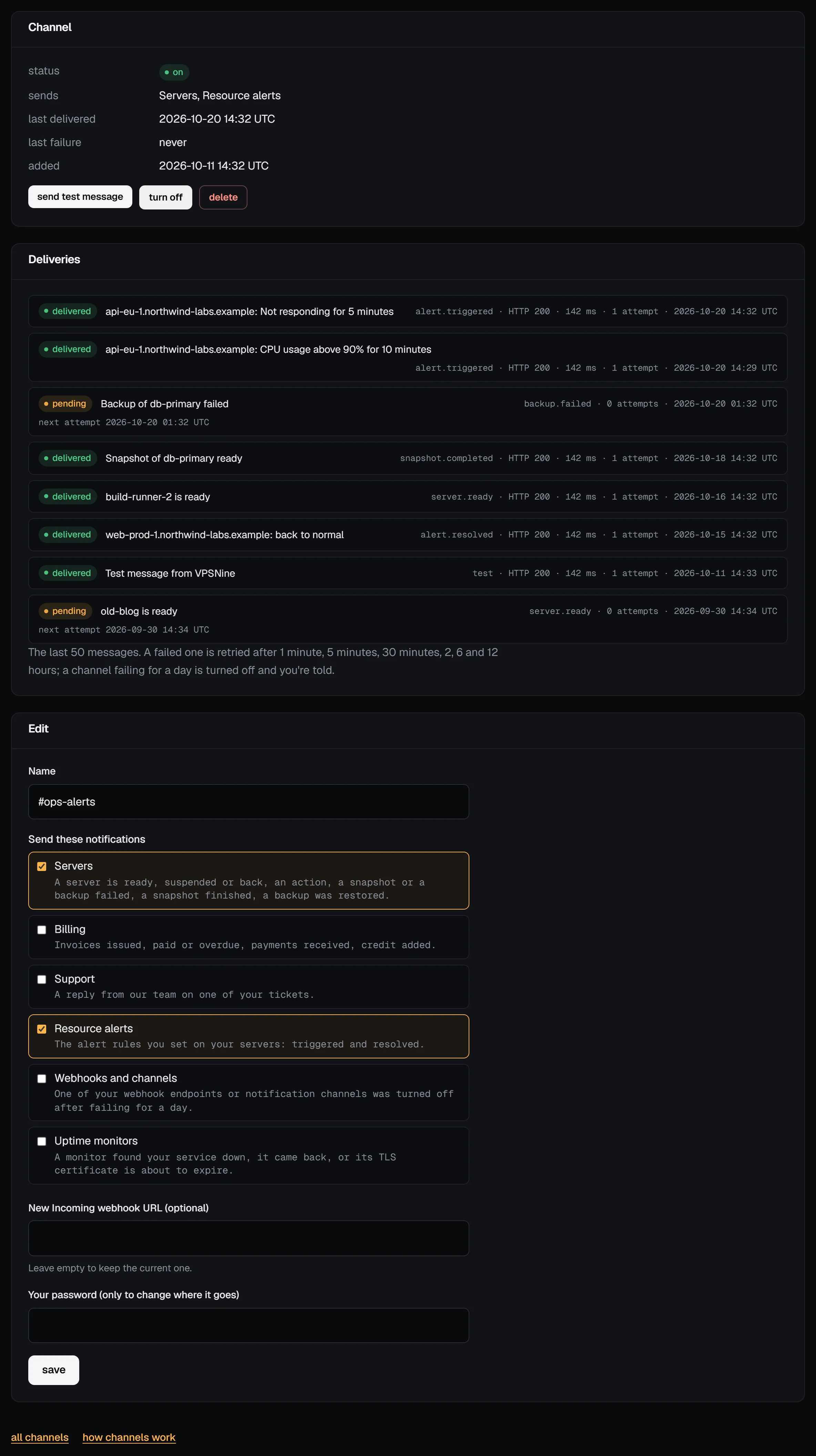
A channel's page has send test message: it sends one test message now, whatever the channel carries. Below it, the delivery log lists the last 50 messages with their state, the service's answer, how long it took and any error.
Retries and turning off
A message that fails is tried again after 1 minute, 5 minutes, 30 minutes, 2 hours, 6 hours and 12 hours. Waiting messages are kept in our database, so a restart on our side loses nothing.
If a channel keeps failing for more than a day (20 failed messages in a row, the first over 24 hours ago), we turn it off, mark what was waiting as failed, and tell you in the panel and by email. The usual causes are a deleted webhook, a bot removed from a group, or a full inbox. Fix it, send a test message, then turn on the channel again.