Install the VPSNine panel as an app and get push notifications
Install the panel on your computer or phone and get a push notification when a server is ready, an alert fires or an invoice needs you.
The panel at my.vpsnine.com can be installed as an app: it opens in its own window, has its own icon, and can show push notifications even when it is closed. Push also works in a normal browser tab on a computer or an Android phone.
Install the panel
- Chrome or Edge on Windows, macOS, Linux or ChromeOS: open the panel and choose the install icon at the right of the address bar, or install VPSNine under Notification settings when your browser offers it.
- Android: open the panel in Chrome or Firefox, open the browser menu, then Install app or Add to Home screen.
- iPhone and iPad (iOS 16.4 or later): open the panel in Safari, choose Share, then Add to Home Screen. Open the panel from the new icon: on these devices push only works in the installed app.
The installed panel is the same panel: you sign in the same way and every page works as it does in the browser. Without a connection it shows a short offline page instead of an error; your servers keep running either way.
Turn on push notifications
- Open Account, then Notifications.
- Under Push notifications, choose turn on for this browser and allow notifications when the browser asks.
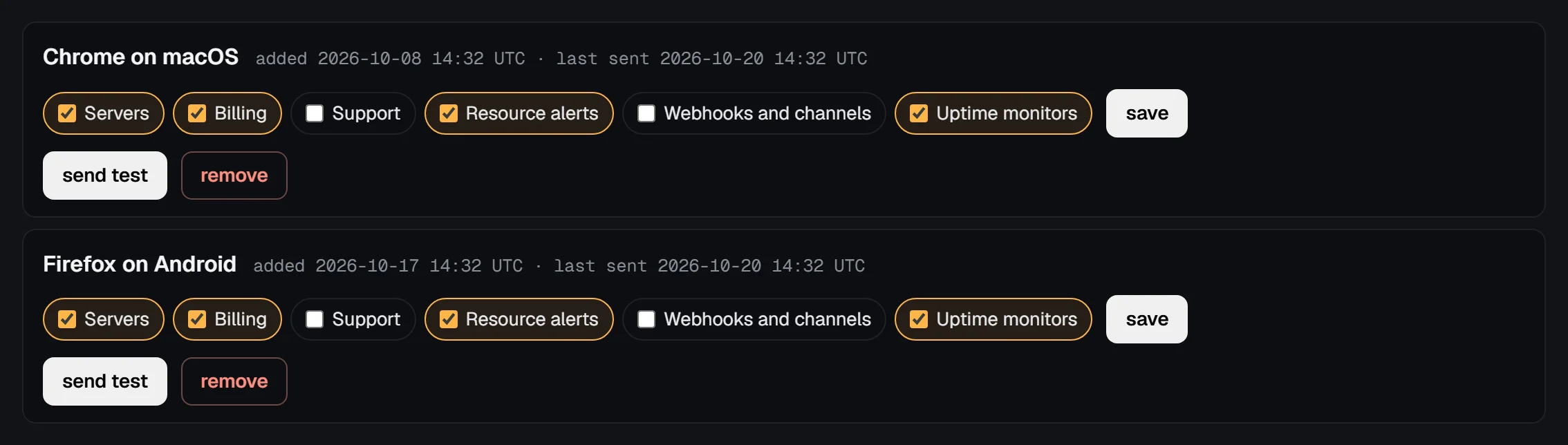
Each browser or installed panel with push on is listed as a device. A new device gets server, resource alert and billing notifications; untick what you don't want and choose save. send test sends one now, and remove turns push off for that device. An account can have 10 devices.
What a push shows
A push carries only a title, like "web-1 is ready" or "api-1: CPU usage above 90% for 10 minutes", and the page it is about. Clicking it opens that page in the panel, where the details are. Push messages are encrypted from our server to your browser; the push service in between (Google, Mozilla, Apple or Microsoft, depending on the browser) can't read them.
Security notices are never pushed: they stay in the panel and your email.
Turn push off
- On the device itself: turn off for this browser under Notification settings.
- From anywhere: remove next to the device.
- Logging out of the panel turns push off for that browser, so a shared computer stops showing your notices.
If you blocked notifications for the panel by mistake, allow them again in your browser's site settings, then reload Notification settings.