Open and manage support tickets
Open a VPSNine support ticket, pick its category and priority, link a server, follow the thread, close it and rate the answer.
To ask us something, open Support in the panel and choose new ticket: give it a subject, say what it's about and how urgent it is, pick the server if there is one, and describe the problem. We answer in the ticket's thread and email you when we do.
What you need
- A VPSNine login. On a team, the owner, admins, billing and technical members can open and answer tickets; read-only members can read them.
- If you can't log in at all, email hello@vpsnine.com from the address on your account instead.
Open a ticket
Open Support and choose new ticket.
Write a short Subject (3 to 120 characters, one line).
Pick What is it about?:
Category For Technical a server, the network, the panel or the API Billing invoices, payments, credit, refunds Sales plans, prices, custom setups Abuse a report about one of your servers, or one you want to make My account login, 2FA, email Something else anything that doesn't fit Pick How urgent is it?: Low (a question, no rush), Normal, High (something important isn't working) or Urgent (a production server is down).
Under Server (optional), pick the server it's about, if any.
Write your Message and choose send.
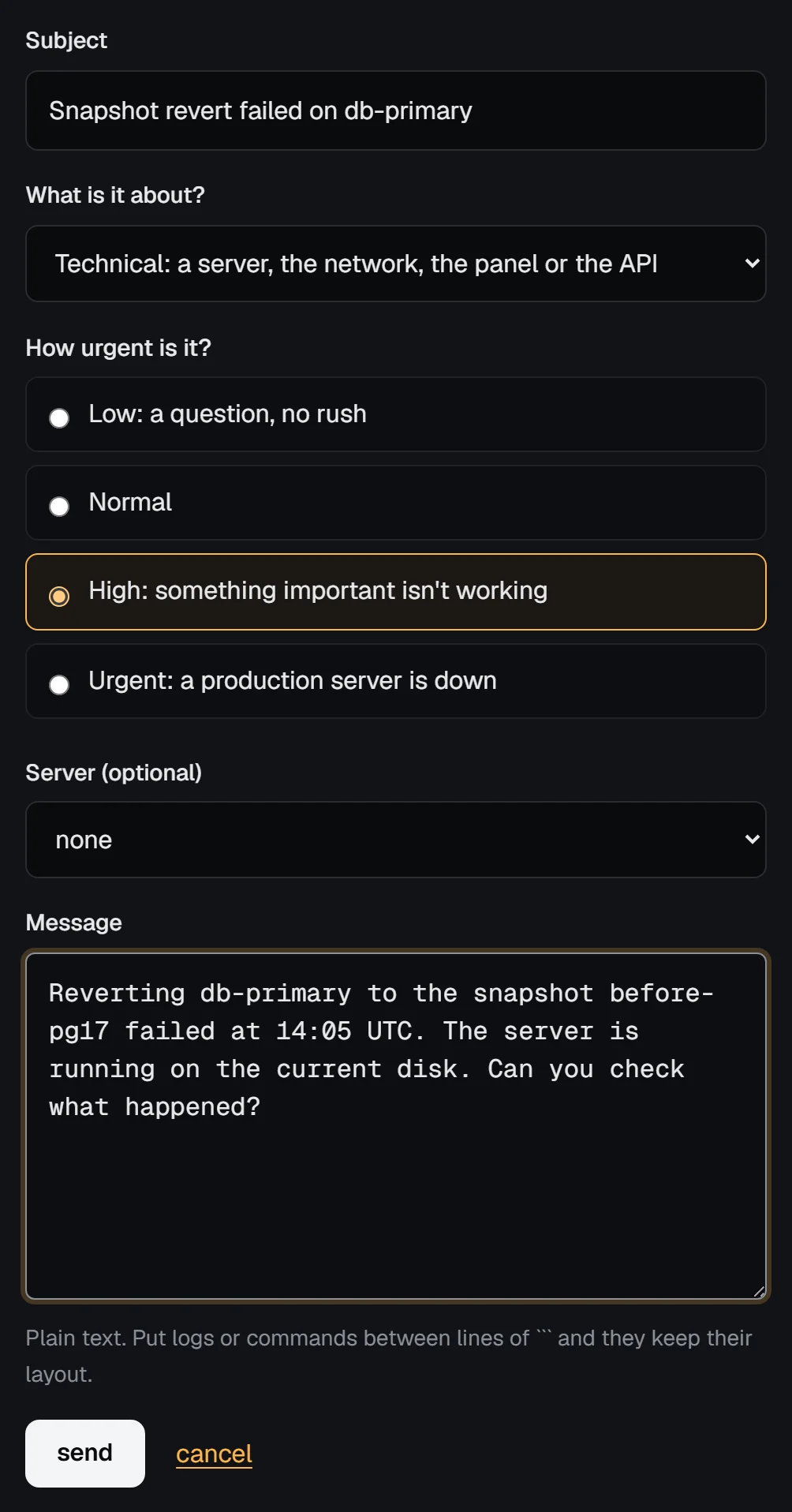
Messages are plain text, up to 10,000 characters. Put logs or commands between two lines that hold only three backticks (```), and they keep their layout.
For anything longer, such as a full log, put it in a paste and link it.
What helps us answer
- The server's hostname (or link the server), and the time it happened, in UTC if you can.
- The exact error text, and the command or page that gave it.
- What you've already tried.
Never send a password, a private SSH key or an API token in a ticket. We don't need them. To look into your account, our staff can view the panel as you see it, read-only and for at most 30 minutes; Sessions and activity explains how that works.
How priority is used
Priority tells us how urgent the ticket is and puts it higher in our queue. Use Urgent for a production server that is down, and Low for questions that can wait. We don't publish fixed response times. Before you write about an outage, check vpsnine.com/status: if it's a known incident, its updates are posted there.
Follow the thread
Support lists your tickets with their status and last activity:
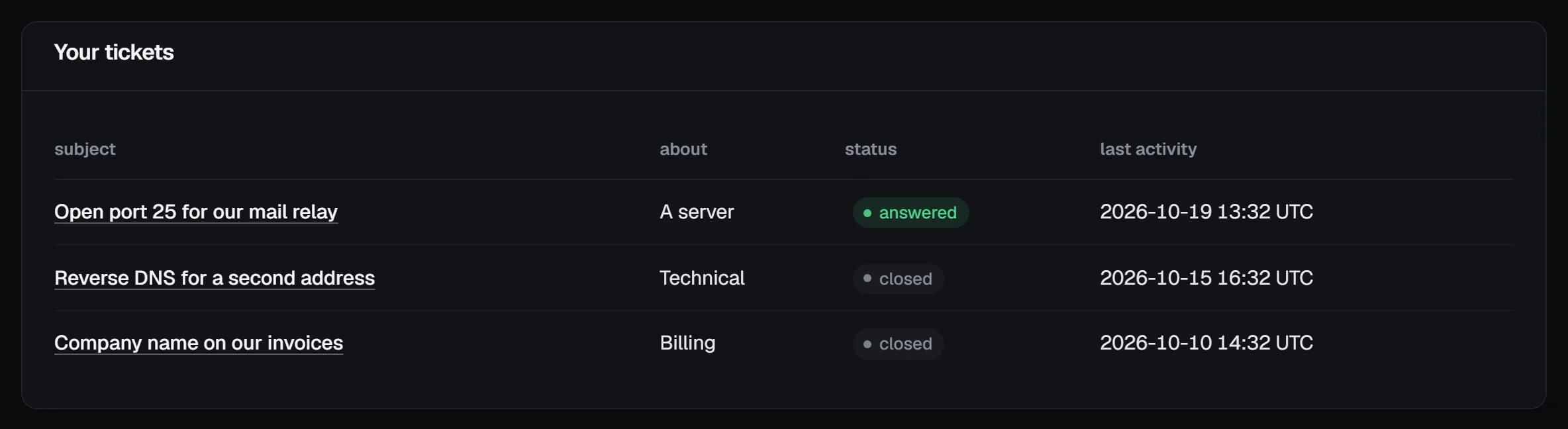
| Status | Means |
|---|---|
| open | Waiting for us. |
| answered | We replied. Your reply makes it open again. |
| closed | Done. A closed ticket can't take replies; open a new one if you still need help. |
Open a ticket to read the thread and reply:
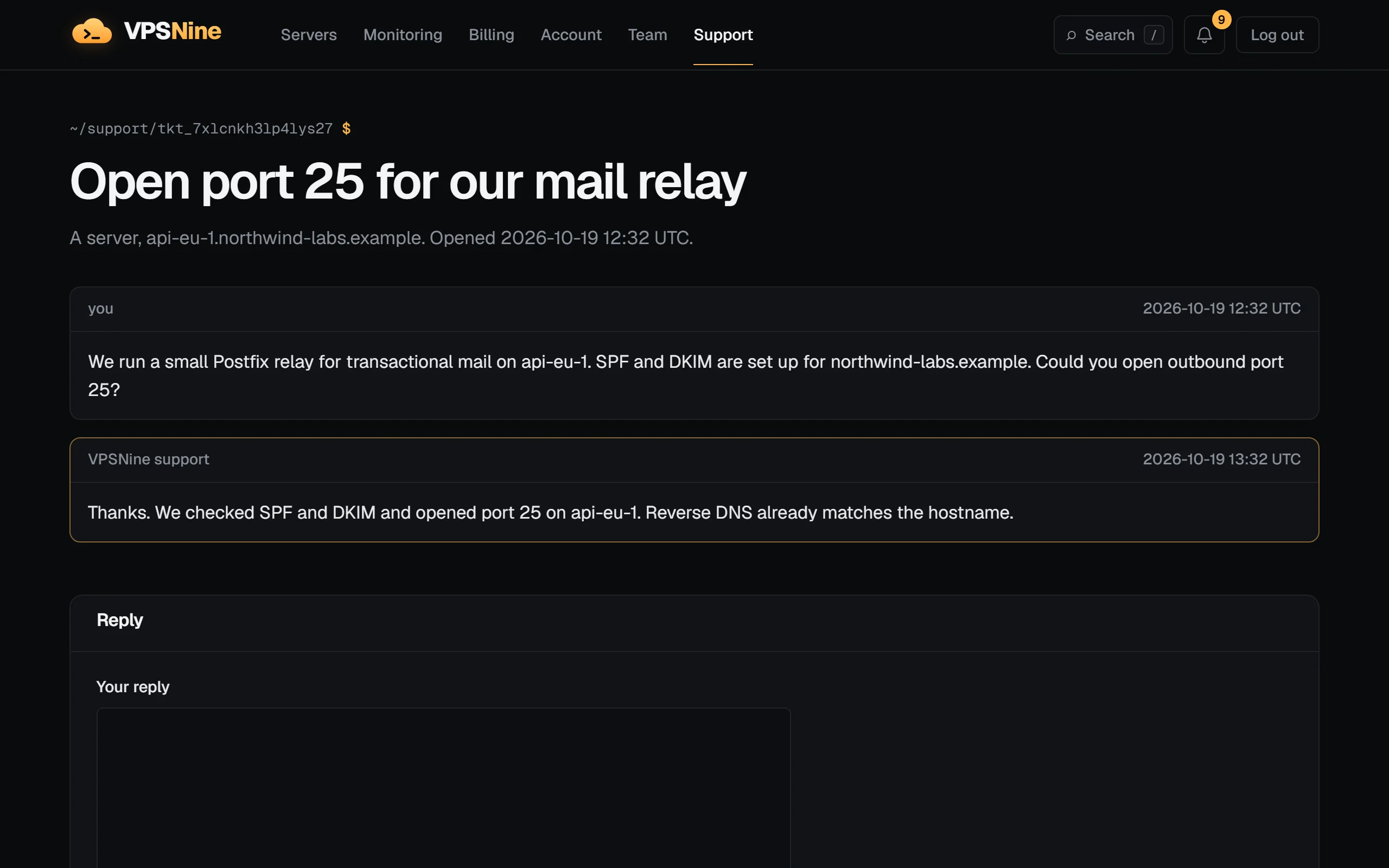
On an open ticket you can also:
- link a server (or change it, or pick none) with the Server menu under the reply box;
- close this ticket when you have what you need.
We email you each time we reply, unless you turned support email off in notification settings. The reply also shows in the panel's bell.
Rate the answer
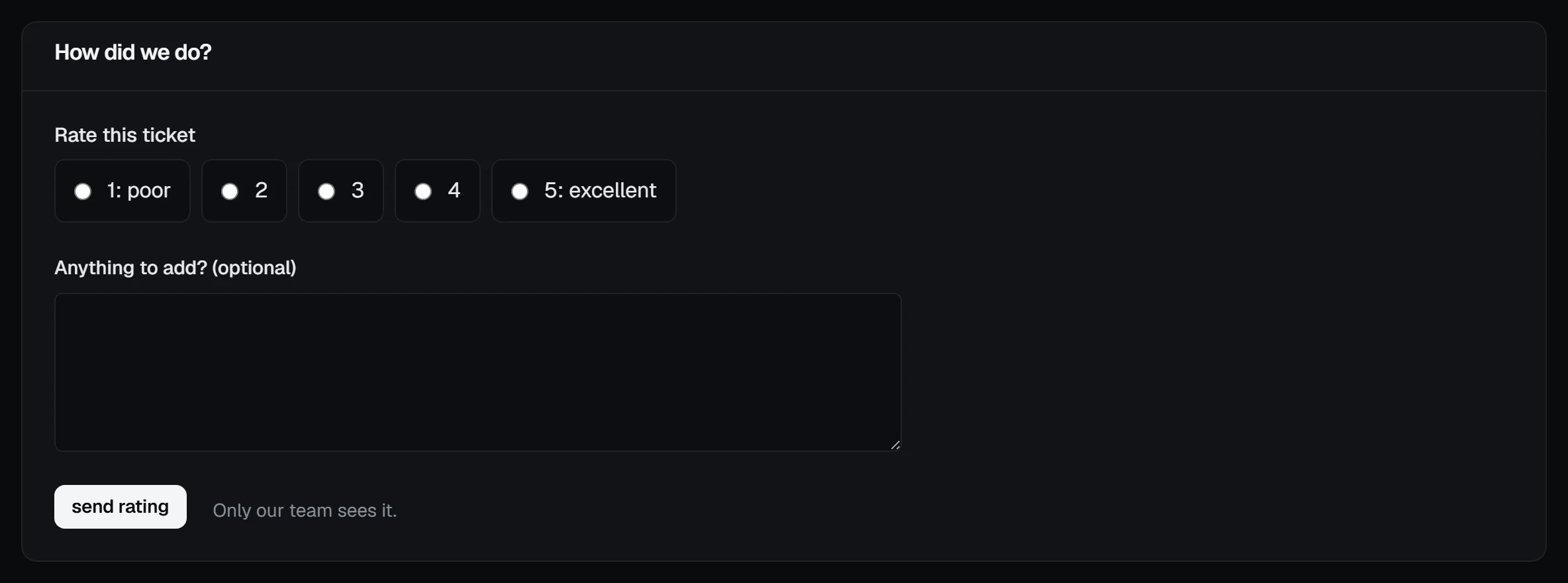
Once a ticket is closed, by you or by us, its page asks How did we do?. Pick 1 (poor) to 5 (excellent), add a comment if you like, and choose send rating. You can rate each ticket once, and only our team sees it.
From the API or the CLI
vps9 tickets
vps9 tickets open --subject "Reverse DNS for web-1" --category technical --priority normal --server web-1 "Please set PTR for the main address."
vps9 tickets reply tkt_abcdefghijkl2345 "Thanks, that worked."
vps9 tickets close tkt_abcdefghijkl2345
The API has the same calls under /api/v1/tickets (list, open, show, reply, close). Reading needs a read token; opening, replying and closing need read and write. See API tokens.
Troubleshooting
- "You've opened a lot of tickets in a short time." You can open 5 tickets an hour and 20 a day. Add to a ticket that's already open instead.
- "That's a lot of replies in an hour." The limit is 30 replies an hour.
- "This ticket is closed. Open a new one if you still need help." Closed tickets don't reopen. Mention the old ticket's subject in the new one.
- No email when we reply. Check spam, then the Support row in notification settings. The thread in the panel always has the reply.
Next steps
- Service status, incidents and maintenance
- Open port 25 for sending email
- Rescue mode, for a server that won't boot