Rescue mode
Boot your server into a rescue system with its disk attached, then check the filesystem, reset the root password or fix what stops it from booting.
To use rescue mode, open the server's Rescue tab, press boot into rescue, and log in to the small Debian system it starts, as root with the one-time password the page shows. Your server's own disk is attached to it as /dev/vdb, untouched and not mounted, so you can fix what stops the server from booting or letting you in: a broken /etc/fstab, a full disk, a filesystem that needs checking, a lost root password, or a firewall inside the server that locks you out.
What you need
- A server that is running, stopped or in error. A suspended server can't boot into rescue.
- An SSH client, or the serial console in the panel.
- Somewhere to keep the one-time password for a few minutes, like your password manager.
What happens when you start it
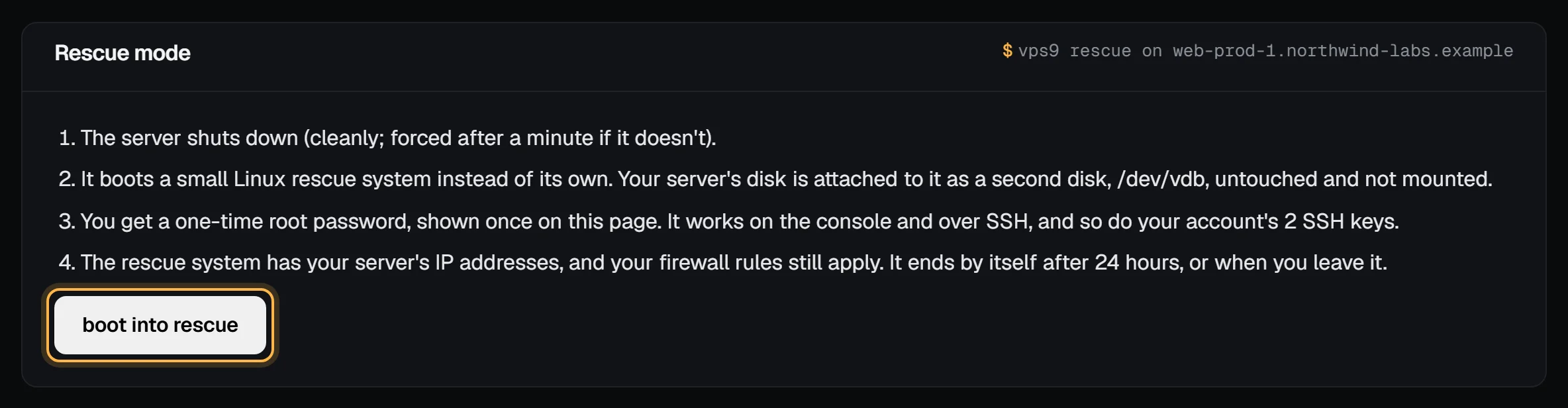
- The server shuts down cleanly. If it doesn't within a minute, it is switched off.
- It boots the rescue system. Your server's own disk is
/dev/vdb; its partitions are/dev/vdb1,/dev/vdb2and so on. - You get a one-time root password, shown once. It works on the serial console and over SSH. Your account's SSH keys work too.
- The rescue system has your server's IP addresses, and your panel firewall rules still apply.
Rescue ends by itself 24 hours after it started, and the server boots from its own disk again. A reboot while in rescue (from the server's page) keeps it in rescue.
Rescue doesn't change your bill. A suspended server can't boot into rescue: pay its open invoice first.
Start it
- In the panel, open the server and go to the Rescue tab.
- Read the four steps it lists, then press boot into rescue.
- Copy the password from the page that opens: we don't keep it, and it isn't shown again. If you lose it, leave rescue and start it again for a new one.
Check it worked: the server's state changes to in rescue within a minute or two, and the overview's Rescue card says when it ends by itself.
From the command line:
vps9 rescue on web-1      # prints the one-time password
vps9 rescue status web-1
The API has POST /servers/:id/rescue; the password is in its answer only.
Give it a minute or two, then log in as root:
ssh root@203.0.113.10SSH warns that the host key changed, because the rescue system has keys of its own. Remove the old entry with ssh-keygen -R 203.0.113.10 and connect again. Remember to do the same once you leave rescue.
Find and mount your disk
lsblk -fvda is the rescue system. vdb is your server. Most images have one large root partition, usually /dev/vdb1 (Ubuntu and Debian put a small boot partition before it on some versions: lsblk -f shows which one is ext4 or xfs and the biggest).
mount /dev/vdb1 /mnt
ls /mnt
Now your files are under /mnt. Copy what you need, or edit what is broken, for example nano /mnt/etc/fstab.
Check the filesystem
fsck must run on a filesystem that isn't mounted, so unmount it first:
umount /mnt
fsck -f /dev/vdb1
Answer y to the repairs it suggests, or run fsck -fy /dev/vdb1 to accept them all.
AlmaLinux, Rocky Linux and Fedora use XFS, which has its own tool. Install the tools for XFS, LVM and Btrfs first (the rescue system has internet access):
apt update && apt install -y xfsprogs lvm2 btrfs-progs
xfs_repair /dev/vdb1
Reset the root password
Mount the disk, then change the password inside your server's own system with chroot:
mount /dev/vdb1 /mnt
chroot /mnt passwd root
umount /mnt
If your server uses SELinux (AlmaLinux, Rocky, Fedora), also run touch /mnt/.autorelabel before umount, so the changed password file gets its label back at the next boot.
To get back in with a key instead, add your public key to /mnt/root/.ssh/authorized_keys.
Leave rescue
Unmount the disk first (umount /mnt), then choose leave rescue on the Rescue tab:
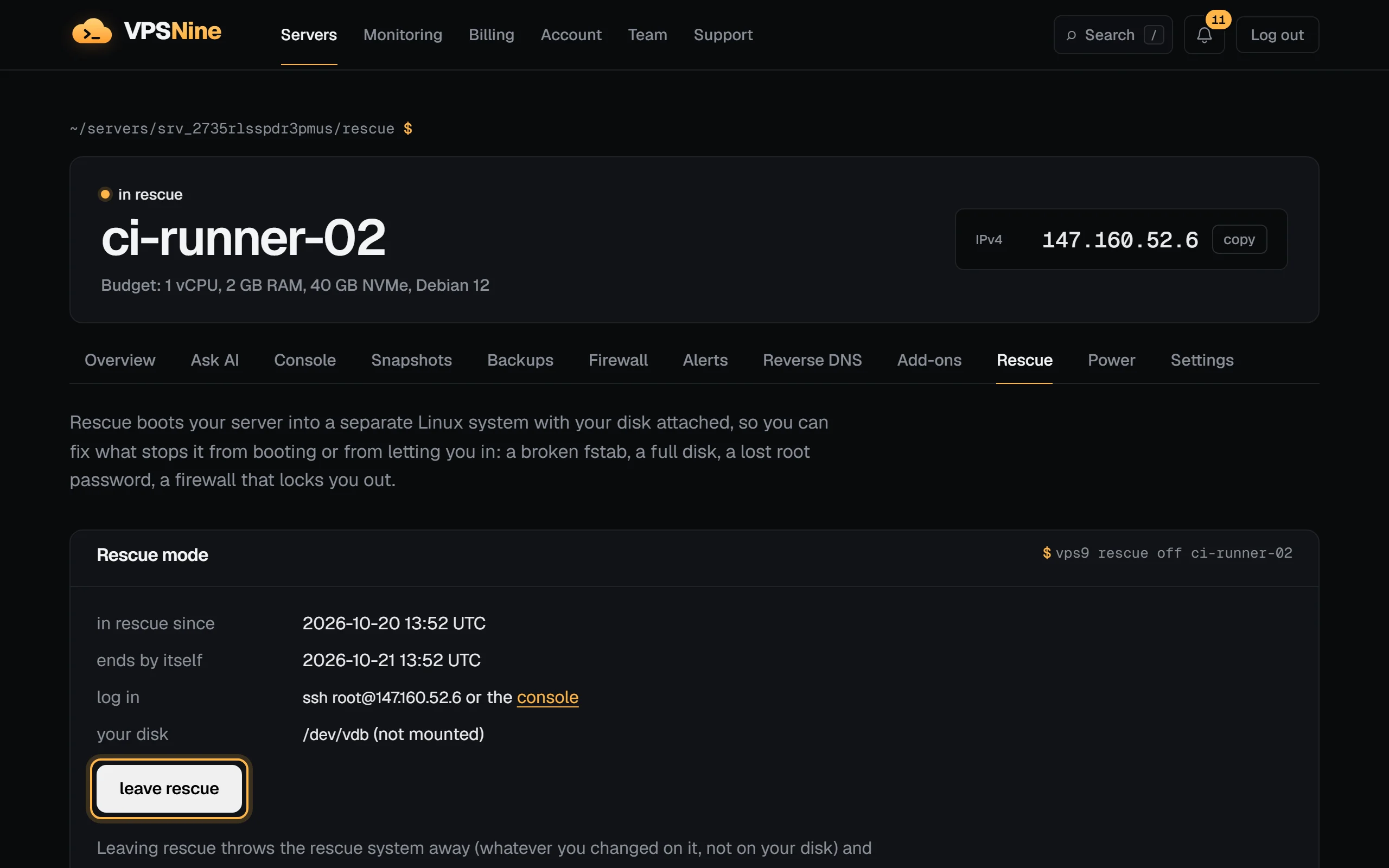
Or from the command line:
vps9 rescue off web-1The server boots from its own disk again, usually within a minute. Whatever you changed on the rescue system itself is thrown away; changes to your disk stay.
If switching into or out of rescue fails, the server shows error and the Rescue tab offers leave rescue. If that fails too, open a support ticket with the server's name.
Troubleshooting
WARNING: REMOTE HOST IDENTIFICATION HAS CHANGED!Expected: the rescue system has its own host keys. Runssh-keygen -R <address>and connect again, and once more after you leave rescue.mount: /mnt: wrong fs type, bad option, bad superblock. You picked the wrong partition, or the filesystem needs checking. Runlsblk -fto find the right one, thenfsck -fon it (orxfs_repairfor XFS).mount: unknown filesystem type 'LVM2_member'. The disk uses LVM. Runapt install -y lvm2, thenvgchange -ayandlvsto find the logical volume to mount.Permission deniedwith the one-time password. Copy it again without spaces at either end. If it's gone, leave rescue and start it again for a new one.
Next steps
Doing it on VPSNine
Rescue mode is part of every plan, free, and works whichever distribution the server runs.