Set a root password
When a root password helps, why SSH keys are still the safer way in, and how to set one when you order, reinstall or later.
New servers log in with SSH keys. A key can't be guessed, so it's the safer way in, and we recommend it. A root password is optional. It is worth having for one thing above all: the serial console, which logs you in with a password, not a key.
Three choices
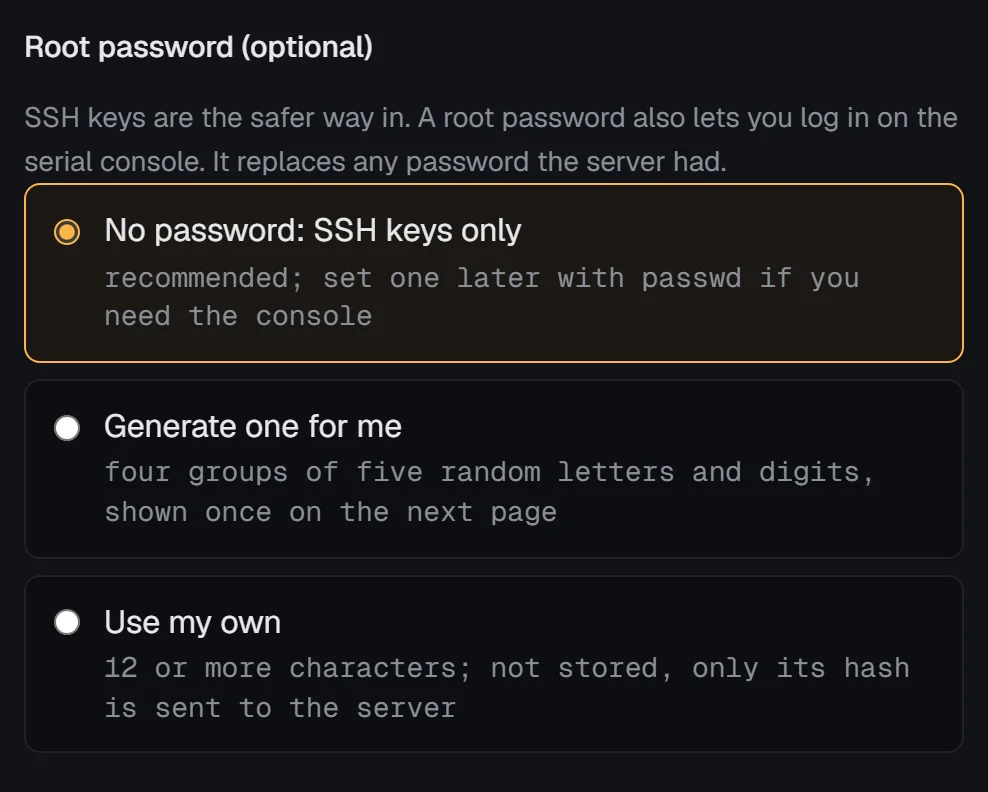
When you order a server, at the How you log in step, and when you reinstall one, the form asks about a root password:
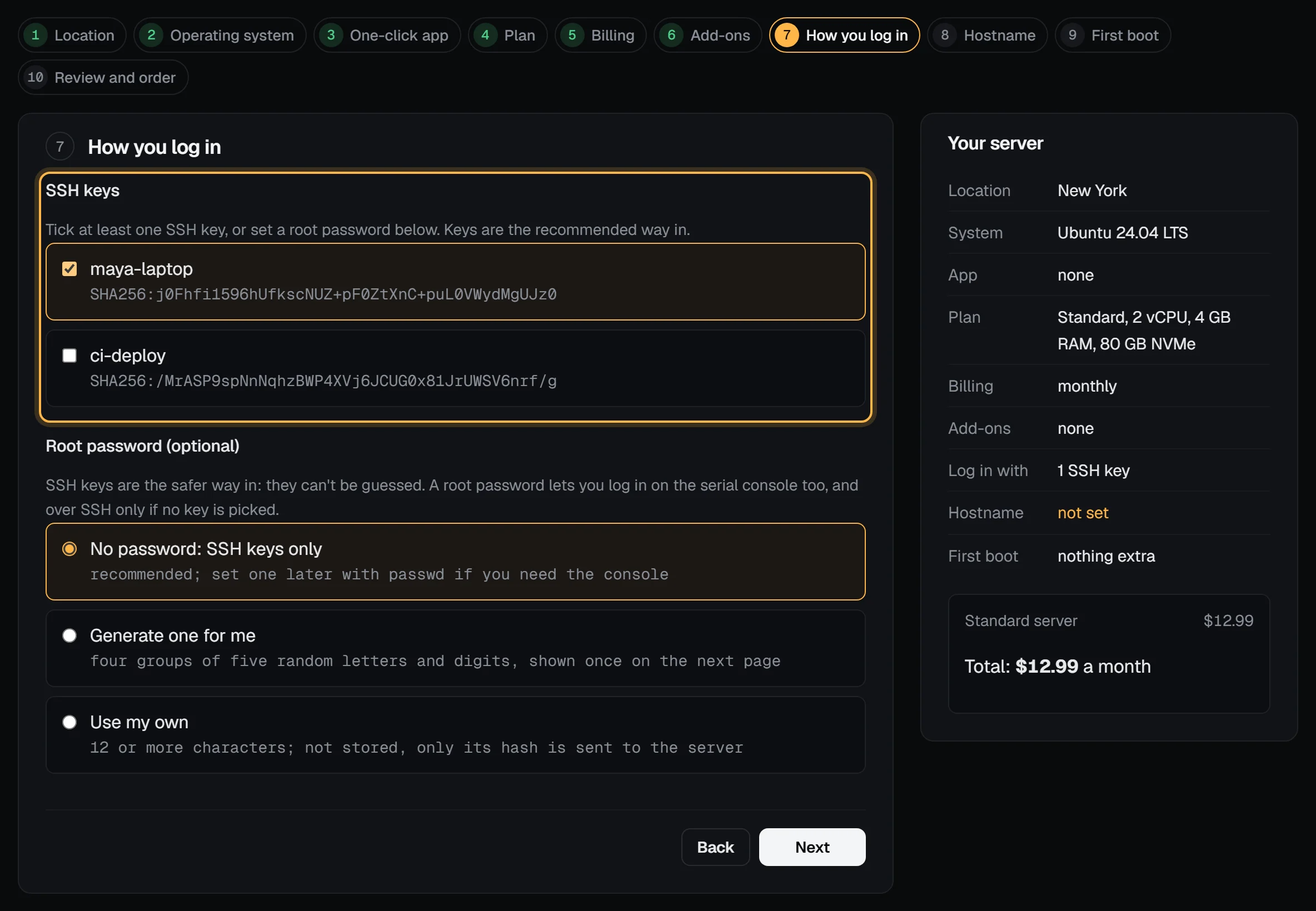
- No password: SSH keys only. The default. Root has no password, so nobody can log in with one, on SSH or on the console. You can set one later with
passwdwhile you're logged in. - Generate one for me. We make a random password, four groups of five letters and digits, like
k7Qm2-xPa9d-ZtR4w-bN3hE. The next page shows it once. Save it in your password manager before you leave that page: we keep only a hash of it, so neither you nor support can see it again. - Use my own. Type it twice. It must be 12 to 128 characters of letters, digits, spaces and the usual symbols (a serial console can't type anything else), and not a common password, your email address or the server's name.
The password itself never reaches our database or the server's host. The panel turns it into a SHA-512 crypt hash, the same kind Linux keeps in /etc/shadow, and only that hash goes to the server's first-boot setup. For an order, the hash is kept encrypted until the invoice is paid and the server is built, then deleted.
Keys and a password together
If you pick at least one SSH key and also set a password, SSH stays key-only: the password works on the serial console and for su, not for SSH logins. If you set a password and pick no key, root can log in over SSH with the password. That works, but a password on the open internet gets guessed at all day, so add a key as soon as you can and turn password logins off.
Change or reset it
- Change it: log in and run
passwd. - Forgot it, but your SSH key works: log in with the key and run
passwd. - Forgot it and have no key: boot into rescue mode and set a new one with
chroot, which keeps everything on the disk. Or reinstall the server and set a new password on the reinstall form; that erases the disk and its snapshots.
With the API and the CLI
POST /servers and the reinstall action take rootPassword: "generate", or your own password. A generated one comes back in the answer, once. With the vps9 CLI, add --root-password generate, or --root-password-file with a file (or - for stdin) holding your own. The CLI never takes a password on the command line, where it would end up in your shell history.