Reinstall a server
Wipe a server and start again on a fresh system, the same one or another, with or without its app, packages and setup script, and what's lost.
To reinstall a server, open it in the panel, go to Settings, press Reinstall… in the danger zone, choose the system and what to install with it, type the hostname and confirm. The disk is erased and a fresh system boots with the same IP addresses, plan and billing; everything that was on the disk, and every snapshot of it, is gone.
What you need
- A copy of anything on the server you want to keep. Back up your server shows how. A snapshot won't do: a reinstall deletes the server's snapshots.
- At least one SSH key in your account, or a root password chosen on the reinstall form. The reinstall puts your account's current SSH keys on the new system.
- A server that is running, stopped or in error, with no other action in progress.
What stays and what's lost
| Stays | Is lost |
|---|---|
| The IPv4 and IPv6 addresses | Everything on the disk: files, databases, users, settings |
| The plan, add-ons and billing (a reinstall costs nothing) | Every snapshot of the server, manual and automatic |
| The panel name, tags and notes | The SSH host keys (your computer will warn you, see below) |
| The panel firewall rules, alert rules and reverse DNS | Any root password the server had (a new one replaces it, or none) |
| The automatic snapshot schedule |
1. Open the reinstall form
Open the server, go to the Settings tab, and press Reinstall… in the danger zone. The form opens on its own page; nothing happens until you confirm at the bottom.

2. Choose the system
Operating system starts on the one the server has. Pick another to switch, for example from Debian 12 to Ubuntu 24.04. Choose a Linux distribution compares them.
3. Keep, change or remove the app
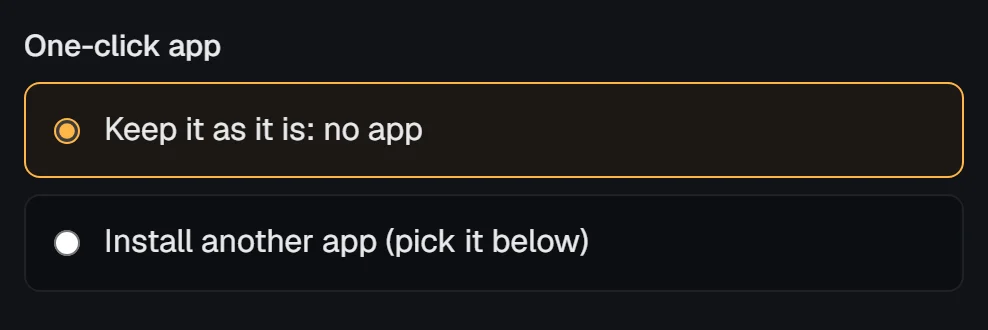
- Keep installs the server's one-click app again, from scratch. If the server has none, it stays without one.
- Install another app, then pick it in the list below. Apps that don't suit the system you picked are hidden.
- No app: just the operating system removes it (shown when the server has an app).
An app only installs on a distribution it supports. If you switch systems and keep an app that doesn't run there, the form tells you.
4. Packages and the setup script
- Extra packages starts with the packages you asked for last time. Edit the list, or empty it for none.
- Setup script: run the setup script from last time again, use a new setup script (write it in the box that unfolds under New setup script), or No setup script. The old script isn't shown, because we store it encrypted, but it can be run again.
Extra packages and setup scripts explains what each runs and when.
5. Root password (optional)
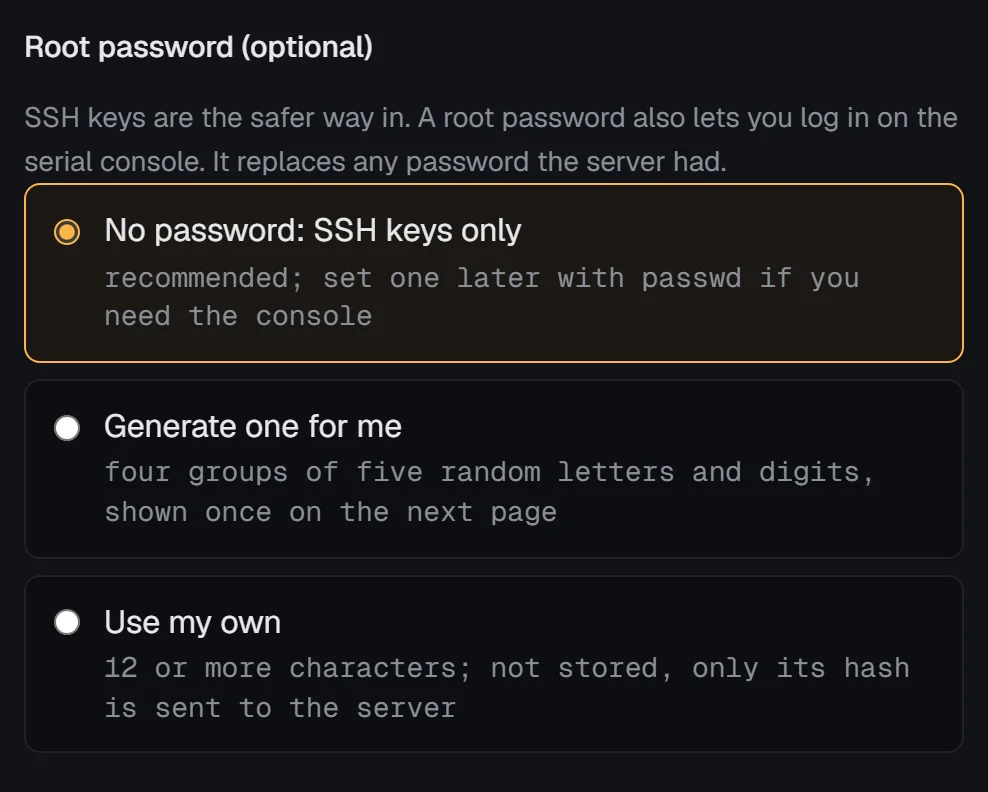
The same three choices as when you ordered: No password: SSH keys only, Generate one for me (shown once, on the next page), or Use my own. A root password lets you log in on the serial console. This is also the way back in if you've lost both your key and your password. Set a root password has the rules.
6. Confirm
Type the server's hostname in Type … to confirm, exactly as shown, and press reinstall. The server shows reinstalling, then running once the new system has booted. Its events record the reinstall.
Check it worked: remove the old host key on your computer, then log in:
ssh-keygen -R 203.0.113.42
ssh root@203.0.113.42
Use your server's address; 203.0.113.42 is a placeholder. cat /etc/os-release shows the system you picked. If you chose an app, packages or a script, they install on the first boot: follow them with tail -F /var/log/vps9-setup.log.
From the command line or the API
With the vps9 CLI, which asks you to type the hostname first:
vps9 servers reinstall web-1
vps9 servers reinstall web-1 --image ubuntu-24.04 --app docker
vps9 servers reinstall web-1 --no-app --root-password generate
--image takes an image id or a system key like ubuntu-24.04; --package, --packages and --setup-script file set the first boot. With the API, send {"action": "reinstall"} to POST /servers/:id/actions, adding image, app (or null for none), packages, setupScript and rootPassword only for what you want to change. A generated password comes back in the answer, once.
Troubleshooting
WARNING: REMOTE HOST IDENTIFICATION HAS CHANGED!Expected after a reinstall: the new system has new host keys. Runssh-keygen -R <address>and connect again.- "Add an SSH key to your account first, or set a root password: a reinstall puts your account's keys on the server." Add a key under Account, or choose a root password on the form.
- "not in this state" next to Reinstall. The server is being built, suspended, in rescue, or busy with another action. Leave rescue, pay an open renewal, or wait for the action to finish.
- The server shows error after the reinstall. The newest event says what failed. Try again once; if it fails twice, open a support ticket.
Next steps
- Your server's first hour: a checklist
- Server settings
- Rescue mode, to fix a server without erasing it
Doing it on VPSNine
Every distribution on our list can be reinstalled onto any plan, and any one-click app that runs on it can come with the reinstall.