Snapshots
Keep up to three copies of a server's disk plus daily or weekly automatic ones, go back to one when a change goes wrong, and the minute of downtime.
To take a snapshot, open the server's Snapshots tab, type a name like before-upgrade and press take snapshot; the server pauses for about a minute while its disk is copied. If a change goes wrong later, revert… puts the disk back exactly as it was at that moment. You can keep three of your own per server, and have the panel take more by itself every day or week.
What you need
- A server that is running or stopped, with no other action in progress.
- A minute when the server can be offline: it shuts down cleanly while the snapshot is taken.
What you get
- The disk, not the memory. Programs that were running aren't saved. After a revert the server boots from the restored disk, as if it had been switched off at that moment.
- Up to 3 per server. To take a fourth, delete one first.
- Snapshots live with the server. Reinstalling or deleting the server deletes all of its snapshots. So does the deletion that follows an unpaid renewal.
At launch, snapshots don't count against your plan's disk space.
The minute of downtime
Snapshots are taken with the server shut off, so that the copy is consistent. When you take, revert or delete a snapshot of a running server, we shut it down cleanly, do the work, and start it again. Expect it to be unreachable for about a minute.
A server that was stopped stays stopped after a snapshot is taken or deleted. A revert always ends with the server running.
While a snapshot job runs, the server's other actions (start, stop, reboot and so on) wait for it to finish.
Take one
- In the panel, open the server and go to the Snapshots tab.
- Under Take a snapshot, give it a name you'll recognise later, like
before-upgrade. Names are up to 40 letters, digits, spaces, dots, dashes or underscores, starting with a letter or digit. - Press take snapshot.
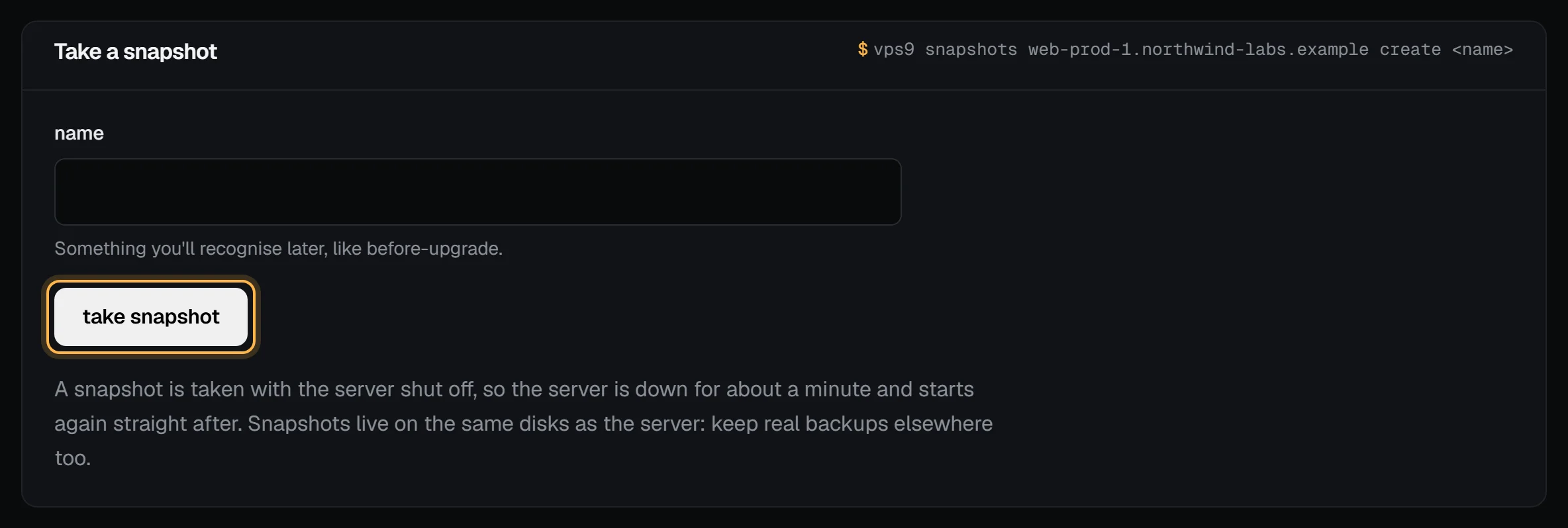
The snapshot shows as being taken… and then ready in the list at the top of the tab. You can't take one while the server is suspended or busy with another action.
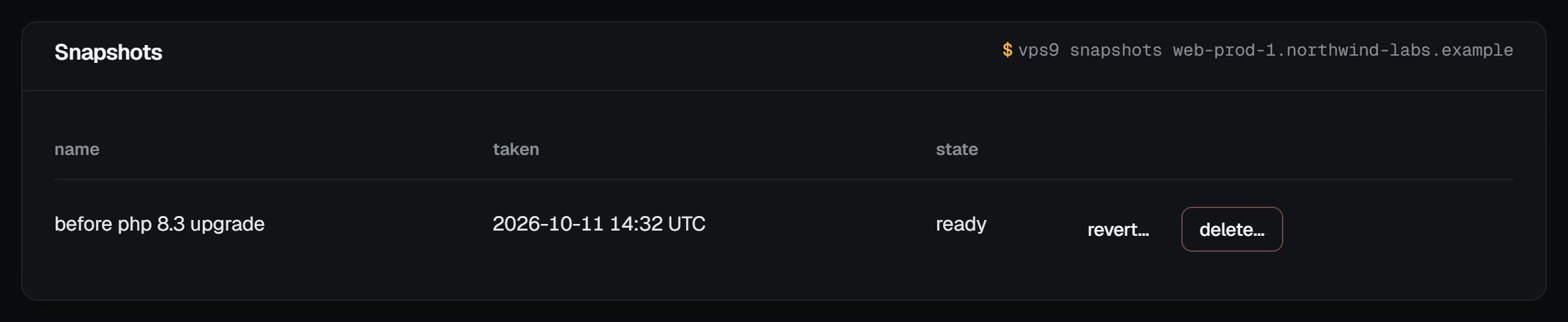
Check it worked: the list shows the name with ready, and the server's events say "snapshot finished".
You can also take one from the command palette: press /, type snapshot and the server's name, and confirm. It's named after the date and time.
From the command line:
vps9 snapshots web-1 create before-upgrade
vps9 snapshots web-1                       # the list, oldest first
The API does the same under /servers/:id/snapshots.
Revert to one
Choose revert… next to the snapshot and type the server's hostname to confirm. Everything written to the disk since the snapshot was taken is lost, and that can't be undone. The snapshot itself stays, so you can revert to it again later.
If you added extra disk after the snapshot, the disk keeps its bigger size after a revert, but the partition and filesystem are back to the snapshot's. Grow them with sudo growpart /dev/vda 1 and then sudo resize2fs /dev/vda1 (or sudo xfs_growfs /), or reboot and cloud-init grows them.
vps9 snapshots web-1 revert before-upgradeIf a revert fails, the server shows error. Open a support ticket with its name.
Delete one
Choose delete… next to the snapshot and type the hostname. A running server is shut off for about a minute while the snapshot is removed.
vps9 snapshots web-1 rm before-upgradeThe CLI asks you to type the hostname before a revert or a delete. Add --yes to skip that in a script.
If a snapshot fails part way through, it doesn't linger on the disk taking up space. The next snapshot you take clears out anything that isn't in your list.
Automatic snapshots
The server can take snapshots by itself, every day or every week, at an hour you pick in your own time zone. On the server's Snapshots tab, under Automatic snapshots:
- Pick how often: every day or every week.
- For weekly, pick the day in on (weekly).
- Pick the hour in at and your time zone.
- Pick how many to keep: 1 to 4.
- Press save schedule.
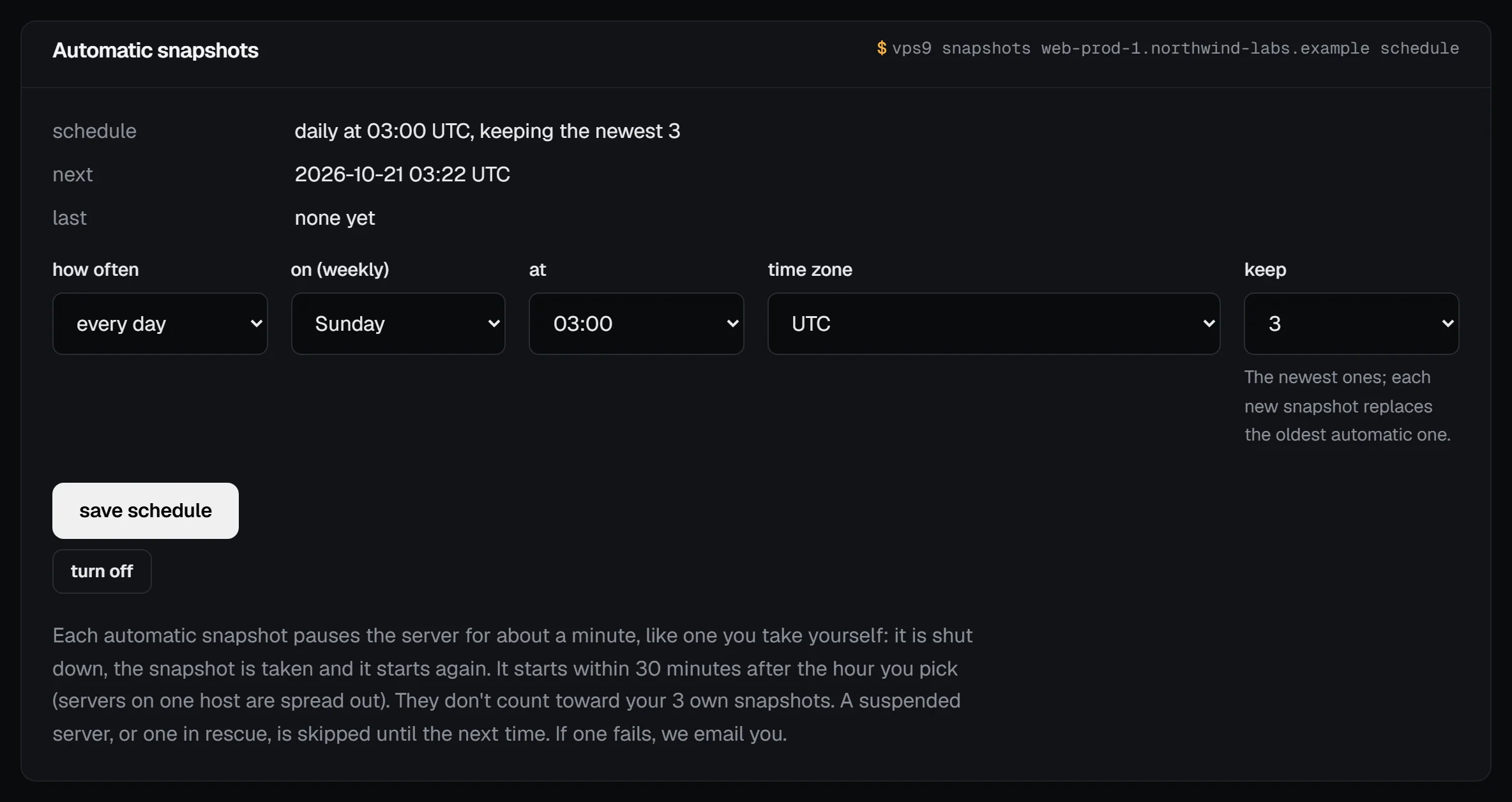
Check it worked: the box shows the schedule in words, like "daily at 03:00 UTC, keeping the newest 3", with the next run. The server overview's Snapshots card says the same.
- The newest ones are kept. Each new automatic snapshot replaces the oldest automatic one, in the same short shutdown.
- They don't count toward your own 3. Your own snapshots are never replaced; automatic ones show as automatic in the list. You can revert to or delete either kind.
- The same minute of downtime. Each automatic snapshot shuts the server down for about a minute, like one you take yourself. Pick an hour when that hurts least.
- Spread out. A run starts within 30 minutes after the hour you pick, so the servers on one host aren't all paused at once.
- Skipped when it can't run. A suspended server, or one in rescue mode, is skipped until its next scheduled time. If the server is busy with another action, it tries again for up to 6 hours.
- We email you when one fails, with the reason. The page shows the next run and how the last one went.
Turning automatic snapshots off keeps the ones already taken until you delete them.
From the command line:
vps9 snapshots web-1 schedule daily --at 3 --tz Europe/Berlin --keep 3
vps9 snapshots web-1 schedule weekly --day sun --at 4 --tz America/New_York
vps9 snapshots web-1 schedule              # show it
vps9 snapshots web-1 schedule off
The API has /servers/:id/snapshot-schedule (GET, PUT and DELETE).
Snapshots aren't backups
Snapshots are stored with the server's disk, on the same machine. A disk failure, a deleted server or a lapsed renewal takes them all at once. They're for undoing a change, not for keeping your data safe. For that, copy it somewhere else: Back up your server shows how.
Troubleshooting
- "This server has 3 snapshots, the most it keeps. Delete one to take another." Delete one of your own first. Automatic ones don't count toward the 3.
- An automatic snapshot failed. We email you with the reason, and the schedule box shows it under last. The next one runs as planned.
- The server shows error after a revert. Open a support ticket with its name; the snapshot itself is kept.
Next steps
- Back up your server, off the server
- Rescue mode
- Notifications and resource alerts
- Reinstall a server, which deletes every snapshot
Doing it on VPSNine
Snapshots come with every plan at no extra cost, up to 3 of your own per server plus up to 4 automatic ones.