Order your first server, step by step
Every step of the VPSNine order form, from the operating system to the review, what each choice does, and what happens after you pay.
To order a server, open Create server on your servers page (or go to my.vpsnine.com/servers/new), answer the short steps one at a time, and press order on the review. The invoice opens next; once it's paid, the server is built and its page shows every step as it happens.
What you need
- A VPSNine account with a confirmed email address. The order form asks you to confirm it first.
- An SSH key in your account, or the decision to use a root password instead. Keys are the safer way in.
- A way to pay: Bitcoin, PayPal or account credit. Payment methods has the details.
How the form works
The form asks one thing at a time. The row of numbered steps at the top shows where you are; done steps turn green, and you can click any of them to go back without losing what you picked. Your server, beside the form, sums up every choice with the total, and each line in it links to its step.
Without JavaScript, every step shows on one page and update total works out the price. The choices and checks are the same.
Location
Every server runs in New York for now, with its own IPv4 and IPv6 address. There's nothing to pick; press Next.
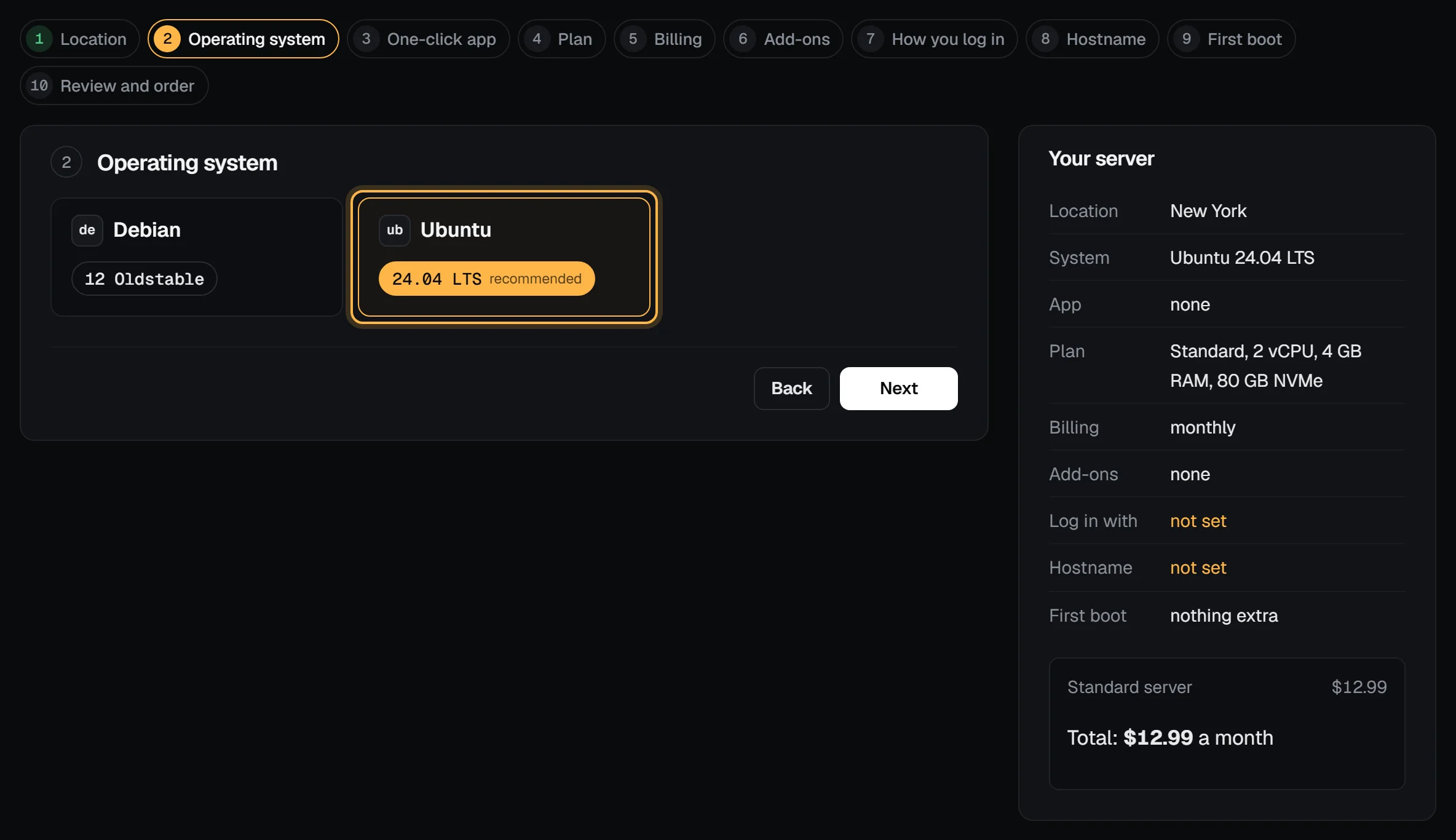
Operating system
Each distribution is a card, and each version a button on it. The recommended version is marked. Without a strong preference, take Ubuntu LTS or Debian; Choose a Linux distribution has the longer answer.
One-click app (optional)
Pick an app to have it installed on the first boot, or leave it on None for a plain server. Apps that don't run on the system you picked are hidden, and an app that needs a bigger plan says so.
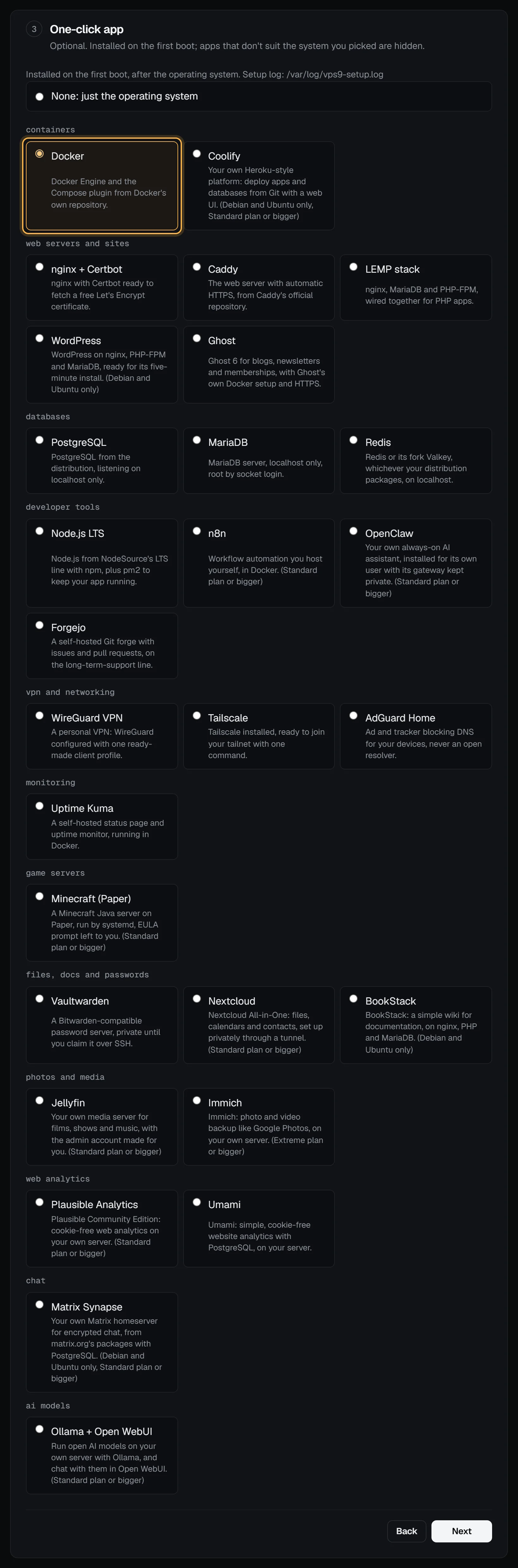
One-click apps lists them all, with how to follow the install once the server is up.
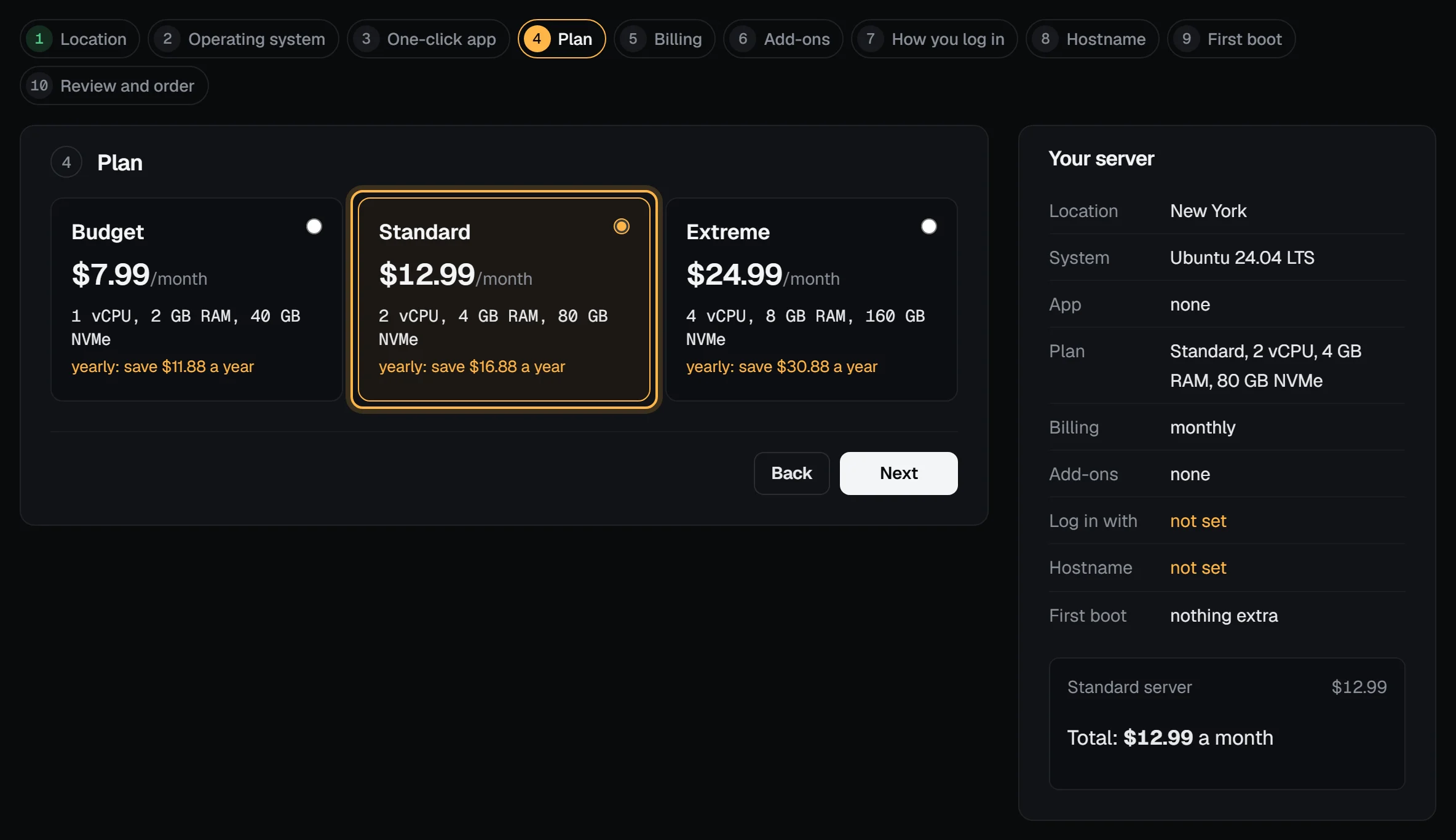
Plan
Pick Budget, Standard or Extreme. Each card shows the vCPUs, memory and NVMe disk, the monthly price, and what paying yearly saves. Choose a plan and How much RAM does my VPS need help if you're torn.
Billing
Monthly is billed each month and you can cancel any time. Yearly bills twelve months at once, for less. Either way there's no setup fee, and the money-back guarantee covers your first order for 14 days after you pay. You can switch between them later, from the next renewal, on the server's Settings tab.
Add-ons (optional)
When add-ons are on sale, this step lets you add RAM, vCPUs, NVMe disk, transfer or IPv4 addresses on top of the plan, each up to the plan's limit. The total updates as you change them. You can change add-ons later too: see Add-ons.
How you log in
Tick each SSH key you want on the server. None is ticked for you. Then choose a root password: No password: SSH keys only (recommended), Generate one for me, or Use my own.
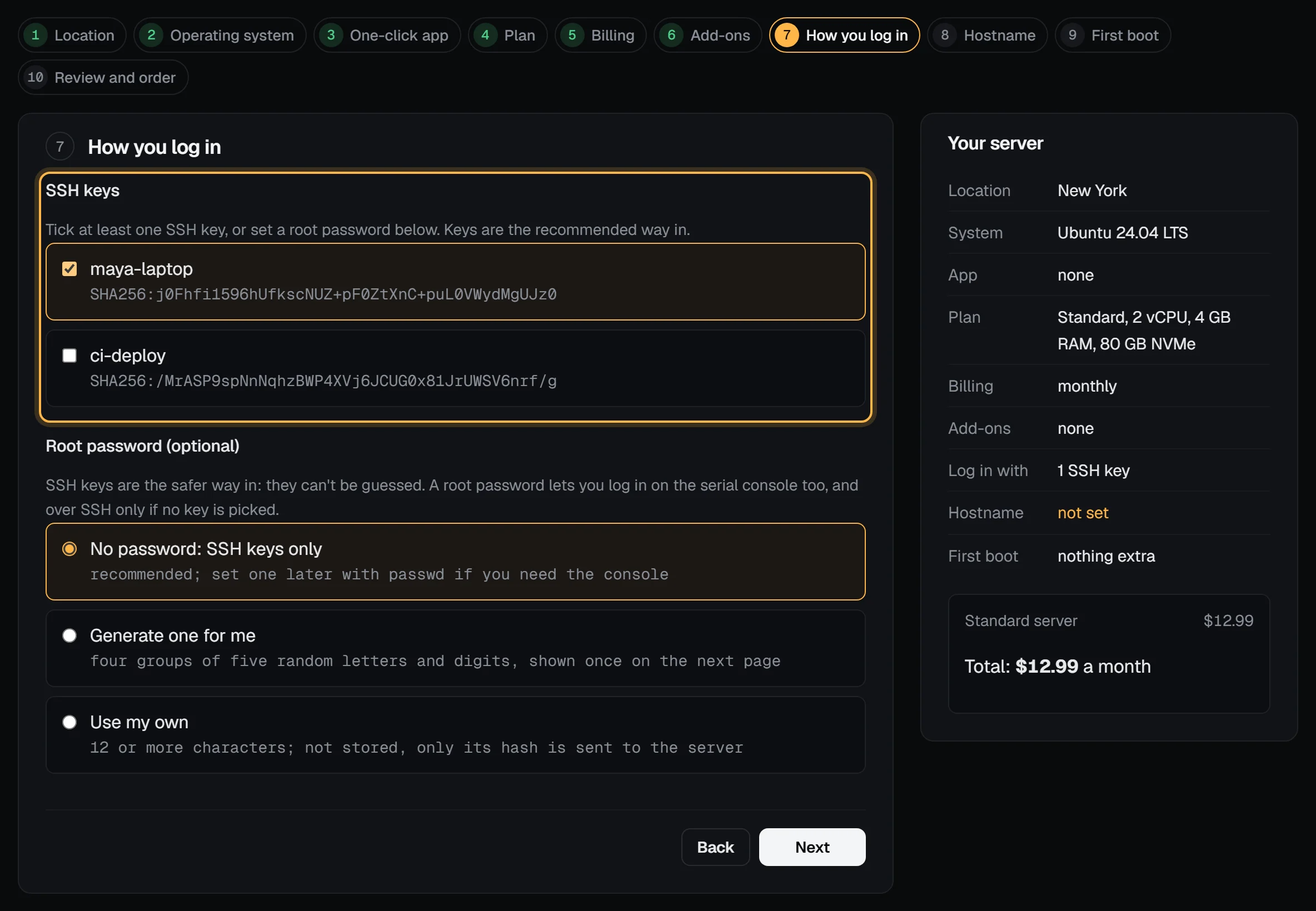
A server needs at least one key or a root password. A generated password is shown once, on the page after you order, so have your password manager ready. Set a root password explains the three choices.
Hostname
Type the server's name, like web-1 or web-1.example.com. It's set inside the server on the first boot and names it in the panel. Use 1 to 63 lowercase letters, digits, dashes and dots; each part starts and ends with a letter or digit. You can give it a friendlier panel name and tags afterwards.
First boot (optional)
Extra packages to install and a setup script to run once, after the system and the app. Leave both empty for a plain server. Extra packages and setup scripts has examples, and the recipes like Secure server setup paste in here.
Review and order
The last step repeats every choice. If something is missing, like a key or a hostname, it's listed here with a link to its step. If you have account credit, the page says it's used first.
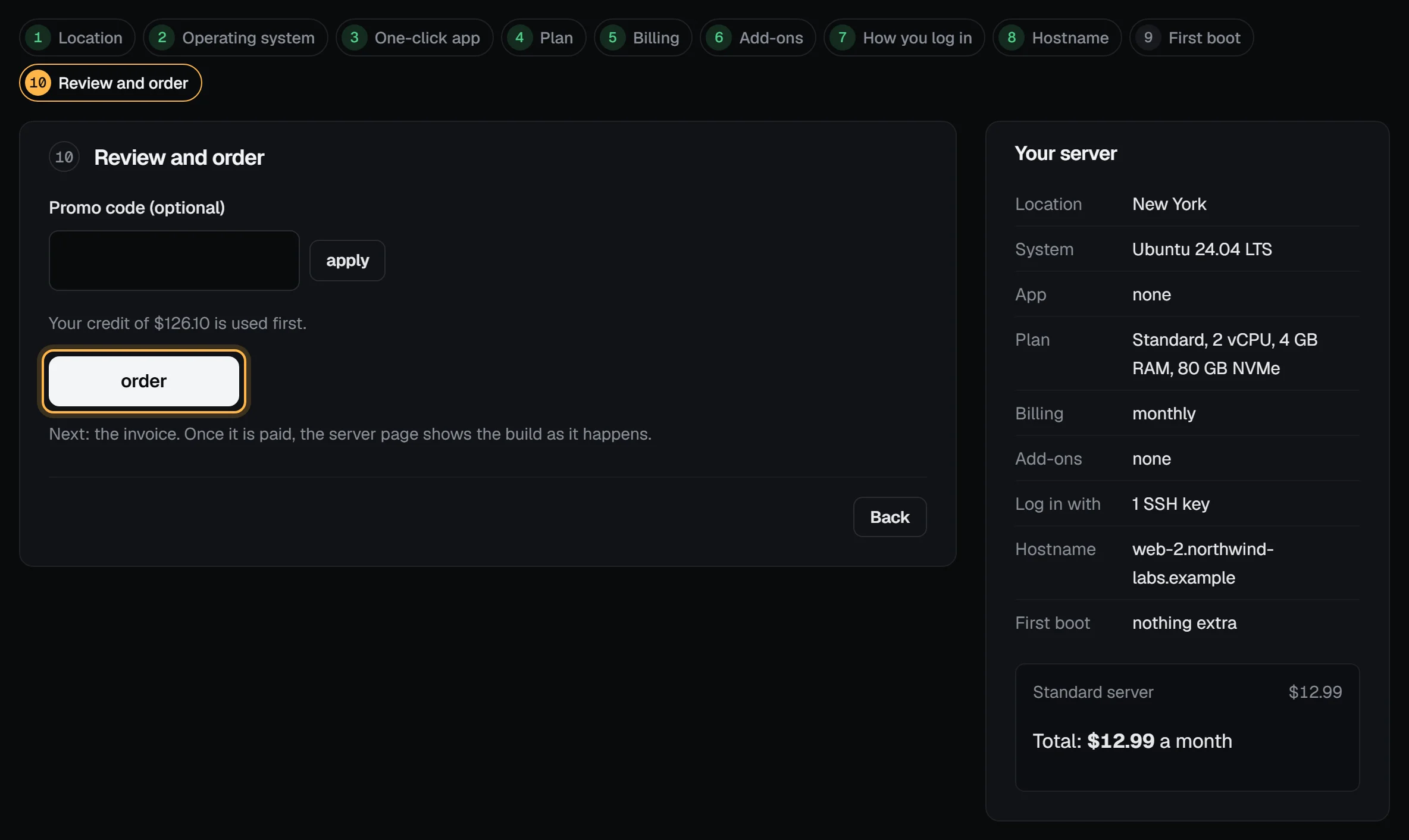
Press order.
After you press order
- The invoice opens. If your credit covered the total, it's already paid. If you chose Generate one for me, the root password page comes first: save the password, then go on to the invoice.
- Pay it with Bitcoin or PayPal from the invoice. An order invoice not paid within 7 days is cancelled. You can hold up to 3 unpaid orders at once.
- The build starts as soon as the payment confirms. Open the server from your servers page to watch it build: the page shows each step and the time since your order, and ends with the
sshcommand to copy. - We email you when the server is ready.
What happens when you order a server covers the billing that follows, from the first renewal on.
Check it worked
Your servers page lists the new server. While it's being built it shows provisioning; when it's done it shows running with its IPv4 address. Then log in:
ssh root@203.0.113.42Use the address from the panel; 203.0.113.42 is a placeholder.
Order from a link
Links on vpsnine.com/plans, the app pages and the distribution pages open the form with the plan, system, app or add-ons already picked. The steps they answered show as done, and the form starts at How you log in. You can still go back and change anything.
You can build such a link yourself:
https://my.vpsnine.com/servers/new?plan=standard&term=yearly&os=ubuntu-24.04&app=docker&addon_disk=40plan is budget, standard or extreme; term is monthly or yearly; os is a distribution key from /os; app is an app id from /apps; and addon_ram, addon_vcpu, addon_disk, addon_transfer and addon_ipv4 take a number in the add-on's own unit (GB of RAM or disk, cores, TB or addresses). Anything the form doesn't recognise is ignored. If you aren't logged in, the link survives the login.
Troubleshooting
- "Confirm your email to order." Open the link in the email we sent when you signed up, or use send a new link in the banner at the top of the page. Verify your email has the details.
- The form stops at How you log in. Tick at least one SSH key, or pick a root password. If you have no keys, add one in another tab, then reload the form.
- "Use 1 to 63 characters: lowercase letters, digits, dashes and dots." The hostname has a character it can't use, like an underscore or a space, or a part that starts or ends with a dash.
- "Too many tries in a short time. Wait a while and try again." Wait a few minutes, then press order again.
- "You have 3 unpaid orders." Pay one of their invoices, or wait for one to lapse after 7 days, before ordering more.
Next steps
- Watch your server build
- Connect to your server with SSH
- Your server's first hour: a checklist
- Panel tour
Doing it on VPSNine
The plans and prices are on vpsnine.com/plans. Each one-click app and distribution has a page with an order link that fills in the form for you.