The server overview page
What each part of a server's page tells you: its state and addresses, the power keys, usage at a glance, the status cards, events, details and graphs.
Click a server on your servers page to open its overview: everything about that one server on one page. The top shows its state, name and IP addresses with the power keys, then usage at a glance, four status cards (access, snapshots, alerts, rescue), its recent events, details and usage graphs.
What you need
- A server. Open it from your servers page, from the command palette (press
/and type its name), or withvps9 open <server>from the command line.
The header
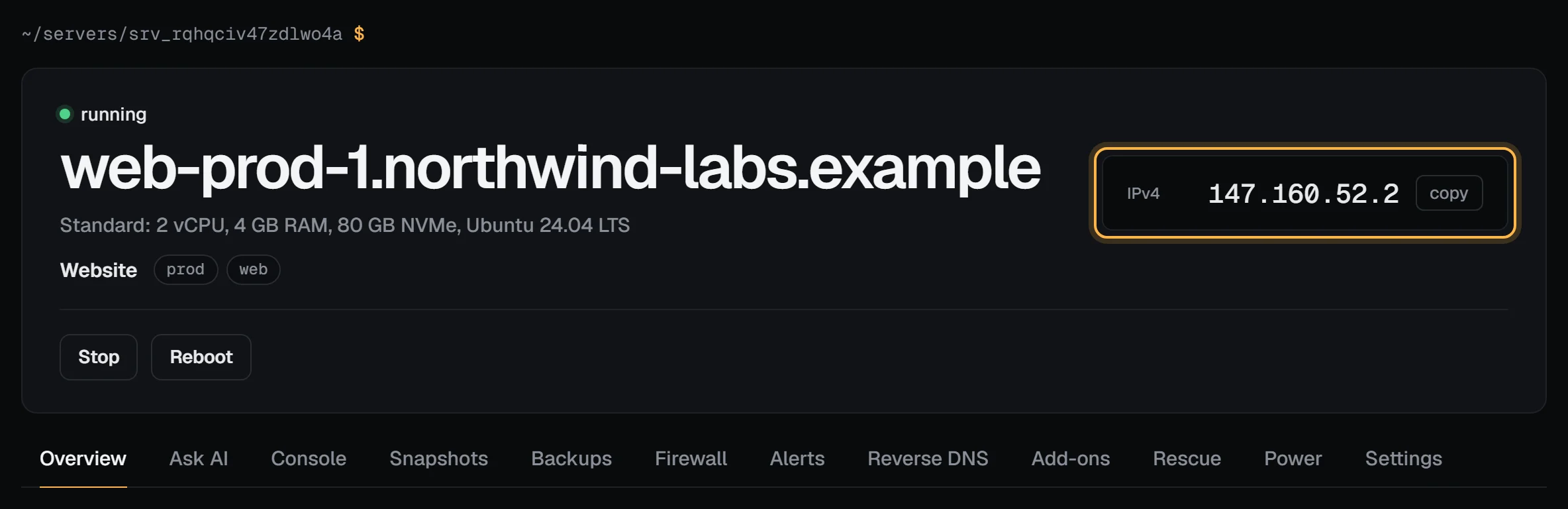
- The state, with its light: running, stopped, provisioning, in rescue, error, suspended, or what it's doing right now ("Stopping…").
- The hostname, then the plan, its size and the system it runs. Under it, the panel name and tags if you've set them on the Settings tab; click a tag to see every server with it.
- The addresses: IPv4, and IPv6 when the server has one, each with copy.
- The power keys: Start when it's stopped, Stop and Reboot when it's running. Stop shuts the system down cleanly. The key says what it's doing ("Stopping…") at once, and the light changes only when the server really has; you don't need to reload. Reinstall and delete are on the Settings tab, away from the keys you press every day.
The tabs
| Tab | What it's for |
|---|---|
| Overview | This page. |
| Console | The serial console, for when SSH won't connect. |
| Snapshots | Take, revert and schedule snapshots. |
| Firewall | The panel firewall, in front of the server. |
| Alerts | Alert rules for CPU, memory, transfer and downtime. |
| Reverse DNS | PTR records for its addresses. |
| Add-ons | More RAM, vCPUs, disk, transfer or IPv4: add-ons. |
| Rescue | Boot a rescue system with the disk attached. |
| Settings | Name, tags, notes, billing, reinstall and delete: server settings. |
At a glance
Four tiles: how long the server has been up (and since when), and CPU, memory and network over the last 24 hours as small graphs, with the latest value and the peak.

The host reports usage every 5 minutes, so a brand-new server says "no data yet" for its first few minutes. CPU is across all vCPUs: 100% means every one is busy. Memory is what the server holds on the host, which includes Linux's cache, so a healthy server often reads high.
The status cards

- Access: the
sshcommand with copy, and the SSH keys put on the server (or a note that it uses a root password). Open the console is the way in when SSH isn't. - Snapshots: how many are kept, whether one is being taken, the automatic schedule with its next run, and the latest snapshot. The light is green while automatic snapshots are on.
- Alerts: how many rules watch the server, and how many are firing now (the light turns red).
- Rescue: off, or in rescue with the time it ends by itself.
Events
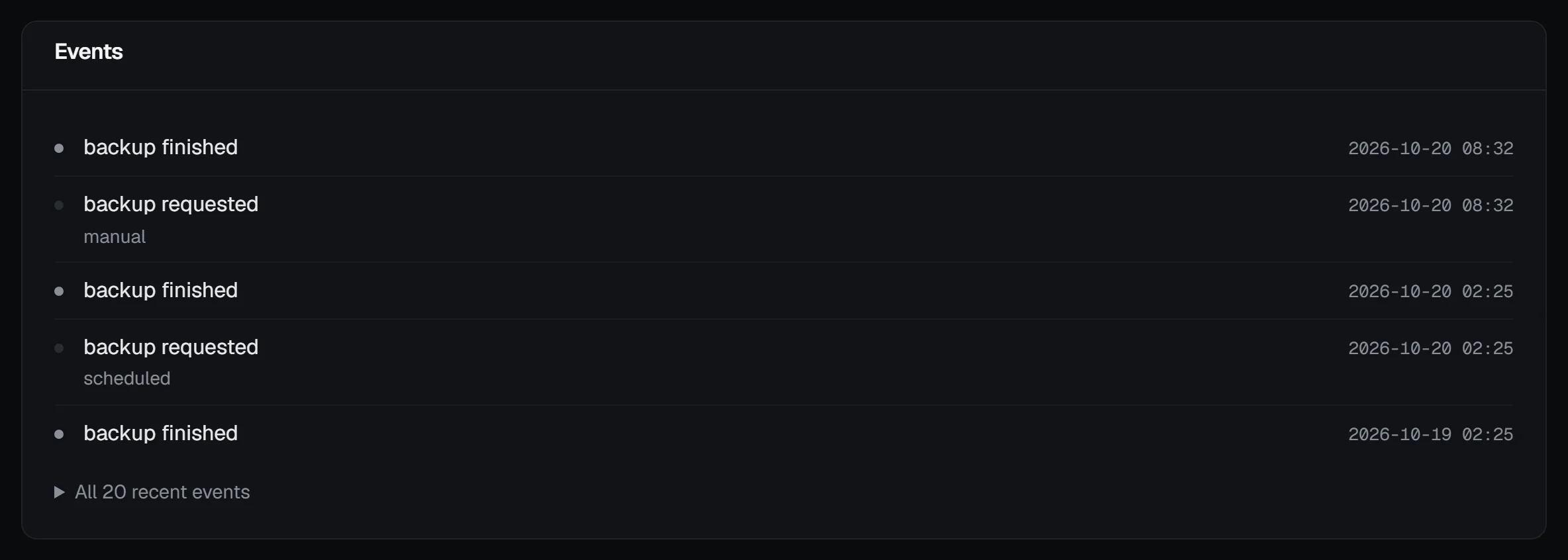
The newest five things that happened to the server: starts and stops, snapshots, firewall changes, console sessions, rescue, reinstalls. Each shows when, and a detail where there is one. All recent events unfolds the full list, with who did each (you, a teammate, the API, or the system).
Details, app and usage
- Details: whether outbound email (port 25) is open, the image it was installed from, when it was created and its id. The id is what the API uses. The
vps9 servers showcommand beside it prints the same from a terminal. - App: if you installed a one-click app, its next steps, the ports it listens on, and a warning when your panel firewall blocks them.
- Usage: CPU, memory, disk reads and writes, and network traffic, over the last 24 hours, 7 days or 30 days. Under the graphs, the transfer used this month against the allowance (the plan plus any transfer packs).
While it's being built
On a new server, the top of the page is the build timeline instead of the glance tiles and cards. It stays there for 30 minutes after the build ends.
Troubleshooting
- "An action is running. This page shows when it ends." A start, stop, snapshot or other action is still running. The keys come back when it's done.
- The graphs say "no data yet". The server is new or was stopped. Usage arrives every 5 minutes while it runs.
- The state says error. The last action failed. The newest event says which one and why; try the action again, and open a support ticket if it fails twice.
Next steps
- Server settings: name, tags, notes, billing term and the danger zone
- Monitor your server
- Snapshots
- Panel tour
Doing it on VPSNine
The plan, vCPUs, memory and disk in the header are the ones on vpsnine.com/plans; the image is one of the distributions we offer.