Use VPSNine from Claude, Cursor and other AI tools (MCP)
Connect Claude, Cursor or VS Code to VPSNine with MCP, so an assistant can check and manage your servers with your API token.
VPSNine has an MCP server, so AI tools that speak the Model Context Protocol (Claude Desktop, Claude Code, Cursor, VS Code and others) can work with your servers: list them, read a server's firewall, take a snapshot, reboot, set reverse DNS, look at invoices, open a support ticket. It uses an API token, and it can do exactly what that token can do through the API, nothing more.
There are two ways to connect:
| Remote (a URL) | Local (a program on your computer) | |
|---|---|---|
| Address | https://my.vpsnine.com/mcp |
vpsnine-mcp.mjs, run with Node.js 18 or later |
| Install | Nothing | One file, once its download is published |
| Works with | Claude Code, Cursor, VS Code and any client that sends a header | Claude Desktop, and any client that starts a local process |
Both offer the same tools and answer the same way.
Start with a read-only token
Make a token for the assistant in the panel at my.vpsnine.com/account/api-tokens. Name it after the tool, like Claude Desktop, and pick read only to start.
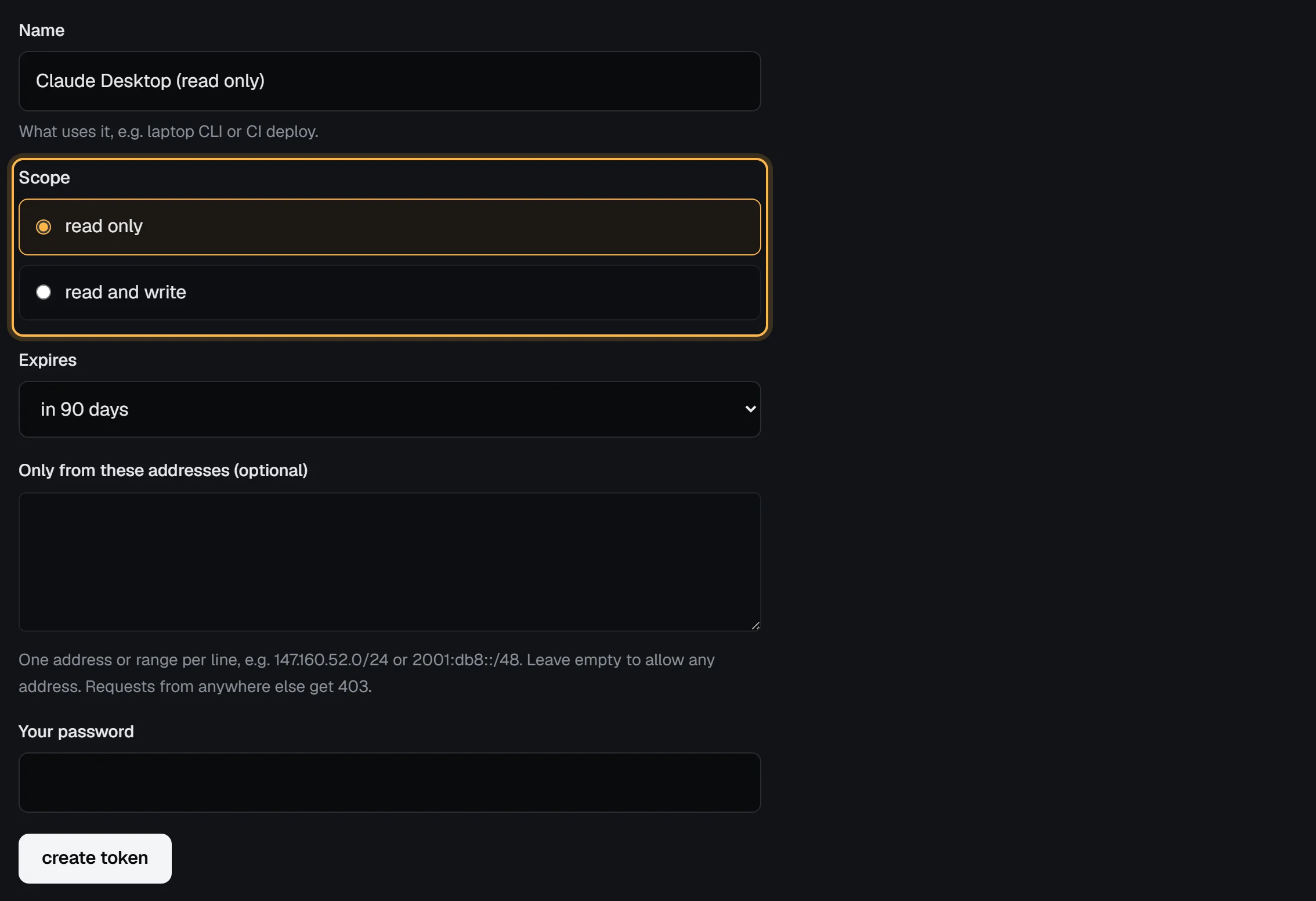
With a read-only token the assistant only sees the tools that look. When you want it to make changes, make a second token with read and write and swap it in. Give the token an expiry, and limit it to your own addresses if your computer's address doesn't change.
Claude Code
Add the remote server with one command. Replace vps9_... with your token:
claude mcp add --transport http vpsnine https://my.vpsnine.com/mcp --header "Authorization: Bearer vps9_..."claude mcp list should show vpsnine as connected. Then ask, for example, "list my VPSNine servers". Add --scope user to use it in every project rather than only the current one.
Cursor
Add this to ~/.cursor/mcp.json (every project) or .cursor/mcp.json in one project, and keep the token in an environment variable named VPSNINE_API_TOKEN:
{
  "mcpServers": {
    "vpsnine": {
      "url": "https://my.vpsnine.com/mcp",
      "headers": { "Authorization": "Bearer ${env:VPSNINE_API_TOKEN}" }
    }
  }
}
VS Code
Add this to .vscode/mcp.json in your project. VS Code asks for the token the first time and stores it encrypted, so it never sits in the file:
{
  "inputs": [
    { "type": "promptString", "id": "vpsnine-token", "description": "VPSNine API token", "password": true }
  ],
  "servers": {
    "vpsnine": {
      "type": "http",
      "url": "https://my.vpsnine.com/mcp",
      "headers": { "Authorization": "Bearer ${input:vpsnine-token}" }
    }
  }
}
Open Copilot Chat in agent mode and the VPSNine tools are in its tools list.
Claude Desktop
Claude Desktop starts MCP servers as local programs, so it uses vpsnine-mcp.mjs, a single file that needs Node.js 18 or later and nothing else. Its download opens at launch at https://vpsnine.com/downloads/mcp/, with a SHA256SUMS file to check it against, like the vps9 CLI. Save it somewhere permanent, then open Settings, Developer, Edit Config and add it to claude_desktop_config.json:
{
  "mcpServers": {
    "vpsnine": {
      "command": "node",
      "args": ["/Users/you/vpsnine/vpsnine-mcp.mjs"],
      "env": { "VPSNINE_API_TOKEN": "vps9_..." }
    }
  }
}
On Windows the path looks like "C:\\Users\\you\\vpsnine\\vpsnine-mcp.mjs". Restart Claude Desktop; VPSNine appears under the tools button in a new chat.
The local server takes two more settings. --read-only in args (or "VPSNINE_MCP_READ_ONLY": "1" in env) offers only the tools that look, whatever the token allows. VPSNINE_API_URL points it at another API address, which you won't normally need.
What the assistant can do
| Area | Tools |
|---|---|
| Account and catalog | get_account, list_ssh_keys, add_ssh_key, list_images, list_apps, get_prices, get_status |
| Servers | list_servers, get_server, create_server, power_server (start, stop, reboot), reinstall_server, delete_server, update_server_details |
| Snapshots | list_snapshots, create_snapshot, revert_snapshot, delete_snapshot |
| Network | get_firewall, set_firewall, list_reverse_dns, set_reverse_dns, clear_reverse_dns |
| Billing | get_addons, change_addons, get_billing_summary, list_invoices, get_invoice |
| Support | list_tickets, get_ticket, open_ticket, reply_to_ticket |
There are also two ready-made prompts, check_server (looks over one server and reports what needs attention) and review_spending (what each server costs and where you could save), and each server is readable as a summary at vpsnine://servers/<id>. Neither changes anything.
Safety: what asks before it runs
The assistant acts as your token, so it can't do more than the token allows: a read-only token can't change anything, a team member's token is limited by their role, and an address-limited token only works from those addresses. Every tool call is an API request, with the same rate limits and a request id you can give support.
On top of that, the tools that cost money or destroy data stop first:
- create_server and change_addons answer with the price and do nothing. The assistant has to show you the price and call again with
confirm: true. An order makes an invoice; the server is built once you pay it. - reinstall_server, delete_server, revert_snapshot and delete_snapshot first say what would be lost. To go ahead the assistant has to send
confirm: trueand the server's hostname typed back, and we check the hostname against the server. A wrong one does nothing.
Most AI tools also ask you before each tool call; keep that on for anything that changes your servers. Root passwords can't be set through MCP, so a password never ends up in a chat; new servers use your SSH keys. Every change is in your activity log, marked as made through the API via MCP.
If a token might have leaked, or you stop using an assistant, revoke its token in the panel. It stops working at once.
When it doesn't connect
- 401 unauthorized: the token is wrong, revoked or expired. Check it starts with
vps9_and that nothing was cut off when you pasted it. - 403 ip_not_allowed: the token only works from certain addresses, and this request came from another.
- Only read tools show up: the token is read only, or the local server runs with
--read-only. - 429 rate_limited: the assistant made too many calls in a minute. It can try again after the time the error gives.
Anything else comes back with a request id like req_7d2kq4m5x3n6p2r4s7t2v3w4. Put it in a support ticket and we can find the request.