Add your company details and VAT ID to invoices
Put your name, company, address and VAT number or tax ID on your VPSNine invoices, how we check the number's format, and why issued invoices don't change.
To put your company on your invoices, open Billing → Billing details, fill in the name, company, address, country and VAT number or tax ID, and choose Save billing details. Every invoice issued from then on is made out to those details; invoices issued before keep the details they had.
What you need
- The owner, an admin or a billing member of the account (read-only members can look but not save).
- Your VAT number or tax ID, if you want one on the invoice. Every field is optional.
Add your details
- Open Billing → Billing details.
- Fill in Name, Company (optional), Address, City, State or region, Postal code and Country.
- Type your VAT number or tax ID (optional). Spaces, dots and dashes are fine; we store it in a standard form.
- Choose Save billing details.
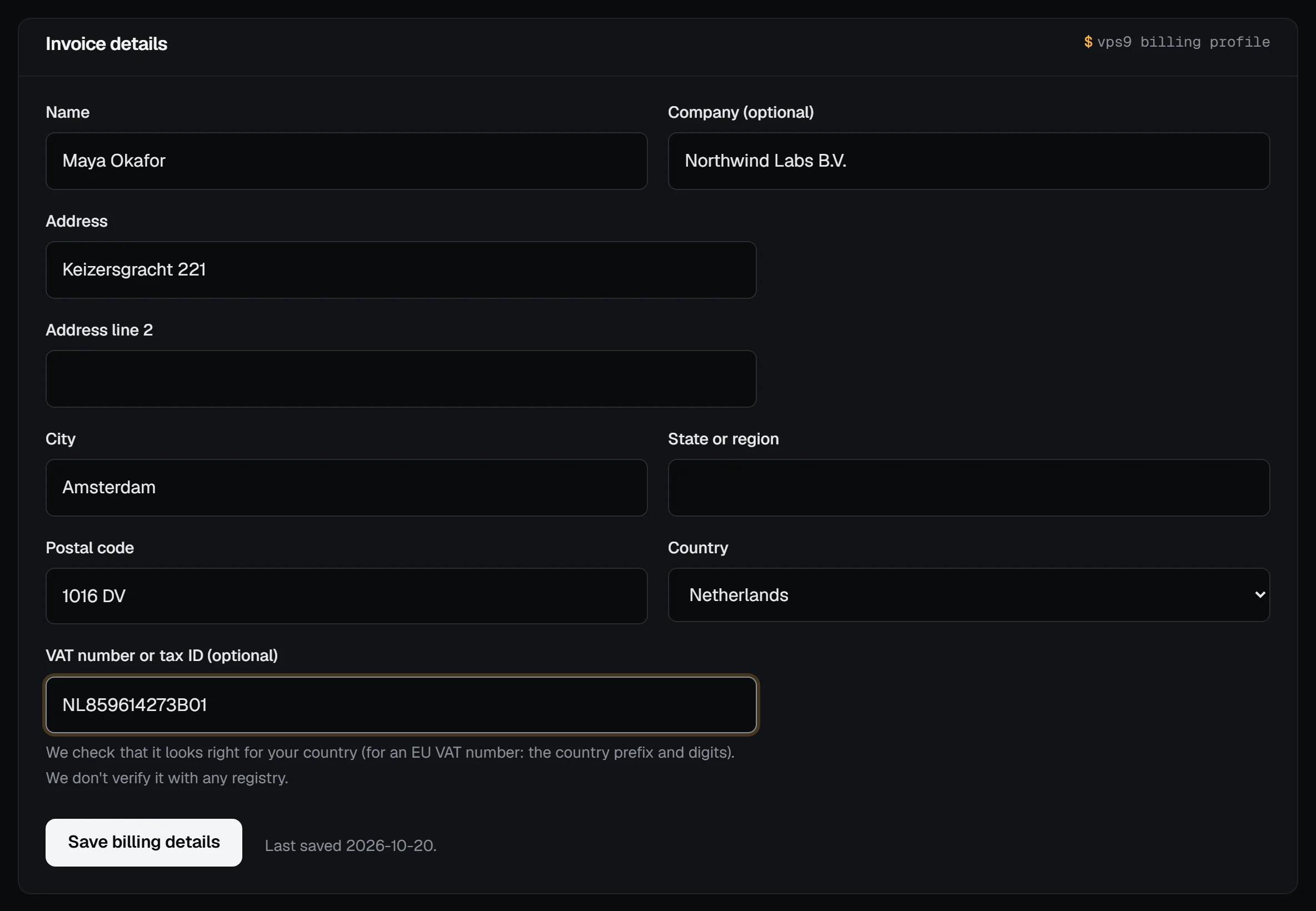
Check it worked
The panel says "Billing details saved." and On your invoices shows exactly how the next invoice will address you. Your account email is always printed under the details.
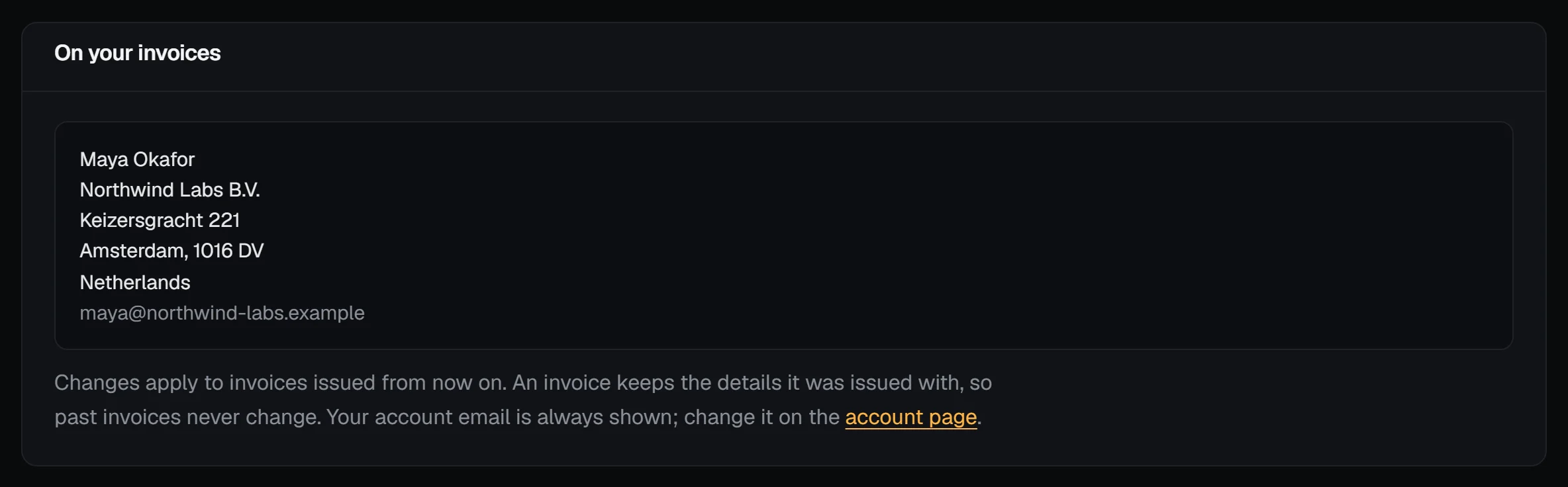
The next invoice you get (a renewal, a top-up, an add-on or a new server) shows the details in its Bill to box, on the page and in the PDF.
How the VAT number is checked
We check that it has the right format for the country you picked, and nothing more:
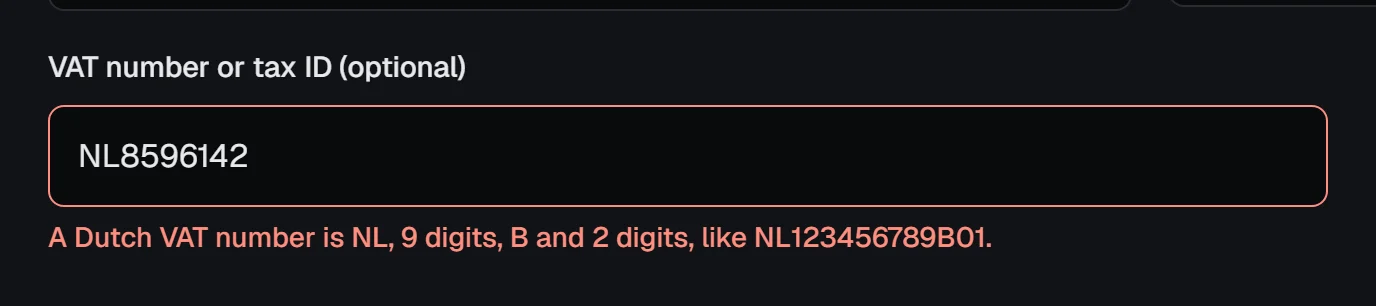
- EU countries: the country prefix and the right digits, for example
NL+ 9 digits +B+ 2 digits, orDE+ 9 digits. Greece usesEL. If you leave the prefix off, we add it. - Other countries we know: the United Kingdom, Switzerland, Norway, Australia, New Zealand, Canada, the United States, India, Japan, Singapore, South Africa, Brazil and Mexico each have their own format, and the error message gives an example.
- Anywhere else: letters and digits, 2 to 32 characters.
We don't look the number up in VIES or any other registry, and having one on file doesn't change the price: we don't charge or calculate VAT or sales tax, and invoices are in US dollars. If your bookkeeping needs anything more, open a billing ticket and ask.
Issued invoices don't change
Each invoice keeps a copy of the details it was issued with. When you change them, invoices from then on use the new ones; earlier invoices stay exactly as they were, so a document you already sent to your accountant never changes under them. An invoice issued before you added any details shows only your account email.
To change the email printed on invoices, change your account email.
Troubleshooting
- "Pick the country your VAT number is from." A tax ID needs a country so we can check its format.
- "That looks like a German VAT number, but your country is Netherlands." The prefix doesn't match the country you picked. Fix one or the other.
- "A tax ID can only contain letters and digits." Remove anything else, such as slashes.
- A name prints as
?in the PDF. The PDF uses Latin fonts only; the invoice page in the panel shows the name correctly.
Next steps
- Download invoices and receipts as PDF
- Your billing overview and upcoming charges
- The API reads and replaces the same details with
GETandPUT /api/v1/billing/profile; see the API reference. In a terminal,vps9 billing profileshows them andvps9 billing profile set --tax-id GB123456789changes only the fields you give.