Ask the AI assistant about your server
Ask about a server in plain English and get an answer from its graphs, events, alerts and firewall, with the commands to check the rest yourself.
The AI assistant answers questions about your servers in plain English: "why is my server slow?", "why can't I reach port 443?", "what changed last night?". It reads what the panel knows about the server, says what it looked at, and links the guide that fits. It runs on Claude, a model made by Anthropic.
It only reads. It can't start, stop or change anything, and it can't see inside your server: no processes, logs, files or disk space. When the answer needs something from inside, it gives you the commands to run and says what each one does.
Ask a question
Open a server and go to Ask AI, or use the box on the server's overview. Type a question and press Ask (or Ctrl+Enter). To ask about all your servers at once, use the box at the bottom of the servers page, or press / and type a question into the command palette.
The answer appears as it is written. Above it, the assistant shows what it is looking at: the usage graph, recent events, the firewall rules and so on. Answers name their source and times in UTC, for example "CPU has averaged 94% since 02:10 UTC (usage graph)".
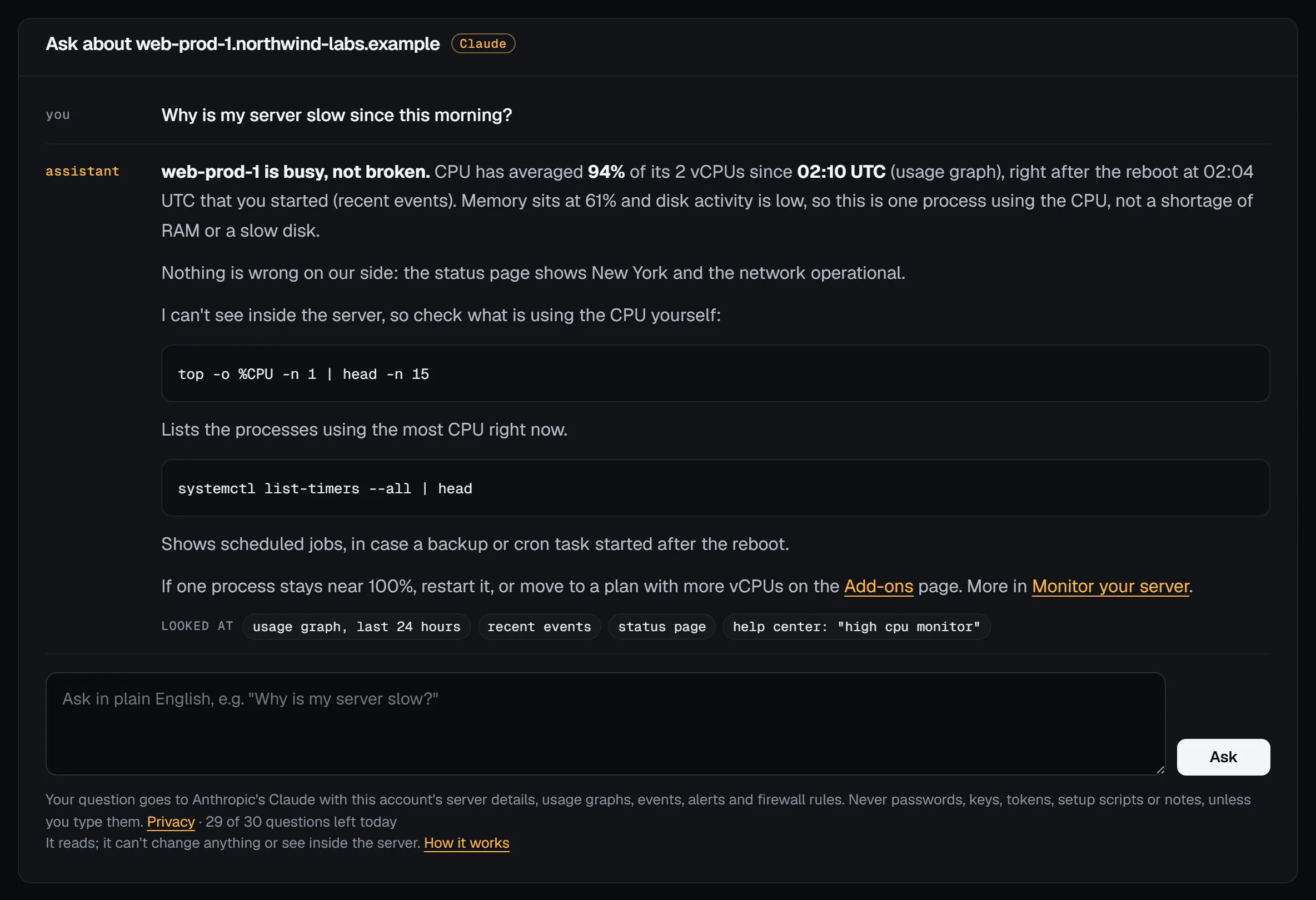
Your conversation with the assistant is your own: other people on the account have theirs. It is kept for 30 days. Delete this conversation on the Ask AI page removes it at once.
Without JavaScript the box still works: the page reloads with the answer.
What it can and can't see
It reads, for the server you ask about:
- its state, plan, size, image, addresses, and whether outbound port 25 is open
- its recent events (starts, reboots, reinstalls, snapshots, firewall saves, failures) and who did them
- its usage graphs: CPU, memory, disk activity, network and this month's transfer
- its alert rules and which are firing
- its panel firewall rules
- its reverse DNS, snapshots and their schedule, off-site backups, and rescue mode
- whether it is in the recycle bin, and until when it can be restored
- recent notifications about it (the account owner's)
- the status page for its location, and this help center
It never sees passwords, SSH private keys, API tokens, setup scripts or your servers' notes, unless you type them into a question (don't: if you do, change them).
What it can't see: anything inside the server. The graphs are measured from outside, so it can tell that the disk is busy, not that it is full; that a port is allowed on the panel firewall, not whether ufw allows it or a service listens on it. For those it suggests commands like df -h, ss -tlnp or ufw status.
Alerts and failures, explained automatically
When an alert fires, or a reboot, snapshot, backup or rescue fails, the assistant looks at the server and adds a short explanation and a next step to the notification. Open it from the bell or the notifications page. The server's overview shows the latest ones too.
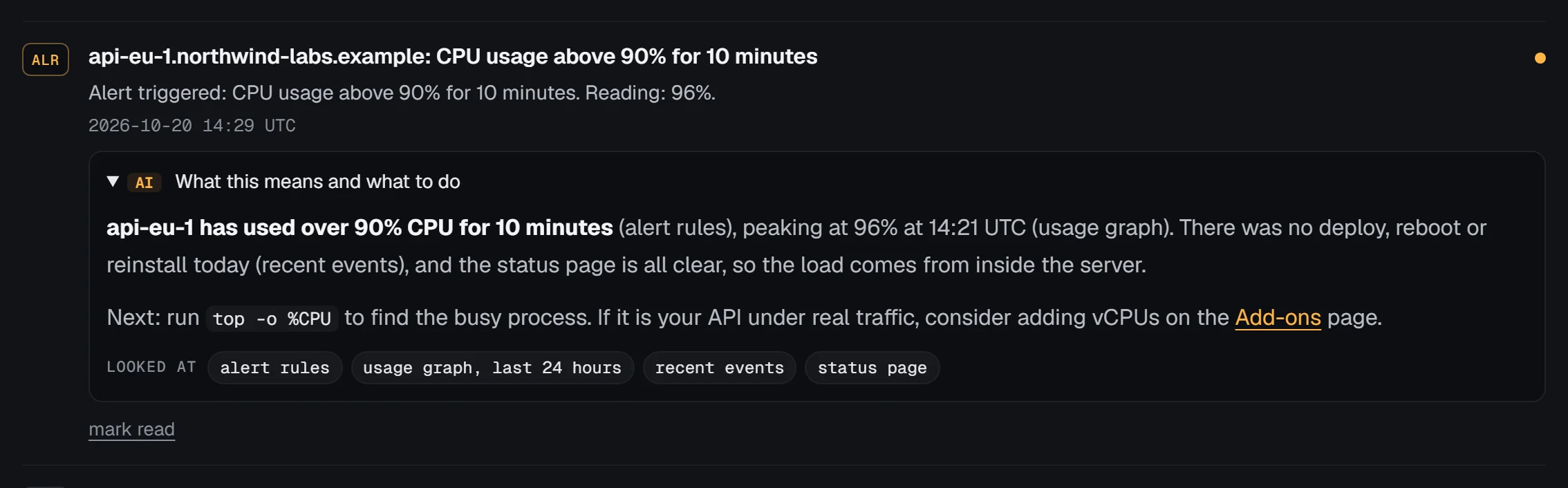
Each incident is explained once, and each account gets at most a few automatic explanations a day. Push notifications and notification channels (Slack, Discord, Telegram and others) carry the notification's title and a link; the explanation is on the panel, where the link goes.
Turn it off, or keep it on demand
The assistant is on for every account. To change that, go to Notification settings and pick one:
- On: answers when asked, and explains alerts and failures automatically.
- On demand only: answers when someone asks; nothing is sent automatically.
- Off: no assistant on this account, for anyone on it.
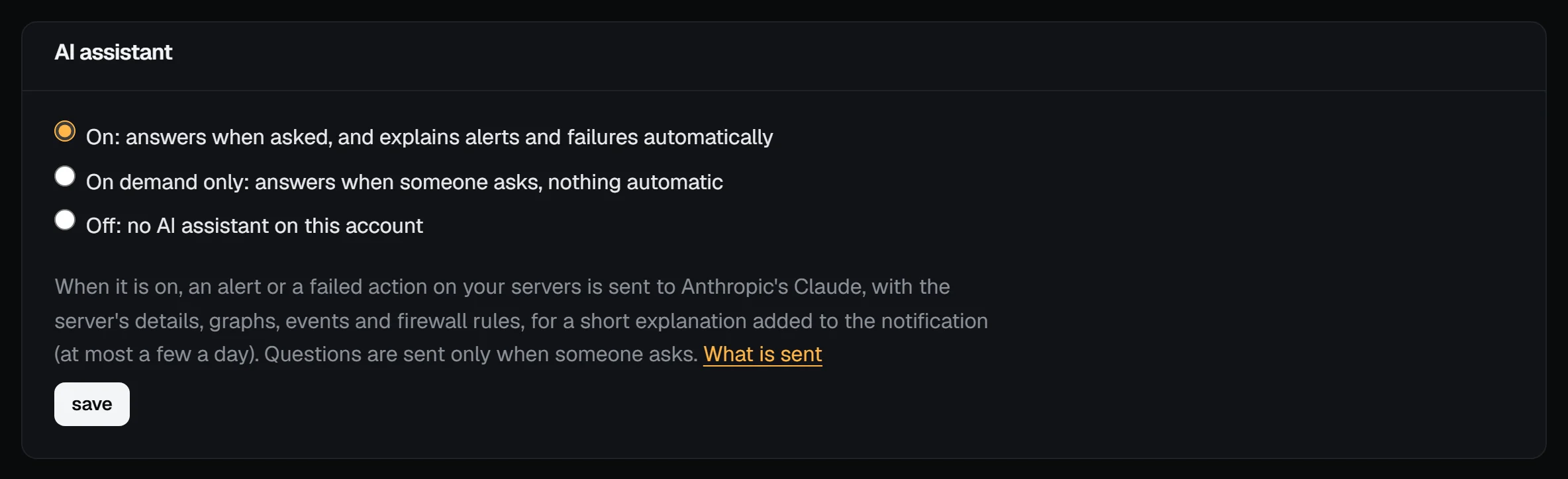
The same setting is in the API: GET /api/v1/assistant and PUT /api/v1/assistant with {"mode": "on_demand"}. See the API reference.
What is sent, and limits
A question, and the server data the assistant reads to answer it, go to Anthropic to produce the answer. With the assistant on, an alert or a failure on your server is sent the same way for its explanation. The privacy policy has the details. Your conversations are in your data export and are deleted with your account.
Each account can ask 30 questions a day (UTC); the box shows how many are left. A question that fails before it is answered isn't counted.
If the assistant says it isn't available, it is either turned off for your account, paused by our staff, or not running right now. Everything else in the panel works as usual, and support is there for anything it can't answer.